> ## Documentation Index
> Fetch the complete documentation index at: https://docs.toolip.io/llms.txt
> Use this file to discover all available pages before exploring further.

# How to Remove Payment Method

> Effortlessly update your payment settings by removing your credit card from your account. Simply follow the instructions to manage your payment methods.

Prefer an enterprise-grade guide? Learn more about Oculus Proxies <a href="https://docs.oculusproxies.com/pricing-billing/remove-credit-card" target="_blank" rel="noopener">Remove Credit Card</a>.

<AccordionGroup>
  <Accordion title="Removing Payment Method">
    <Steps>
      <Step title="Access account settings">
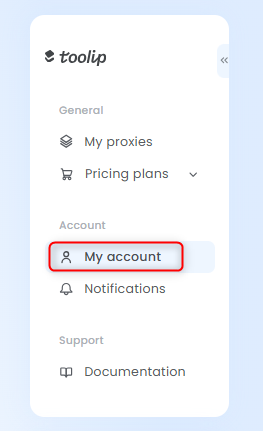
        Open your [Toolip dashboard](https://toolip.io/dashboard) and navigate to **My Account** Settings.
        <Frame as="div" style={{width:"70%"}}>
          <img src="https://mintcdn.com/toolip-d3ca8ce9/mPVR9VcnRd7pGe8I/pricing-billing/img/delete-credit-card-toolip1.png?fit=max&auto=format&n=mPVR9VcnRd7pGe8I&q=85&s=6cc7f3edb08f9c3b6fc9a549abbd95c1" alt="" width="263" height="431" data-path="pricing-billing/img/delete-credit-card-toolip1.png" />
        </Frame>
      </Step>

      <Step title="Remove Payment Method">
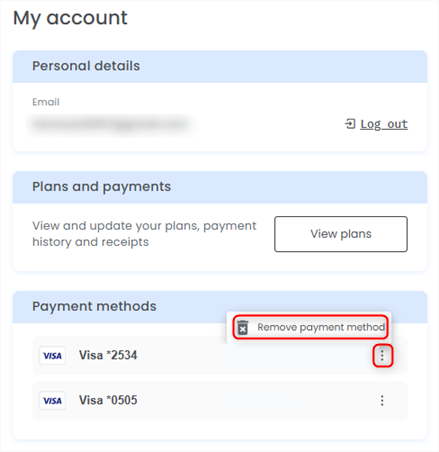
        In **My Account** settings, find the credit card you wish to remove, press the three dots, and choose **Remove payment method**.
        <Frame as="div" style={{width:"70%"}}>
          <img src="https://mintcdn.com/toolip-d3ca8ce9/mPVR9VcnRd7pGe8I/pricing-billing/img/delete-credit-card-toolip2.png?fit=max&auto=format&n=mPVR9VcnRd7pGe8I&q=85&s=9b59cda18cd71a8ddb6d82e8fd1e11b5" alt="" width="439" height="452" data-path="pricing-billing/img/delete-credit-card-toolip2.png" />
        </Frame>
      </Step>
    </Steps>
  </Accordion>

  <Accordion title="Why can't i remove my Payment Method?">
    <Steps>
      <Step title="Deletion Error">
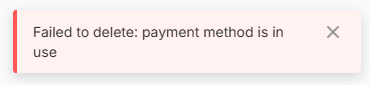
        If you see a **Failed to delete** error, it means the credit card is tied to an active subscription and needs to be updated before it can be removed.
        <Frame as="div" style={{width:"70%"}}>
          <img src="https://mintcdn.com/toolip-d3ca8ce9/mPVR9VcnRd7pGe8I/pricing-billing/img/delete-credit-card-toolip3.png?fit=max&auto=format&n=mPVR9VcnRd7pGe8I&q=85&s=fe82de17644d6bef38a2f983141e7e93" alt="" width="370" height="85" data-path="pricing-billing/img/delete-credit-card-toolip3.png" />
        </Frame>
      </Step>

      <Step title="Change Payment Method">
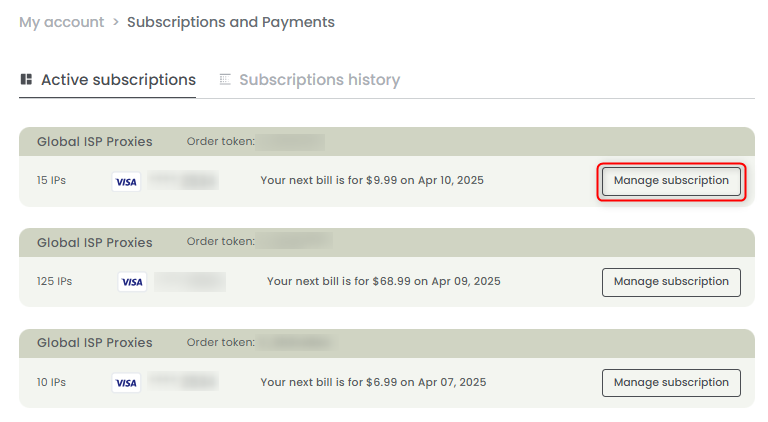
        Navigate to [Subscriptions and Payments](https://toolip.io/dashboard/page/account/section/active), choose the proxy plan linked to the card, and click **Manage Subscription**.
        <Frame as="div" style={{width:"90%"}}>
          <img src="https://mintcdn.com/toolip-d3ca8ce9/mPVR9VcnRd7pGe8I/pricing-billing/img/delete-credit-card-toolip4.png?fit=max&auto=format&n=mPVR9VcnRd7pGe8I&q=85&s=6d94f36094ce442d10073161d95a31d0" alt="" width="768" height="422" data-path="pricing-billing/img/delete-credit-card-toolip4.png" />
        </Frame>
      </Step>

      <Step title="Update Payment Method">
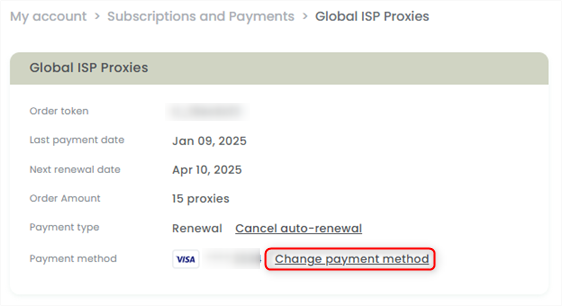
        Click **Change Payment Method** to be redirected to the **Update Payment Method** page, where you can enter your new payment details.
        <Frame as="div" style={{width:"80%"}}>
          <img src="https://mintcdn.com/toolip-d3ca8ce9/mPVR9VcnRd7pGe8I/pricing-billing/img/delete-credit-card-toolip5.png?fit=max&auto=format&n=mPVR9VcnRd7pGe8I&q=85&s=aa480a24b0bfa178aeb768a3d8a12314" alt="" width="562" height="306" data-path="pricing-billing/img/delete-credit-card-toolip5.png" />
        </Frame>
      </Step>
    </Steps>
  </Accordion>
</AccordionGroup>
