> ## Documentation Index
> Fetch the complete documentation index at: https://docs.toolip.io/llms.txt
> Use this file to discover all available pages before exploring further.
# How to Use Toolip with ZennoPoster
> Optimize your automation workflows with Toolip in ZennoPoster. This guide will walk you through setting up Toolip proxies to ensure seamless, secure, and efficient web automation.
 ## What is ZennoPoster?
**ZennoPoster** is a powerful automation tool designed for performing repetitive web tasks without manual intervention. Popular among SEO experts, digital marketers, and web scrapers, ZennoPoster simplifies complex online processes like account registration, content posting, data scraping, and form filling.
With its drag-and-drop workflow builder, users can create automation scripts without coding knowledge. Key features include browser emulation, CAPTCHA solving, proxy integration, and task scheduling. By configuring **Toolip** proxies, you can enhance anonymity, bypass geo-restrictions, and ensure uninterrupted automation.
Prefer an enterprise-grade guide? Learn more about Oculus Proxies Zennoposter Integration Guide.
Targeting search engines like Google, Bing, or Yandex requires a specialized proxy to ensure stable access and avoid blocks. **Toolip’s Search Engine ISP Proxies** are designed specifically for this, providing reliable performance where standard proxies may fail. If your proxy test isn't working on search engines, switching to **Search Engine ISP Proxies** can resolve the issue.
## How to Set Up Toolip With ZennoPoster
1\. Visit the [ZennoPoster website](https://zennolab.com/en/products/zennoposter/) and download the software.
2\. Follow the installation instructions and launch ZennoPoster on your system.
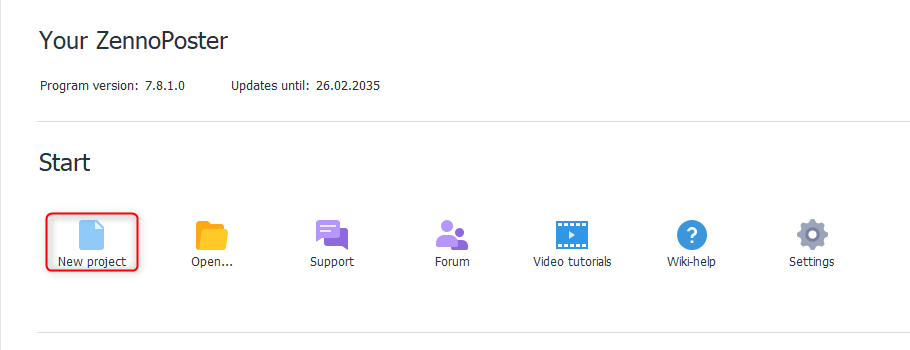
1\. Open ZennoPoster and navigate to **New Project**.
2\. Click to start a new automation workflow.
## What is ZennoPoster?
**ZennoPoster** is a powerful automation tool designed for performing repetitive web tasks without manual intervention. Popular among SEO experts, digital marketers, and web scrapers, ZennoPoster simplifies complex online processes like account registration, content posting, data scraping, and form filling.
With its drag-and-drop workflow builder, users can create automation scripts without coding knowledge. Key features include browser emulation, CAPTCHA solving, proxy integration, and task scheduling. By configuring **Toolip** proxies, you can enhance anonymity, bypass geo-restrictions, and ensure uninterrupted automation.
Prefer an enterprise-grade guide? Learn more about Oculus Proxies Zennoposter Integration Guide.
Targeting search engines like Google, Bing, or Yandex requires a specialized proxy to ensure stable access and avoid blocks. **Toolip’s Search Engine ISP Proxies** are designed specifically for this, providing reliable performance where standard proxies may fail. If your proxy test isn't working on search engines, switching to **Search Engine ISP Proxies** can resolve the issue.
## How to Set Up Toolip With ZennoPoster
1\. Visit the [ZennoPoster website](https://zennolab.com/en/products/zennoposter/) and download the software.
2\. Follow the installation instructions and launch ZennoPoster on your system.
1\. Open ZennoPoster and navigate to **New Project**.
2\. Click to start a new automation workflow.
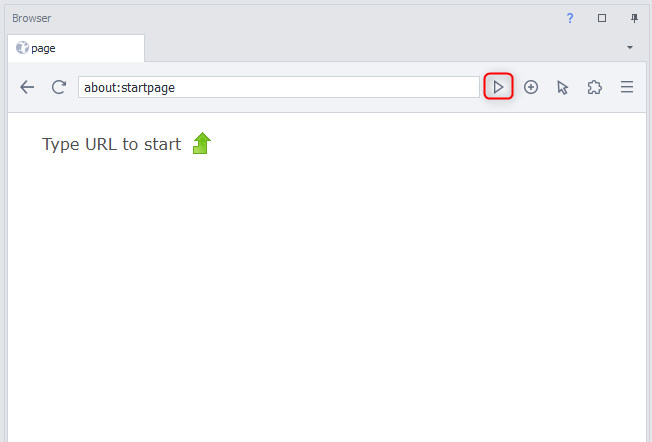
 1\. In the project editor, locate the browser panel.
2\. Click the **Play** button on the right side to initiate a browser session.
1\. In the project editor, locate the browser panel.
2\. Click the **Play** button on the right side to initiate a browser session.
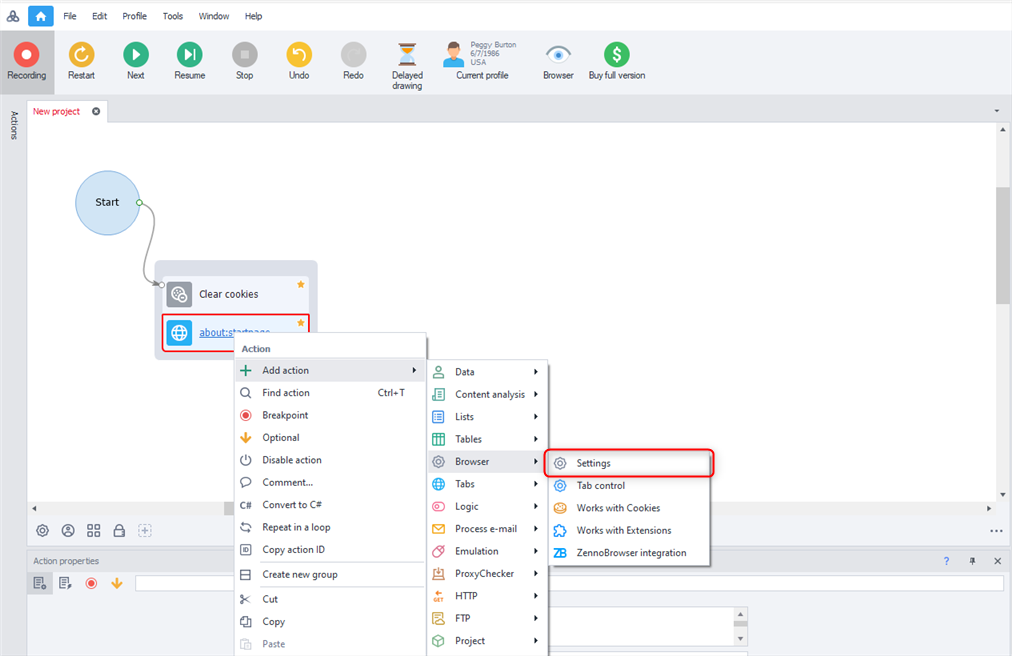
 1\. Right-click within the workflow area.
2\. Select **Add Action**, then navigate to **Browser** > **Settings**.
1\. Right-click within the workflow area.
2\. Select **Add Action**, then navigate to **Browser** > **Settings**.
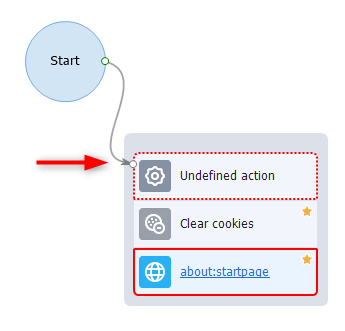
 1\. If an **Undefined Action Box** appears outside the main workflow, drag it into the sequence.
2\. Ensure that it connects to the **Start** node for correct execution.
1\. If an **Undefined Action Box** appears outside the main workflow, drag it into the sequence.
2\. Ensure that it connects to the **Start** node for correct execution.
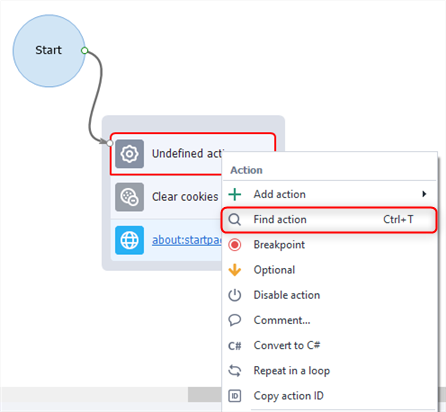
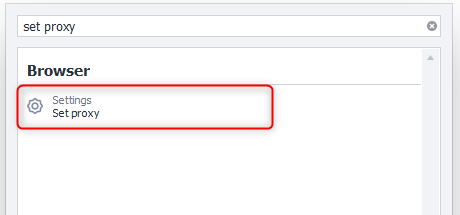
 1\. Right-click inside the workflow and select **Find Action**.
2\. In the search bar, type **Set Proxy** and select it.
1\. Right-click inside the workflow and select **Find Action**.
2\. In the search bar, type **Set Proxy** and select it.
 1\. Locate the **Proxy Settings** panel at the bottom.
2\. Input your Toolip proxy credentials using the following format: `username:password@proxy.toolip.io:port`
3\. Double-check the details to avoid connectivity issues.
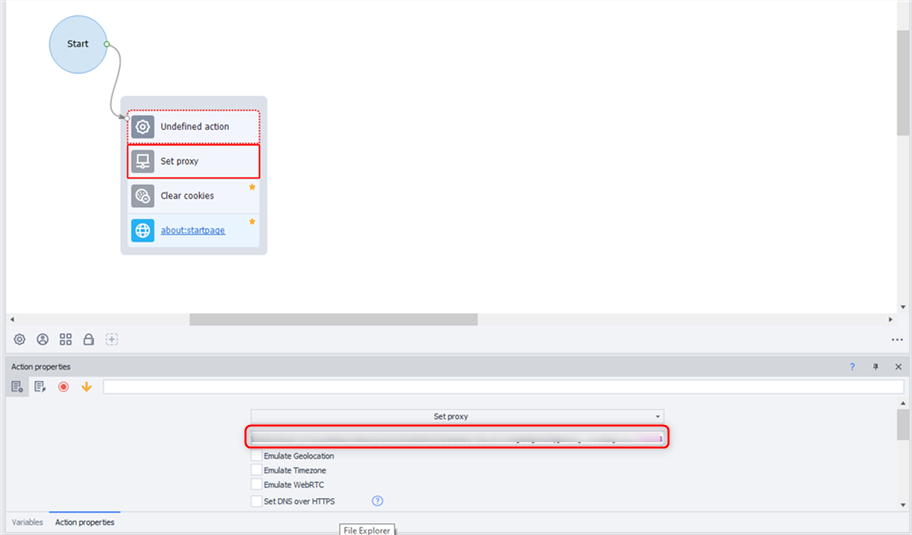
1\. Locate the **Proxy Settings** panel at the bottom.
2\. Input your Toolip proxy credentials using the following format: `username:password@proxy.toolip.io:port`
3\. Double-check the details to avoid connectivity issues.
 1\. Click **Restart** at the top of the ZennoPoster interface.
2\. When prompted, select **Yes, step by step** to ensure the proxy settings take effect.
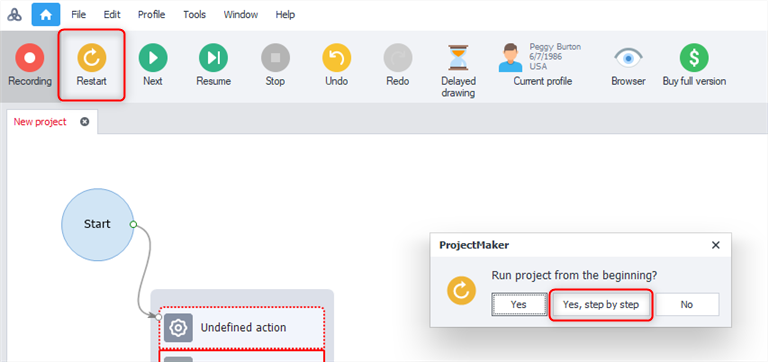
1\. Click **Restart** at the top of the ZennoPoster interface.
2\. When prompted, select **Yes, step by step** to ensure the proxy settings take effect.
 With Toolip proxies successfully integrated into ZennoPoster, your automated workflows will now run securely and efficiently. Whether you're managing multiple accounts, scraping data, or performing large-scale tasks, this setup ensures reliability, anonymity, and unrestricted access. 🚀