> ## Documentation Index
> Fetch the complete documentation index at: https://docs.toolip.io/llms.txt
> Use this file to discover all available pages before exploring further.
# How to Use Toolip with XLogin
> Enhance your XLogin experience with Toolip’s secure and anonymous proxies. This guide walks you through setting up Toolip proxies for smoother, safer, and more efficient online automation.
 ## What is XLogin?
XLogin is a browser profile management tool designed to help you run multiple online accounts without them interfering with each other. Each profile acts like a separate, isolated browser environment, making it easier to handle tasks like scaling e-commerce operations, managing social media campaigns, and conducting detailed research. By integrating Toolip proxies, you add an extra layer of privacy and reliability to every profile.
Prefer an enterprise-grade guide? Learn more about Oculus Proxies Xlogin Integration Guide.
Targeting search engines like Google, Bing, or Yandex requires a specialized proxy to ensure stable access and avoid blocks. **Toolip’s Search Engine ISP Proxies** are designed specifically for this, providing reliable performance where standard proxies may fail. If your proxy test isn't working on search engines, switching to **Search Engine ISP Proxies** can resolve the issue.
## How to Set Up Toolip With XLogin
1\. Visit [XLogin](https://xlogin.us/) and enter your XLogin credentials.
2\. Once inside the dashboard, you’ll see a list of browser profiles if you’ve created any before.
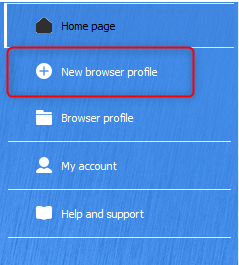
1\. If you’re new to XLogin, click **New browser profile** to set up a fresh browser profile.
2\. If you already have profiles, choose one that you’d like to configure with Toolip proxies, then select **Edit** or **Settings** to access its configuration.
## What is XLogin?
XLogin is a browser profile management tool designed to help you run multiple online accounts without them interfering with each other. Each profile acts like a separate, isolated browser environment, making it easier to handle tasks like scaling e-commerce operations, managing social media campaigns, and conducting detailed research. By integrating Toolip proxies, you add an extra layer of privacy and reliability to every profile.
Prefer an enterprise-grade guide? Learn more about Oculus Proxies Xlogin Integration Guide.
Targeting search engines like Google, Bing, or Yandex requires a specialized proxy to ensure stable access and avoid blocks. **Toolip’s Search Engine ISP Proxies** are designed specifically for this, providing reliable performance where standard proxies may fail. If your proxy test isn't working on search engines, switching to **Search Engine ISP Proxies** can resolve the issue.
## How to Set Up Toolip With XLogin
1\. Visit [XLogin](https://xlogin.us/) and enter your XLogin credentials.
2\. Once inside the dashboard, you’ll see a list of browser profiles if you’ve created any before.
1\. If you’re new to XLogin, click **New browser profile** to set up a fresh browser profile.
2\. If you already have profiles, choose one that you’d like to configure with Toolip proxies, then select **Edit** or **Settings** to access its configuration.
 1\. Provide a **Display Name** for your browser profile.
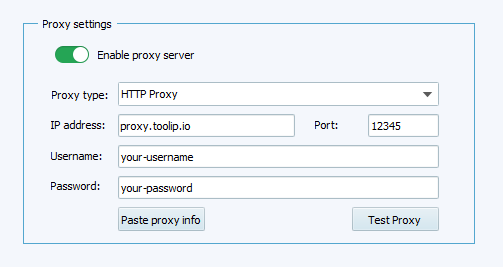
2\. Click **Setting proxy server** to open the proxy configuration panel.
1\. Select the correct protocol (`HTTP`, `HTTPS`, or `SOCKS5`) based on your Toolip proxy type.
2\. Fill in the required fields:
* **IP address**: `proxy.toolip.io`
* **Port**: The port number from your [Toolip dashboard](https://toolip.io/dashboard).
* **Username**: Your Toolip proxy `username`.
* **Password**: Your Toolip proxy `password`.
3\. Double-check for accuracy — typos or incorrect details will prevent a successful connection.
1\. Provide a **Display Name** for your browser profile.
2\. Click **Setting proxy server** to open the proxy configuration panel.
1\. Select the correct protocol (`HTTP`, `HTTPS`, or `SOCKS5`) based on your Toolip proxy type.
2\. Fill in the required fields:
* **IP address**: `proxy.toolip.io`
* **Port**: The port number from your [Toolip dashboard](https://toolip.io/dashboard).
* **Username**: Your Toolip proxy `username`.
* **Password**: Your Toolip proxy `password`.
3\. Double-check for accuracy — typos or incorrect details will prevent a successful connection.
 For geo-targeted proxies, format your username as `your-username-country-US` to select a US exit node.
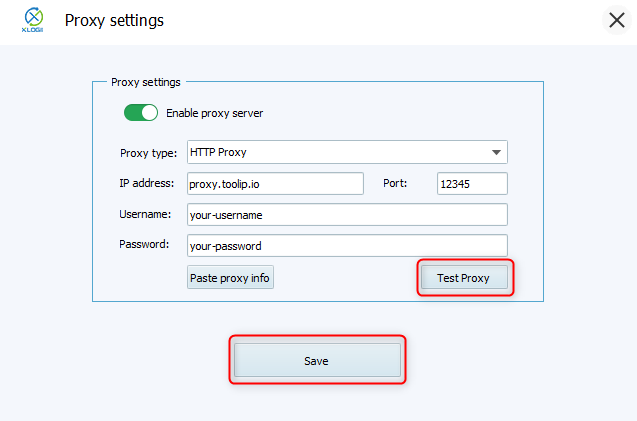
1\. Click **Test Proxy** to verify that the connection is working.
2\. If the test is successful, select **Save** to apply your proxy settings.
For geo-targeted proxies, format your username as `your-username-country-US` to select a US exit node.
1\. Click **Test Proxy** to verify that the connection is working.
2\. If the test is successful, select **Save** to apply your proxy settings.
 1\. Launch the updated browser profile.
2\. Navigate to [http://httpbin.org/ip](http://httpbin.org/ip).
3\. Ensure that the displayed IP matches the Toolip proxy’s IP, confirming the setup is correct.
By following these steps, you’ve successfully integrated **Toolip** into **XLogin**. Now you can manage multiple profiles with enhanced privacy, reduced detection risks, and more stable connections. Enjoy a smoother, more secure browsing experience while handling your online tasks efficiently!
1\. Launch the updated browser profile.
2\. Navigate to [http://httpbin.org/ip](http://httpbin.org/ip).
3\. Ensure that the displayed IP matches the Toolip proxy’s IP, confirming the setup is correct.
By following these steps, you’ve successfully integrated **Toolip** into **XLogin**. Now you can manage multiple profiles with enhanced privacy, reduced detection risks, and more stable connections. Enjoy a smoother, more secure browsing experience while handling your online tasks efficiently!