> ## Documentation Index
> Fetch the complete documentation index at: https://docs.toolip.io/llms.txt
> Use this file to discover all available pages before exploring further.
# How to Set Up Toolip With WADE Browser
> Boost your online privacy and manage multiple accounts efficiently by integrating Toolip with WADE Browser. Follow this guide to configure proxies for secure and seamless browsing.
 ## What is WADE Browser?
**WADE Browser** is a powerful anti-detect browser designed for managing multiple online accounts while ensuring anonymity. It prevents fingerprint tracking by generating a unique digital fingerprint for each browser profile, making each account appear as a separate user. By integrating **Toolip**, you enhance security, prevent detection, and optimize automation workflows for smooth operations.
Prefer an enterprise-grade guide? Learn more about Oculus Proxies Wade Browser Integration Guide.
Targeting search engines like Google, Bing, or Yandex requires a specialized proxy to ensure stable access and avoid blocks. **Toolip’s Search Engine ISP Proxies** are designed specifically for this, providing reliable performance where standard proxies may fail. If your proxy test isn't working on search engines, switching to **Search Engine ISP Proxies** can resolve the issue.
## How to Integrate Toolip With WADE Browser
1\. Visit the [WADE Browser website](https://wade.is/) and download the application.
2\. Follow the installation instructions to complete the setup.
1\. Open **WADE Browser**.
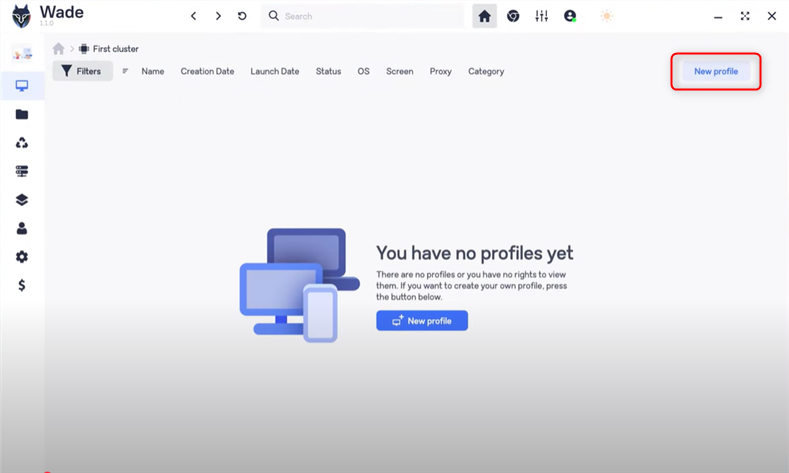
2\. Click **New Profile** to begin setting up a new browsing session.
## What is WADE Browser?
**WADE Browser** is a powerful anti-detect browser designed for managing multiple online accounts while ensuring anonymity. It prevents fingerprint tracking by generating a unique digital fingerprint for each browser profile, making each account appear as a separate user. By integrating **Toolip**, you enhance security, prevent detection, and optimize automation workflows for smooth operations.
Prefer an enterprise-grade guide? Learn more about Oculus Proxies Wade Browser Integration Guide.
Targeting search engines like Google, Bing, or Yandex requires a specialized proxy to ensure stable access and avoid blocks. **Toolip’s Search Engine ISP Proxies** are designed specifically for this, providing reliable performance where standard proxies may fail. If your proxy test isn't working on search engines, switching to **Search Engine ISP Proxies** can resolve the issue.
## How to Integrate Toolip With WADE Browser
1\. Visit the [WADE Browser website](https://wade.is/) and download the application.
2\. Follow the installation instructions to complete the setup.
1\. Open **WADE Browser**.
2\. Click **New Profile** to begin setting up a new browsing session.
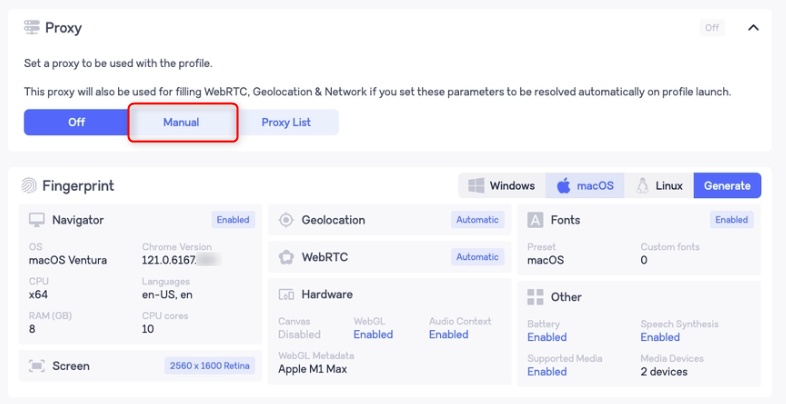
 1\. In the **Proxy** section on the right, choose **Manual** to enable custom proxy settings.
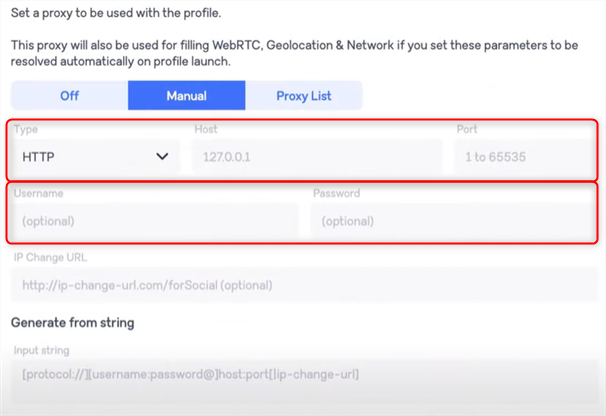
 1\. Fill in the following proxy details from your [Toolip dashboard](https://toolip.io/dashboard/page/plans):
* **Type**: Select HTTP, HTTPS, or SOCKS5.
* **Host**: Enter `proxy.toolip.io`.
* **Port**: Input the port number provided by Toolip.
* **Username**: Your Toolip username.
* **Password**: Your Toolip password.
1\. Fill in the following proxy details from your [Toolip dashboard](https://toolip.io/dashboard/page/plans):
* **Type**: Select HTTP, HTTPS, or SOCKS5.
* **Host**: Enter `proxy.toolip.io`.
* **Port**: Input the port number provided by Toolip.
* **Username**: Your Toolip username.
* **Password**: Your Toolip password.
 For geo-specific proxies, adjust the username format to `your-username-country-XX` (e.g., `your-username-country-US` for a US-based proxy).
1\. Click **Scan Proxy** to verify the connection.
For geo-specific proxies, adjust the username format to `your-username-country-XX` (e.g., `your-username-country-US` for a US-based proxy).
1\. Click **Scan Proxy** to verify the connection.
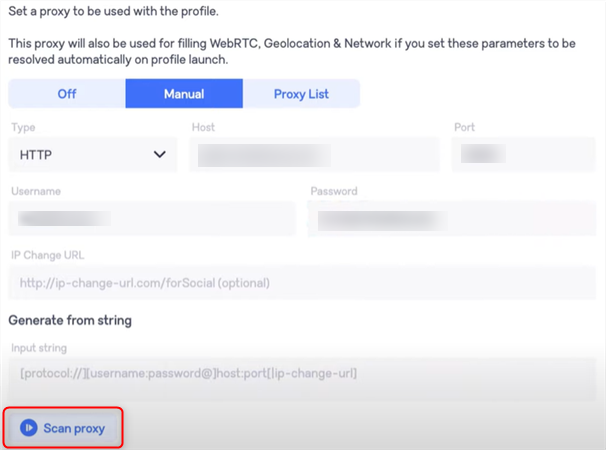 2\. If the connection is successful, the proxy details will be displayed next to the **Scan Proxy** button.
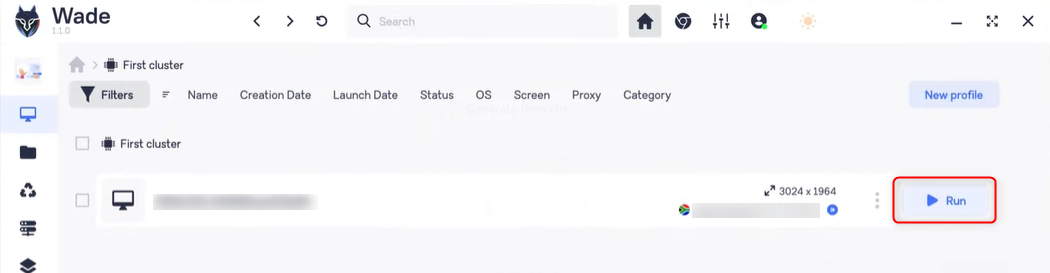
 1\. Return to the profile list and locate the browser profile you configured.
2\. Click the **Run** button on the right to launch the profile with the configured Toolip proxy.
1\. Return to the profile list and locate the browser profile you configured.
2\. Click the **Run** button on the right to launch the profile with the configured Toolip proxy.
 With **Toolip** integrated into **WADE Browser**, you now have a powerful and secure environment for managing multiple accounts, automating workflows, and ensuring private browsing. Stay undetected and browse with confidence!