> ## Documentation Index
> Fetch the complete documentation index at: https://docs.toolip.io/llms.txt
> Use this file to discover all available pages before exploring further.
# How to Set Up Toolip With VMLogin
> Integrating Toolip with VMLogin ensures secure, anonymous browsing and efficient multi-account management, minimizing the risk of detection and IP bans.
 ## What is VMLogin?
**VMLogin** is an advanced anti-detection browser designed to help you securely manage multiple online accounts without being flagged. By creating virtual browser profiles with unique digital fingerprints, VMLogin ensures that websites treat each profile as an independent user.
Ideal for professionals in e-commerce, social media management, affiliate marketing, and web scraping, VMLogin combines robust anti-detection features with ease of use. Whether you're managing accounts solo or collaborating with a team, VMLogin keeps your operations secure and efficient.
Prefer an enterprise-grade guide? Learn more about Oculus Proxies Vmlogin Integration Guide.
Targeting search engines like Google, Bing, or Yandex requires a specialized proxy to ensure stable access and avoid blocks. **Toolip’s Search Engine ISP Proxies** are designed specifically for this, providing reliable performance where standard proxies may fail. If your proxy test isn't working on search engines, switching to **Search Engine ISP Proxies** can resolve the issue.
## How to Set Up Toolip With VMLogin
1\. Visit the [VMLogin download page](https://www.vmlogin.us/download.html).
2\. Download and install the application.
3\. Launch VMLogin and log in to your account.
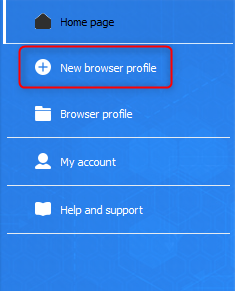
4\. From the main menu, click **New Browser Profile** to begin setting up a new profile.
## What is VMLogin?
**VMLogin** is an advanced anti-detection browser designed to help you securely manage multiple online accounts without being flagged. By creating virtual browser profiles with unique digital fingerprints, VMLogin ensures that websites treat each profile as an independent user.
Ideal for professionals in e-commerce, social media management, affiliate marketing, and web scraping, VMLogin combines robust anti-detection features with ease of use. Whether you're managing accounts solo or collaborating with a team, VMLogin keeps your operations secure and efficient.
Prefer an enterprise-grade guide? Learn more about Oculus Proxies Vmlogin Integration Guide.
Targeting search engines like Google, Bing, or Yandex requires a specialized proxy to ensure stable access and avoid blocks. **Toolip’s Search Engine ISP Proxies** are designed specifically for this, providing reliable performance where standard proxies may fail. If your proxy test isn't working on search engines, switching to **Search Engine ISP Proxies** can resolve the issue.
## How to Set Up Toolip With VMLogin
1\. Visit the [VMLogin download page](https://www.vmlogin.us/download.html).
2\. Download and install the application.
3\. Launch VMLogin and log in to your account.
4\. From the main menu, click **New Browser Profile** to begin setting up a new profile.
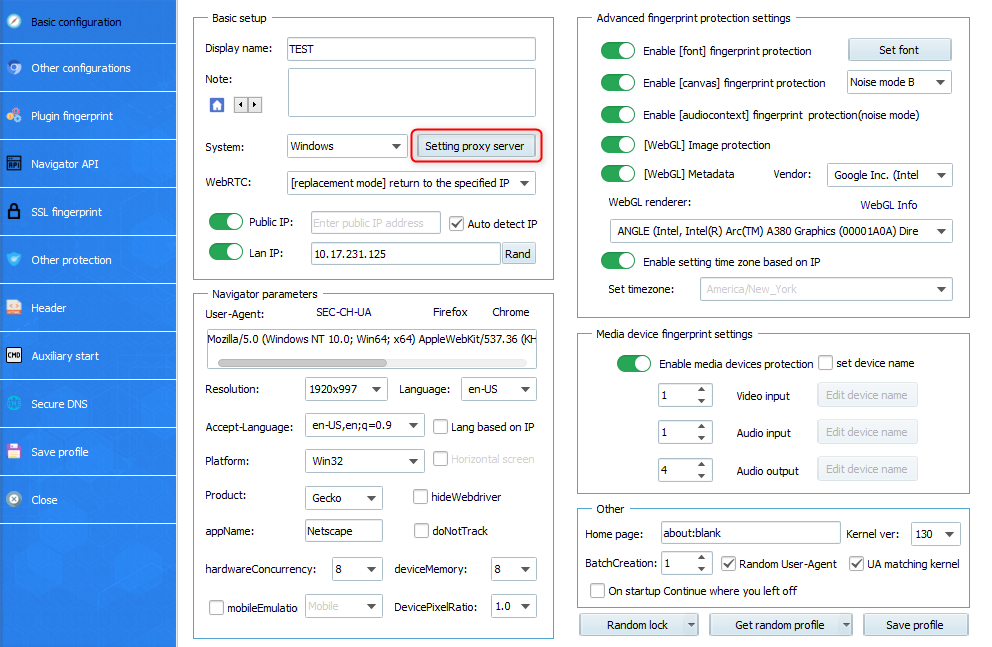
 1\. In the **Display Name** field, give your profile a recognizable name.
2\. Click **Setting Proxy Server** to access the proxy configuration options.
1\. In the **Display Name** field, give your profile a recognizable name.
2\. Click **Setting Proxy Server** to access the proxy configuration options.
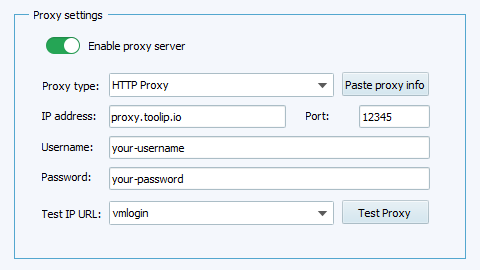
 3\. Toggle **Enable Proxy Server** to **On** and enter your Toolip proxy details:
* **Proxy Type**: Select `HTTP`, `HTTPS`, or `SOCKS5` based on your proxy type.
* **IP Address**: Input `proxy.toolip.io`.
* **Port**: Use the port number displayed in your [Toolip dashboard](https://toolip.io/dashboard/page/plans).
* **Username**: Enter your Toolip proxy username.
* **Password**: Enter your Toolip proxy password.
3\. Toggle **Enable Proxy Server** to **On** and enter your Toolip proxy details:
* **Proxy Type**: Select `HTTP`, `HTTPS`, or `SOCKS5` based on your proxy type.
* **IP Address**: Input `proxy.toolip.io`.
* **Port**: Use the port number displayed in your [Toolip dashboard](https://toolip.io/dashboard/page/plans).
* **Username**: Enter your Toolip proxy username.
* **Password**: Enter your Toolip proxy password.
 For country-specific proxies, you can enter a format like `your-username-country-US` to receive a US exit node.
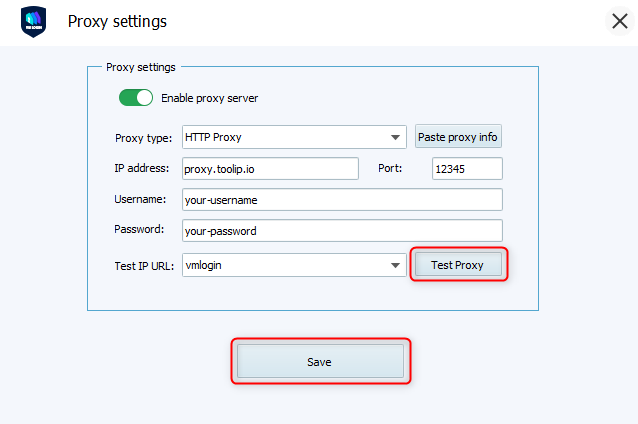
1\. Click **Test Proxy** to verify the connection.
2\. If the test succeeds and displays your Toolip proxy’s IP details, click **Confirm** to save the proxy settings.
For country-specific proxies, you can enter a format like `your-username-country-US` to receive a US exit node.
1\. Click **Test Proxy** to verify the connection.
2\. If the test succeeds and displays your Toolip proxy’s IP details, click **Confirm** to save the proxy settings.
 1\. After completing the proxy configuration and other settings, click **Save Profile** to finalize the setup.
2\. Launch the browser profile by clicking **Start**.
You’ve successfully integrated **Toolip** with **VMLogin**. Enjoy secure, anonymous browsing and efficient multi-account management without the risk of detection or bans.
1\. After completing the proxy configuration and other settings, click **Save Profile** to finalize the setup.
2\. Launch the browser profile by clicking **Start**.
You’ve successfully integrated **Toolip** with **VMLogin**. Enjoy secure, anonymous browsing and efficient multi-account management without the risk of detection or bans.