> ## Documentation Index
> Fetch the complete documentation index at: https://docs.toolip.io/llms.txt
> Use this file to discover all available pages before exploring further.
# How to Set Up Toolip With Viber
> Take full advantage of Viber together with Toolip. Follow this step-by-step guide to configure secure and anonymous proxy connections for private and unrestricted communication.
## What is Viber?
**Viber** is a free and secure messaging app that allows calls and messages to anyone, anywhere. With end-to-end encryption, it ensures privacy while keeping conversations accessible across devices. Integrating **Toolip** enhances anonymity, bypasses geo-blocks, and secures connections for seamless and unrestricted communication.
Prefer an enterprise-grade guide? Learn more about Oculus Proxies Viber Integration Guide.
Targeting search engines like Google, Bing, or Yandex requires a specialized proxy to ensure stable access and avoid blocks. **Toolip’s Search Engine ISP Proxies** are designed specifically for this, providing reliable performance where standard proxies may fail. If your proxy test isn't working on search engines, switching to **Search Engine ISP Proxies** can resolve the issue.
## How to Integrate Toolip With Viber
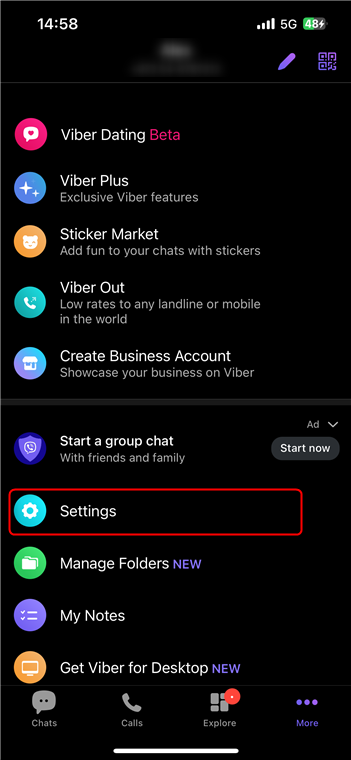
In the app, go to the **More** tab and navigate to **Settings**.
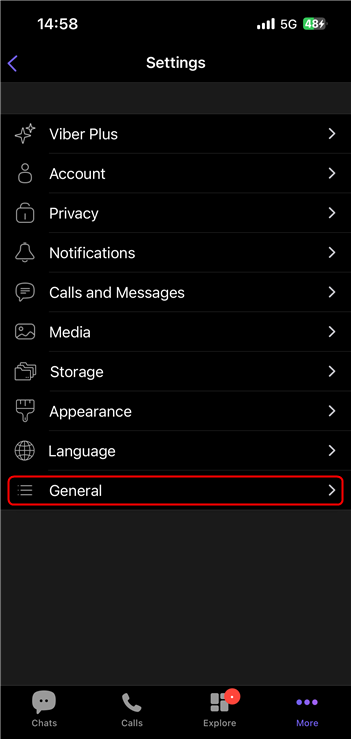
 Navigate to **General** from the settings menu.
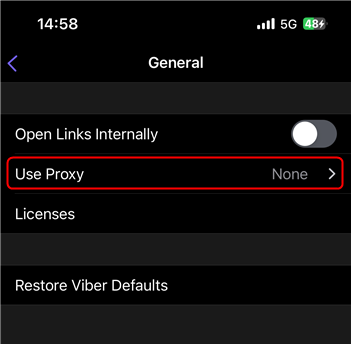
 Tap **Use Proxy**.
 Choose the appropriate proxy `Type` and enter the `Host`, `Port(31115)`, `Username`, and `Password` and return back.
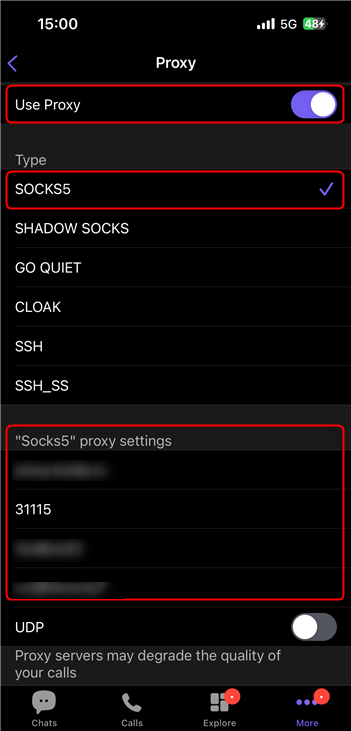 Close and reopen the app to apply the settings and connect to the proxy.