> ## Documentation Index
> Fetch the complete documentation index at: https://docs.toolip.io/llms.txt
> Use this file to discover all available pages before exploring further.
# How to Set Up Toolip With Tor Browser
> Enhance your privacy and safeguard your online activities with Tooltip in Tor Browser. This guide will walk you through configuring secure and reliable proxy connections to maximize anonymity while browsing the web.
 ### What is Tor Browser?
**Tor Browser** is a privacy-focused browser designed for users who prioritize anonymity and security online. It routes internet traffic through the Tor network, encrypting data and masking IP addresses to prevent tracking and surveillance. Tor Browser is widely used by journalists, activists, and privacy-conscious individuals to bypass censorship, access restricted content, and browse the web without revealing their identity. With **Tooltip**, you can further strengthen your anonymity, utilize secure proxy connections, and maintain seamless private browsing.
Prefer an enterprise-grade guide? Learn more about Oculus Proxies Tor Browser Integration Guide.
Targeting search engines like Google, Bing, or Yandex requires a specialized proxy to ensure stable access and avoid blocks. **Toolip’s Search Engine ISP Proxies** are designed specifically for this, providing reliable performance where standard proxies may fail. If your proxy test isn't working on search engines, switching to **Search Engine ISP Proxies** can resolve the issue.
## How to Set Up Toolip With Tor Browser
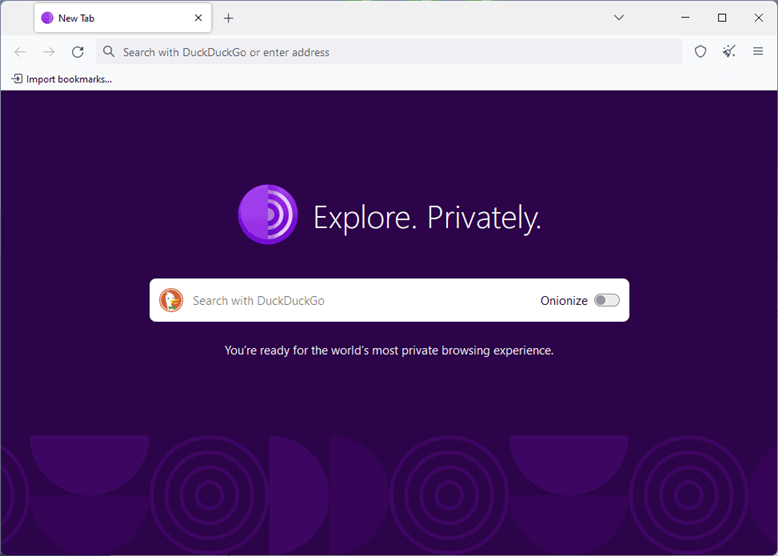
[Download](https://www.torproject.org/download/) and install Tor Browser.
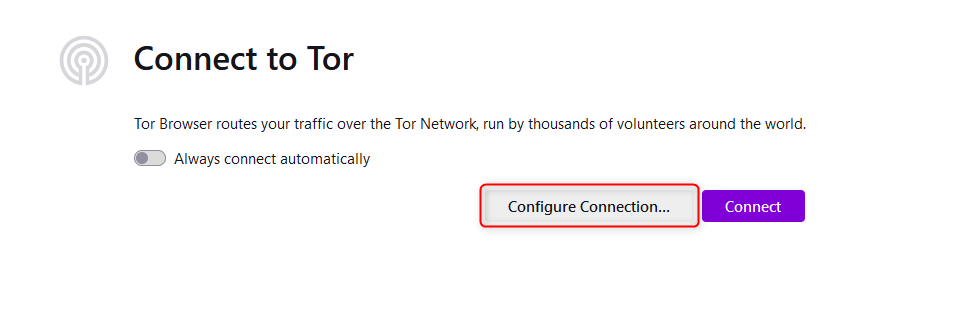
Launch the browser and select **Configure Connection**.
### What is Tor Browser?
**Tor Browser** is a privacy-focused browser designed for users who prioritize anonymity and security online. It routes internet traffic through the Tor network, encrypting data and masking IP addresses to prevent tracking and surveillance. Tor Browser is widely used by journalists, activists, and privacy-conscious individuals to bypass censorship, access restricted content, and browse the web without revealing their identity. With **Tooltip**, you can further strengthen your anonymity, utilize secure proxy connections, and maintain seamless private browsing.
Prefer an enterprise-grade guide? Learn more about Oculus Proxies Tor Browser Integration Guide.
Targeting search engines like Google, Bing, or Yandex requires a specialized proxy to ensure stable access and avoid blocks. **Toolip’s Search Engine ISP Proxies** are designed specifically for this, providing reliable performance where standard proxies may fail. If your proxy test isn't working on search engines, switching to **Search Engine ISP Proxies** can resolve the issue.
## How to Set Up Toolip With Tor Browser
[Download](https://www.torproject.org/download/) and install Tor Browser.
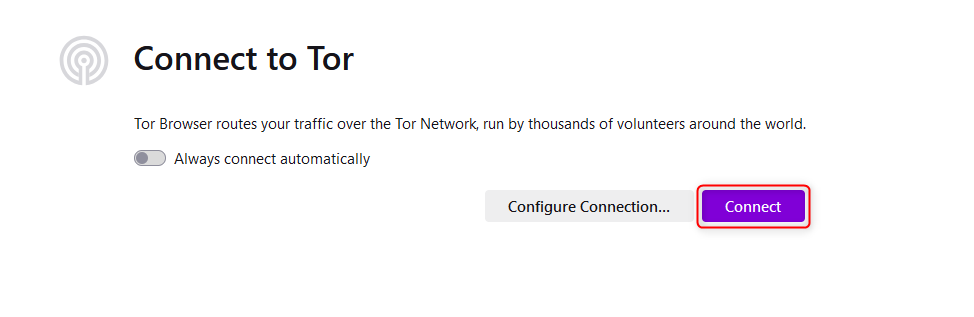
Launch the browser and select **Configure Connection**.
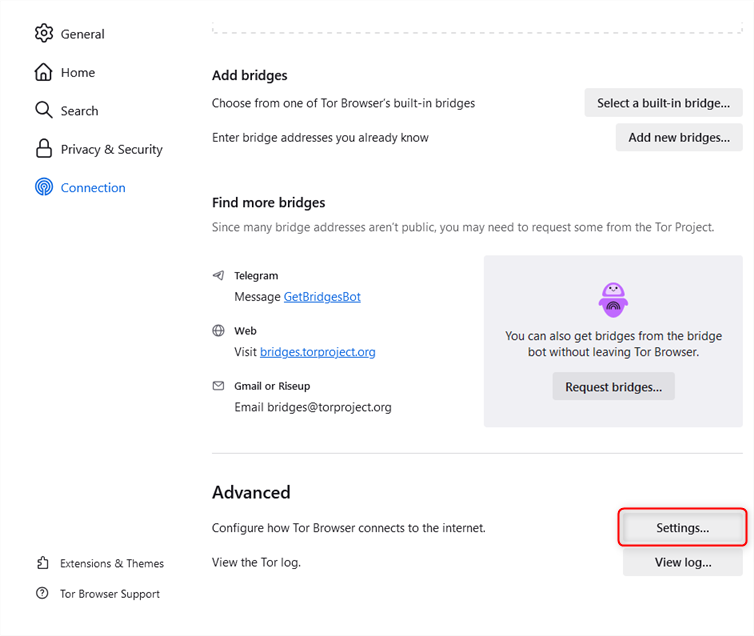
 Navigate to the **Advanced** section and open **Settings**.
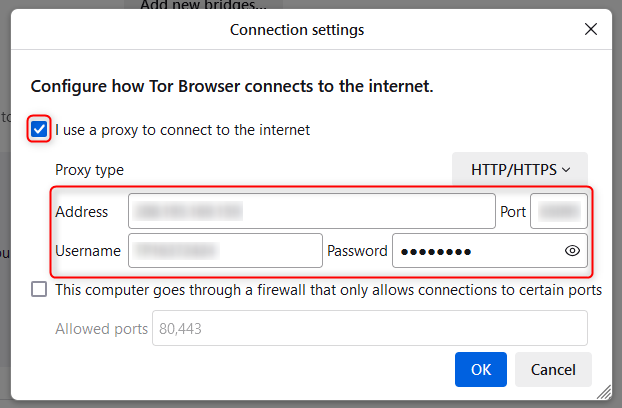
 Enable **I use a proxy to connect to the internet**, then enter the `Address`, `Port`, `Username`, and `Password`. Click **OK**.
 Close the settings menu and select **Connect**.
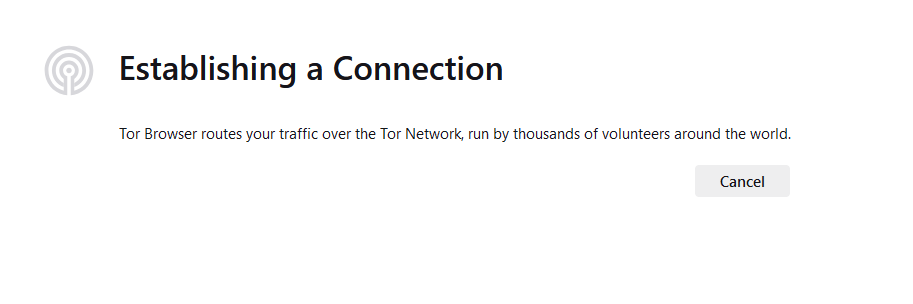
 Wait a moment as the connection establishes (this may take a minute or two).
 Once connected, enjoy browsing **Tor with Tooltip**.