> ## Documentation Index
> Fetch the complete documentation index at: https://docs.toolip.io/llms.txt
> Use this file to discover all available pages before exploring further.
# How to Set Up Toolip With TexAu
> Maximize the power of automation with Toolip on TexAu. Follow this step-by-step guide to configure secure and anonymous proxy connections for streamlined automation workflows.
 ## What is TexAu?
**TexAu** is a growth automation platform designed to help marketers and businesses scale their lead generation and online engagement efforts. By combining TexAu’s automation capabilities with **Toolip**, you can protect your identity, access geo-targeted data, and reduce the risk of IP bans.
Prefer an enterprise-grade guide? Learn more about Oculus Proxies Texau Integration Guide.
Targeting search engines like Google, Bing, or Yandex requires a specialized proxy to ensure stable access and avoid blocks. **Toolip’s Search Engine ISP Proxies** are designed specifically for this, providing reliable performance where standard proxies may fail. If your proxy test isn't working on search engines, switching to **Search Engine ISP Proxies** can resolve the issue.
## How to Integrate Toolip With TexAu
1\. Visit the [TexAu website](https://texau.com/) and log in to your account.
2\. Navigate to the **Dashboard** to access your automation tools.
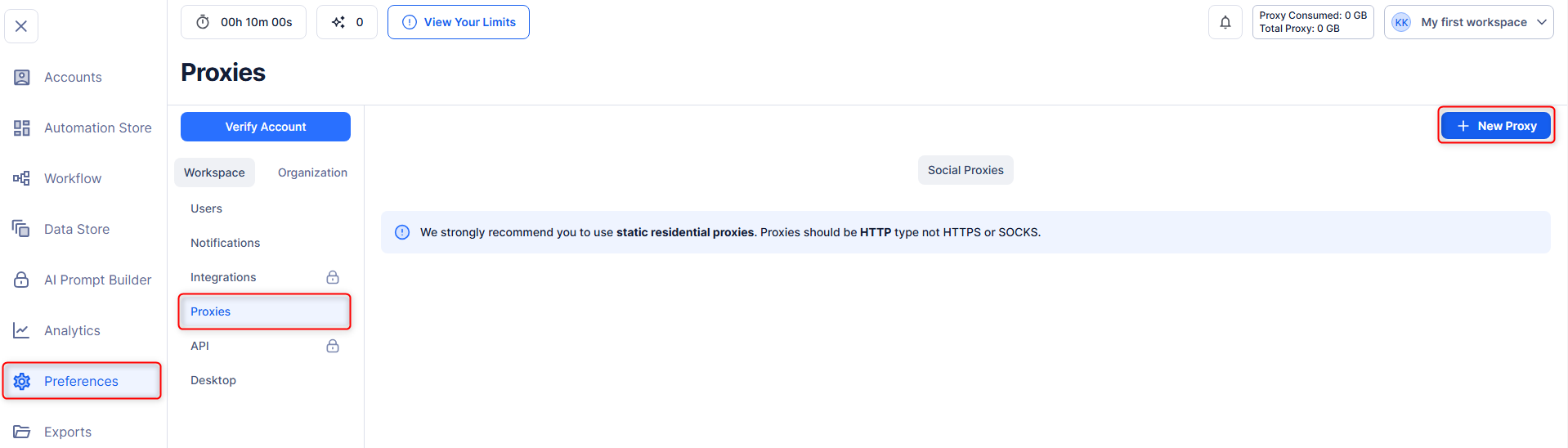
1\. From the Dashboard, go to **Preferences** in the left-hand menu.
2\. Select the **Proxies** tab to open the proxy configuration page.
3\. Click **New Proxy** to start the configuration.
## What is TexAu?
**TexAu** is a growth automation platform designed to help marketers and businesses scale their lead generation and online engagement efforts. By combining TexAu’s automation capabilities with **Toolip**, you can protect your identity, access geo-targeted data, and reduce the risk of IP bans.
Prefer an enterprise-grade guide? Learn more about Oculus Proxies Texau Integration Guide.
Targeting search engines like Google, Bing, or Yandex requires a specialized proxy to ensure stable access and avoid blocks. **Toolip’s Search Engine ISP Proxies** are designed specifically for this, providing reliable performance where standard proxies may fail. If your proxy test isn't working on search engines, switching to **Search Engine ISP Proxies** can resolve the issue.
## How to Integrate Toolip With TexAu
1\. Visit the [TexAu website](https://texau.com/) and log in to your account.
2\. Navigate to the **Dashboard** to access your automation tools.
1\. From the Dashboard, go to **Preferences** in the left-hand menu.
2\. Select the **Proxies** tab to open the proxy configuration page.
3\. Click **New Proxy** to start the configuration.
 1\. Fill in the proxy details as follows:
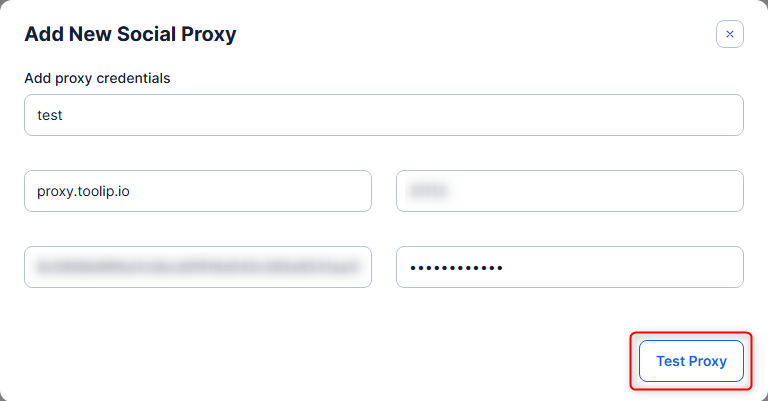
* **Host**: Enter `proxy.toolip.io`.
* **Port**: Use the port number provided in your [Toolip dashboard](https://toolip.io/dashboard/page/plans).
* **Username**: Enter your Toolip username.
* **Password**: Enter your Toolip password.
2\. After entering the details, click **Test Proxy** to verify the connection.
1\. Fill in the proxy details as follows:
* **Host**: Enter `proxy.toolip.io`.
* **Port**: Use the port number provided in your [Toolip dashboard](https://toolip.io/dashboard/page/plans).
* **Username**: Enter your Toolip username.
* **Password**: Enter your Toolip password.
2\. After entering the details, click **Test Proxy** to verify the connection.
 If using country-specific proxies, format the username as `your-username-country-XX` (e.g., `your-username-country-US`) to select a specific location.
Once the proxy is successfully tested, click **Save** to apply the configuration.
By integrating **Toolip** with **TexAu**, you unlock a secure and efficient automation experience. Whether you’re generating leads, scraping data, or managing online engagement, Toolip ensures privacy, reliability, and seamless performance. Start optimizing your workflows today!
If using country-specific proxies, format the username as `your-username-country-XX` (e.g., `your-username-country-US`) to select a specific location.
Once the proxy is successfully tested, click **Save** to apply the configuration.
By integrating **Toolip** with **TexAu**, you unlock a secure and efficient automation experience. Whether you’re generating leads, scraping data, or managing online engagement, Toolip ensures privacy, reliability, and seamless performance. Start optimizing your workflows today!