> ## Documentation Index
> Fetch the complete documentation index at: https://docs.toolip.io/llms.txt
> Use this file to discover all available pages before exploring further.
# How to Set Up Toolip With Telegram
> Get the most out of Telegram together with Toolip. Follow this step-by-step guide to configure secure and anonymous proxy connections for hyper secured messaging.
## What is Telegram?
**Telegram** is a secure messaging app with unlimited messaging, media sharing, and multi-device access. With end-to-end encryption and self-destructing messages, it ensures privacy and protection. Integrating **Toolip** enhances anonymity, bypasses geo-restrictions, and secures connections for seamless communication.
Prefer an enterprise-grade guide? Learn more about Oculus Proxies Telegram Integration Guide.
Targeting search engines like Google, Bing, or Yandex requires a specialized proxy to ensure stable access and avoid blocks. **Toolip’s Search Engine ISP Proxies** are designed specifically for this, providing reliable performance where standard proxies may fail. If your proxy test isn't working on search engines, switching to **Search Engine ISP Proxies** can resolve the issue.
Telegram supports only SOCKS5 protocol, use only port 31115
## How to Integrate Toolip With Telegram
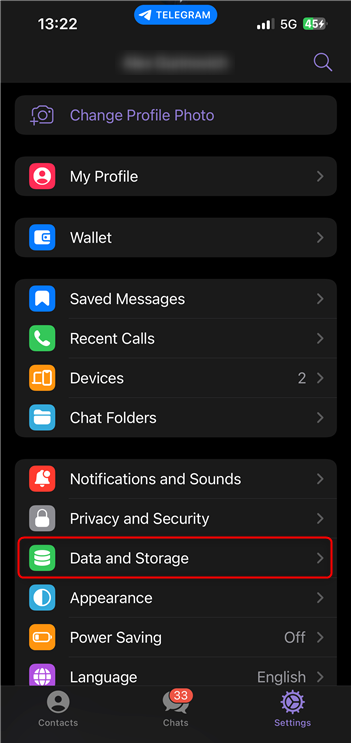
In the app, go to the **Settings** tab and navigate to **Data and Storage**.
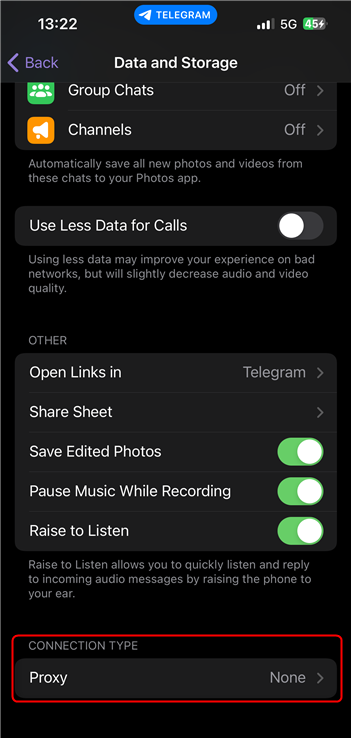
 Scroll down to the **Proxy** section and open it.
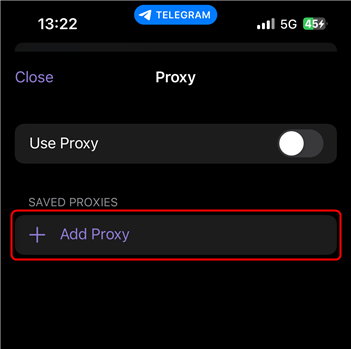
 Tap **Add Proxy** to configure a new connection.
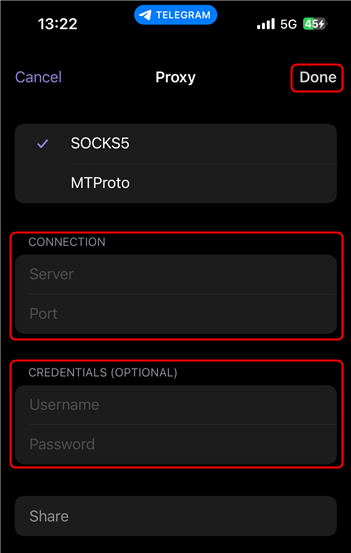
 Fill in the required fields: `Server(Host)`, `Port(31115)`, `Username`, and `Password`, then tap **Done**.
Don't forget: Telegram supports only SOCKS5 protocol, use only port 31115
Fill in the required fields: `Server(Host)`, `Port(31115)`, `Username`, and `Password`, then tap **Done**.
Don't forget: Telegram supports only SOCKS5 protocol, use only port 31115
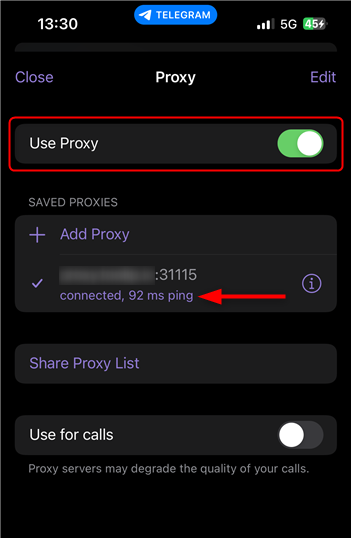
 Toggle **Use Proxy** at the top to enable the connection.