> ## Documentation Index
> Fetch the complete documentation index at: https://docs.toolip.io/llms.txt
> Use this file to discover all available pages before exploring further.
# How to Set Up Toolip With SRWare Iron Browser
> Accelerate your privacy and secure your online activities with Toolip in SRWare Iron Browser. This guide will help you configure reliable proxy connections for a safer and more private browsing experience.
 ## What is SRWare Iron Browser?
**SRWare Iron** is a privacy-focused web browser based on Chromium, designed to offer a secure and tracking-free browsing experience. Unlike traditional browsers, it removes invasive tracking features, ensuring better data protection. It is ideal for users who prioritize security while maintaining the familiar Chrome-like interface. With **Toolip**, you can further enhance anonymity, utilize secure proxy connections, and bypass restrictions for seamless and private online browsing.
Prefer an enterprise-grade guide? Learn more about Oculus Proxies Srware Iron Integration Guide.
Targeting search engines like Google, Bing, or Yandex requires a specialized proxy to ensure stable access and avoid blocks. **Toolip’s Search Engine ISP Proxies** are designed specifically for this, providing reliable performance where standard proxies may fail. If your proxy test isn't working on search engines, switching to **Search Engine ISP Proxies** can resolve the issue.
## How to Set Up Toolip With SRWare Iron Browser
Get [SRWare Iron Browser](https://www.srware.net/iron/#downloads) and complete the installation.
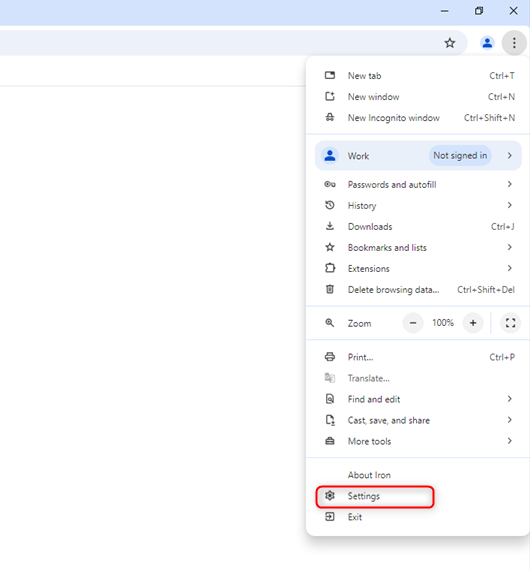
Click the three-dot menu and go to **Settings**.
## What is SRWare Iron Browser?
**SRWare Iron** is a privacy-focused web browser based on Chromium, designed to offer a secure and tracking-free browsing experience. Unlike traditional browsers, it removes invasive tracking features, ensuring better data protection. It is ideal for users who prioritize security while maintaining the familiar Chrome-like interface. With **Toolip**, you can further enhance anonymity, utilize secure proxy connections, and bypass restrictions for seamless and private online browsing.
Prefer an enterprise-grade guide? Learn more about Oculus Proxies Srware Iron Integration Guide.
Targeting search engines like Google, Bing, or Yandex requires a specialized proxy to ensure stable access and avoid blocks. **Toolip’s Search Engine ISP Proxies** are designed specifically for this, providing reliable performance where standard proxies may fail. If your proxy test isn't working on search engines, switching to **Search Engine ISP Proxies** can resolve the issue.
## How to Set Up Toolip With SRWare Iron Browser
Get [SRWare Iron Browser](https://www.srware.net/iron/#downloads) and complete the installation.
Click the three-dot menu and go to **Settings**.
 SRWare Iron uses your system-wide proxy settings, so you'll need to configure your proxies at the OS level. Follow the detailed setup guide based on your operating system:
Follow the complete [Windows proxy setup guide](https://docs.toolip.io/integration-guides/windows) to configure Toolip proxies on your system.
Follow the detailed [macOS proxy setup guide](https://docs.toolip.io/integration-guides/macos) to apply Toolip proxies to your network settings.
Close settings, refresh the webpage, and enter your **credentials** when prompted.
SRWare Iron uses your system-wide proxy settings, so you'll need to configure your proxies at the OS level. Follow the detailed setup guide based on your operating system:
Follow the complete [Windows proxy setup guide](https://docs.toolip.io/integration-guides/windows) to configure Toolip proxies on your system.
Follow the detailed [macOS proxy setup guide](https://docs.toolip.io/integration-guides/macos) to apply Toolip proxies to your network settings.
Close settings, refresh the webpage, and enter your **credentials** when prompted.
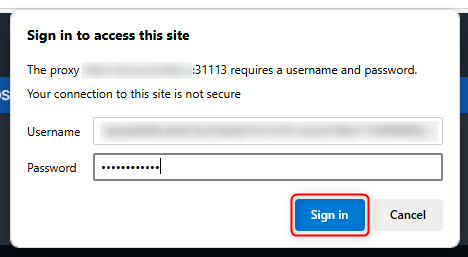 Your proxy is now active — enjoy private and secure browsing!