> ## Documentation Index
> Fetch the complete documentation index at: https://docs.toolip.io/llms.txt
> Use this file to discover all available pages before exploring further.
# How to Set Up Toolip With SocksDroid
> Enhance your mobile browsing security with Toolip in SocksDroid. By integrating Toolip, you can configure and manage your own proxy-based VPN setup for secure and private internet access. This guide will walk you through setting up SocksDroid with Toolip to optimize your online privacy and browsing experience.
 ## What is SocksDroid?
**SocksDroid** is a powerful proxy-based VPN client for Android that leverages the system’s built-in VPN functionality. Unlike traditional VPN services, it does not provide its own servers but allows users to configure and connect to their preferred proxy servers. By using Toolip, you can further optimize your proxy setup, ensuring a seamless and secure browsing experience.
Prefer an enterprise-grade guide? Learn more about Oculus Proxies Socksdroid Integration Guide.
Targeting search engines like Google, Bing, or Yandex requires a specialized proxy to ensure stable access and avoid blocks. **Toolip’s Search Engine ISP Proxies** are designed specifically for this, providing reliable performance where standard proxies may fail. If your proxy test isn't working on search engines, switching to **Search Engine ISP Proxies** can resolve the issue.
## How to Integrate Toolip With SocksDroid
[Download](https://socksdroid.en.softonic.com/android/download) and install socksdroid for your android device.
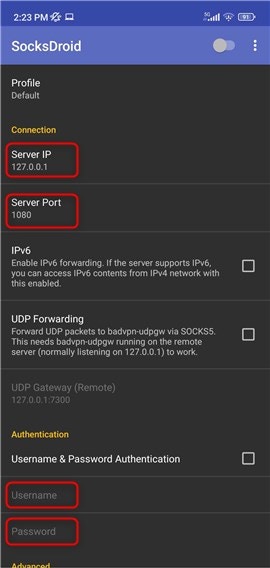
Open the app and insert the `Server IP(Host)`, `Server Port`, `Username`, and `Password`.
SocksDroid supports **only SOCKS5 proxies** therefore the Port should be 31115
## What is SocksDroid?
**SocksDroid** is a powerful proxy-based VPN client for Android that leverages the system’s built-in VPN functionality. Unlike traditional VPN services, it does not provide its own servers but allows users to configure and connect to their preferred proxy servers. By using Toolip, you can further optimize your proxy setup, ensuring a seamless and secure browsing experience.
Prefer an enterprise-grade guide? Learn more about Oculus Proxies Socksdroid Integration Guide.
Targeting search engines like Google, Bing, or Yandex requires a specialized proxy to ensure stable access and avoid blocks. **Toolip’s Search Engine ISP Proxies** are designed specifically for this, providing reliable performance where standard proxies may fail. If your proxy test isn't working on search engines, switching to **Search Engine ISP Proxies** can resolve the issue.
## How to Integrate Toolip With SocksDroid
[Download](https://socksdroid.en.softonic.com/android/download) and install socksdroid for your android device.
Open the app and insert the `Server IP(Host)`, `Server Port`, `Username`, and `Password`.
SocksDroid supports **only SOCKS5 proxies** therefore the Port should be 31115
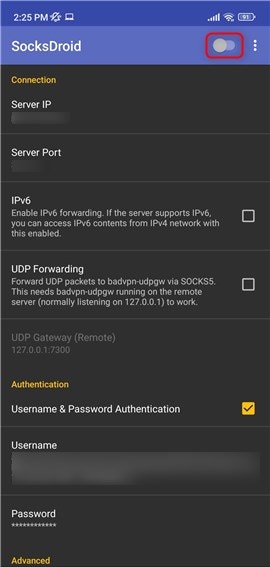
 Turn on the proxy by toggling the **switch** at the top of the screen.
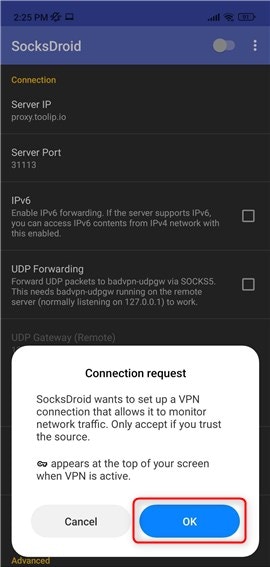
 If a consent screen appears, press **OK** to allow the connection.
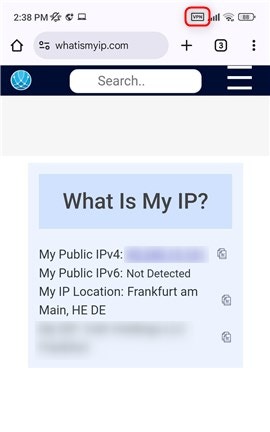
 Once connected successfully, a **VPN icon** will appear in your device’s top bar.