> ## Documentation Index
> Fetch the complete documentation index at: https://docs.toolip.io/llms.txt
> Use this file to discover all available pages before exploring further.
# How to Set Up Toolip With Shadowsocks
> Boost your online privacy and bypass restrictions with Shadowsocks, a lightweight and powerful proxy tool. By integrating Toolip with Shadowsocks, you can establish a secure SOCKS5 proxy connection, ensuring unrestricted, high-speed, and anonymous web access. Follow this step-by-step guide to set up and optimize your browsing experience.
 ## What is Shadowsocks?
**Shadowsocks** is an open-source proxy tool designed to enhance online privacy and bypass internet restrictions. Unlike VPNs, it functions as a **SOCKS5 proxy**, offering greater flexibility, speed, and lightweight performance. It’s particularly effective in avoiding deep packet inspection (DPI), making it a great choice for users needing reliable access to restricted content.
When combined with **Toolip**, Shadowsocks enables a **secure, anonymous, and location-based** browsing experience while ensuring uninterrupted access to websites.
Prefer an enterprise-grade guide? Learn more about Oculus Proxies Shadowsocks Integration Guide.
If you're using **Toolip** to access search engines like **Google, Bing, or Yandex** and experiencing connection issues, the proxy type might be the cause. **Toolip’s Search Engine ISP Proxies** are optimized for search engine access, ensuring stable and unrestricted connections. Switching to **Search Engine ISP Proxies** can resolve access problems.
## How to Integrate Toolip With Shadowsocks
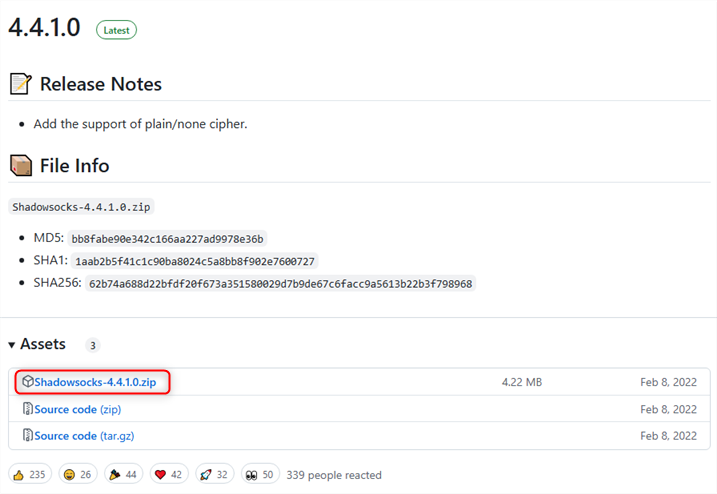
1\. Visit the [Shadowsocks GitHub repository](https://github.com/shadowsocks/shadowsocks-windows/releases).
2\. Download the latest `.zip` file for Windows.
## What is Shadowsocks?
**Shadowsocks** is an open-source proxy tool designed to enhance online privacy and bypass internet restrictions. Unlike VPNs, it functions as a **SOCKS5 proxy**, offering greater flexibility, speed, and lightweight performance. It’s particularly effective in avoiding deep packet inspection (DPI), making it a great choice for users needing reliable access to restricted content.
When combined with **Toolip**, Shadowsocks enables a **secure, anonymous, and location-based** browsing experience while ensuring uninterrupted access to websites.
Prefer an enterprise-grade guide? Learn more about Oculus Proxies Shadowsocks Integration Guide.
If you're using **Toolip** to access search engines like **Google, Bing, or Yandex** and experiencing connection issues, the proxy type might be the cause. **Toolip’s Search Engine ISP Proxies** are optimized for search engine access, ensuring stable and unrestricted connections. Switching to **Search Engine ISP Proxies** can resolve access problems.
## How to Integrate Toolip With Shadowsocks
1\. Visit the [Shadowsocks GitHub repository](https://github.com/shadowsocks/shadowsocks-windows/releases).
2\. Download the latest `.zip` file for Windows.
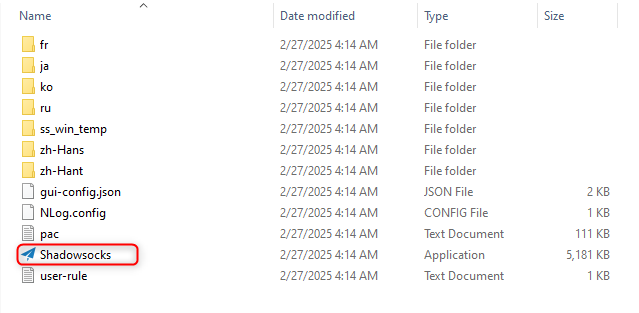
 1\. Unzip the downloaded folder.
2\. Open **Shadowsocks.exe** to launch the application.
1\. Unzip the downloaded folder.
2\. Open **Shadowsocks.exe** to launch the application.
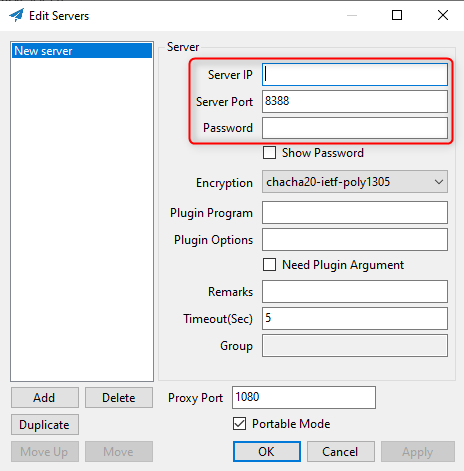
 1\. In the Shadowsocks window, enter your **Toolip proxy details**:
* **Server IP**: `proxy.toolip.io`
* **Server Port**: Use the port number from your [Toolip dashboard](https://toolip.io/dashboard).
* **Password**: Your Toolip proxy password.
1\. In the Shadowsocks window, enter your **Toolip proxy details**:
* **Server IP**: `proxy.toolip.io`
* **Server Port**: Use the port number from your [Toolip dashboard](https://toolip.io/dashboard).
* **Password**: Your Toolip proxy password.
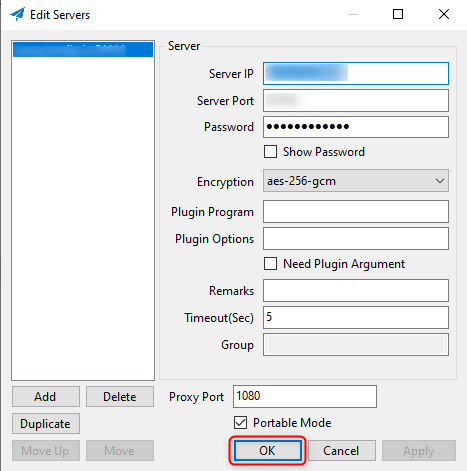
 1\. Click **Apply** to confirm your proxy settings.
2\. Click **Save** to store the configuration.
1\. Click **Apply** to confirm your proxy settings.
2\. Click **Save** to store the configuration.
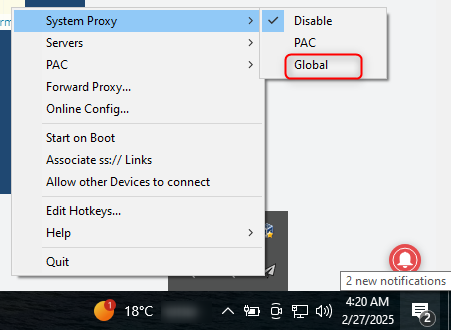
 1\. Right-click the **Shadowsocks tray icon**.
2\. Select **System Proxy**.
3\. Choose **Global** to route all traffic through the proxy to confirm that Shadowsocks is active.
1\. Right-click the **Shadowsocks tray icon**.
2\. Select **System Proxy**.
3\. Choose **Global** to route all traffic through the proxy to confirm that Shadowsocks is active.
 1\. Open the [Google Play Store](https://play.google.com/store/apps/details?id=com.github.shadowsocks\&hl=en).
2\. Download and install the **Shadowsocks** app.
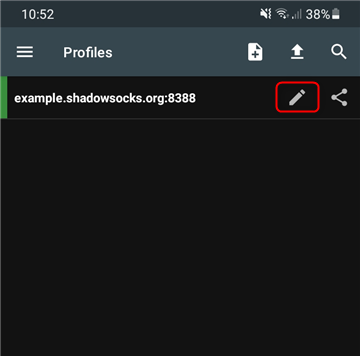
Tap the **Pencil icon** in the top-right corner of the app’s main screen to access the server configuration.
1\. Open the [Google Play Store](https://play.google.com/store/apps/details?id=com.github.shadowsocks\&hl=en).
2\. Download and install the **Shadowsocks** app.
Tap the **Pencil icon** in the top-right corner of the app’s main screen to access the server configuration.
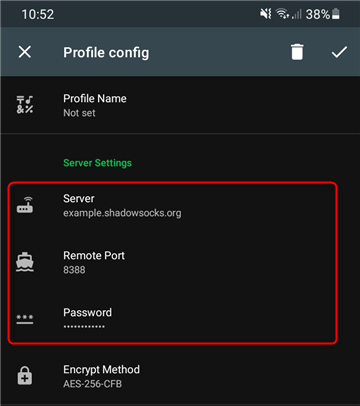
 1\. Fill in the following proxy details:
* **Server**: `proxy.toolip.io`
* **Remote Port**: Use the port from your [Toolip dashboard](https://toolip.io/dashboard).
* **Password**: Your Toolip proxy password.
1\. Fill in the following proxy details:
* **Server**: `proxy.toolip.io`
* **Remote Port**: Use the port from your [Toolip dashboard](https://toolip.io/dashboard).
* **Password**: Your Toolip proxy password.
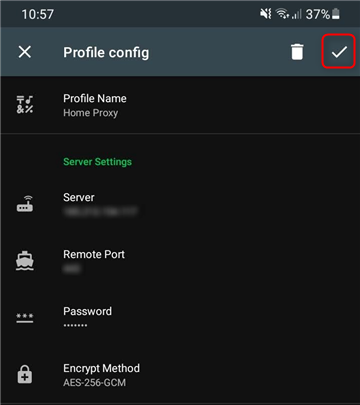
 After entering the details, tap **Save** to apply your proxy settings.
 1\. Return to the app’s main screen.
2\. Tap the **paper plane icon** to start the connection.
1\. Return to the app’s main screen.
2\. Tap the **paper plane icon** to start the connection.
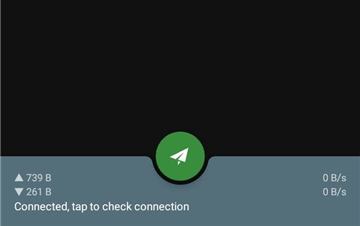
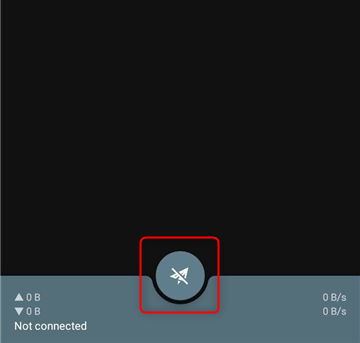 1\. If the setup is successful, the **paper plane icon** will turn **green**, indicating an active connection.
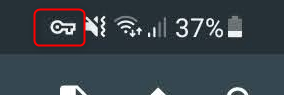
2\. A **VPN icon** will also appear in your status bar to confirm the proxy is in use.
1\. If the setup is successful, the **paper plane icon** will turn **green**, indicating an active connection.
2\. A **VPN icon** will also appear in your status bar to confirm the proxy is in use.
 By setting up **Toolip** with **Shadowsocks**, you unlock a secure, private, and unrestricted browsing experience. Whether you're bypassing restrictions, securing your connection, or accessing geo-blocked content, this setup ensures fast and reliable performance. 🚀