> ## Documentation Index
> Fetch the complete documentation index at: https://docs.toolip.io/llms.txt
> Use this file to discover all available pages before exploring further.
# How to Set Up Toolip With Shadowrocket
> Learn how to integrate Toolip with Shadowrocket for secure and seamless browsing on your mobile device. Follow this step-by-step guide to configure Toolip and enhance your online privacy.
## What is Shadowrocket?
**Shadowrocket** is a powerful mobile app designed to route network traffic through proxies, especially **Toolip**! It supports various proxy types, including HTTP, HTTPS, and SOCKS5, and is popular for its flexibility and ease of use, making it a favorite choice for secure browsing and data management.
Prefer an enterprise-grade guide? Learn more about Oculus Proxies
Shadowrocket Integration Guide.
Targeting search engines like Google, Bing, or Yandex requires a specialized proxy to ensure stable access and avoid blocks. **Toolip’s Search Engine ISP Proxies** are designed specifically for this, providing reliable performance where standard proxies may fail. If your proxy test isn't working on search engines, switching to **Search Engine ISP Proxies** can resolve the issue.
## How to Integrate Toolip With Shadowrocket
[Download Shadowrocket](https://apps.apple.com/us/app/shadowrocket/id932747118?platform=iphone) app from appstore.
After installing, press **Add Server** or if you have proxies already, press the upper **+** button.
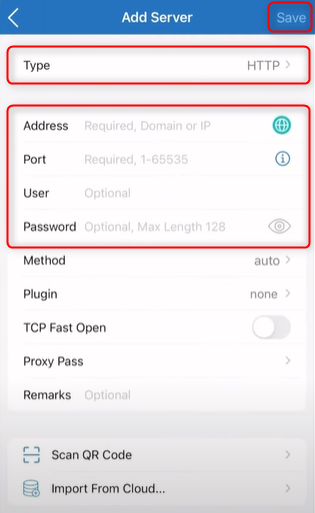
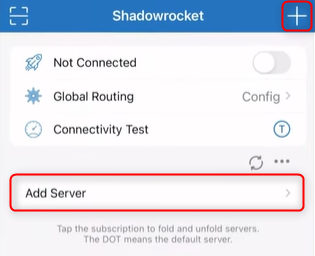 For iOS you can choose any Type of proxy protocol you desire, fill the credentials: `Address(Host)`, `Port`, `User` and `Password`. Then hit **Save**.
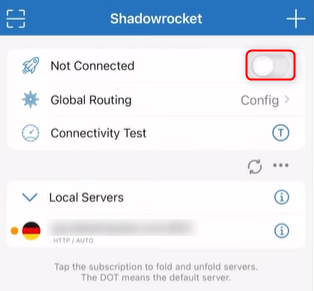
 Once the proxy is added, you can toggle the switch to fire up the newly added proxy! **And now you're all set-up**🚀.
 On android, shadowrocket supports only **SOCKS5**. This means you need to use port **31115** only!
[Download Shadowrocket](https://play.google.com/store/apps/details?id=com.v2cross.proxy\&gl=PT) app from playstore.
After opening the app, press the **+** button at the top to add a proxy and choose **Socks** right after.
On android, shadowrocket supports only **SOCKS5**. This means you need to use port **31115** only!
[Download Shadowrocket](https://play.google.com/store/apps/details?id=com.v2cross.proxy\&gl=PT) app from playstore.
After opening the app, press the **+** button at the top to add a proxy and choose **Socks** right after.
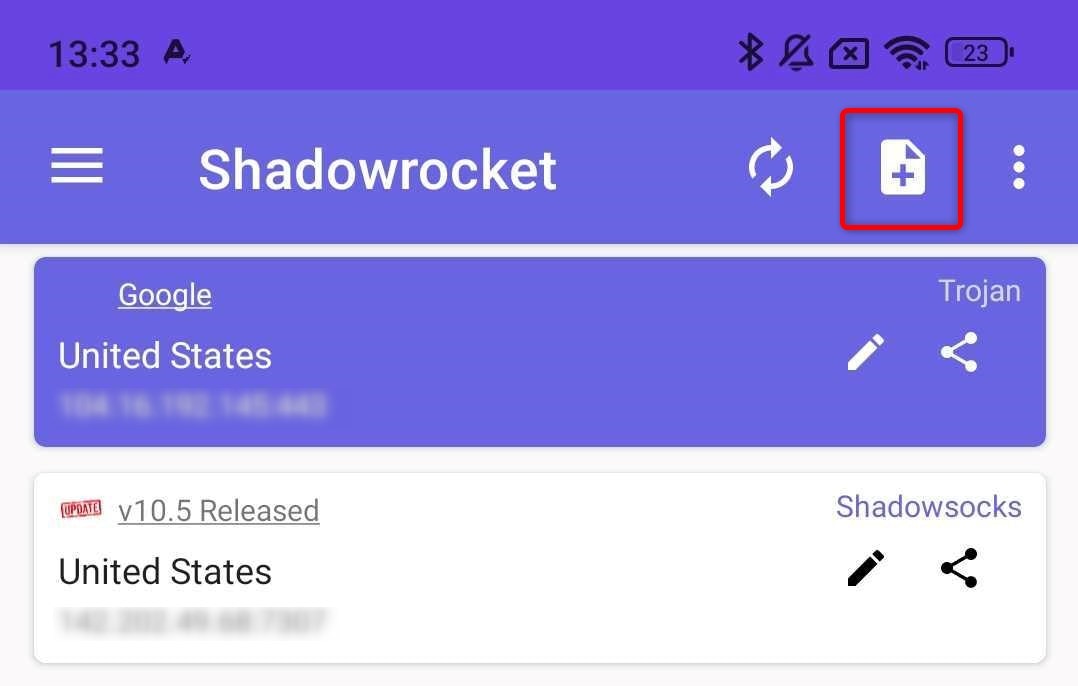
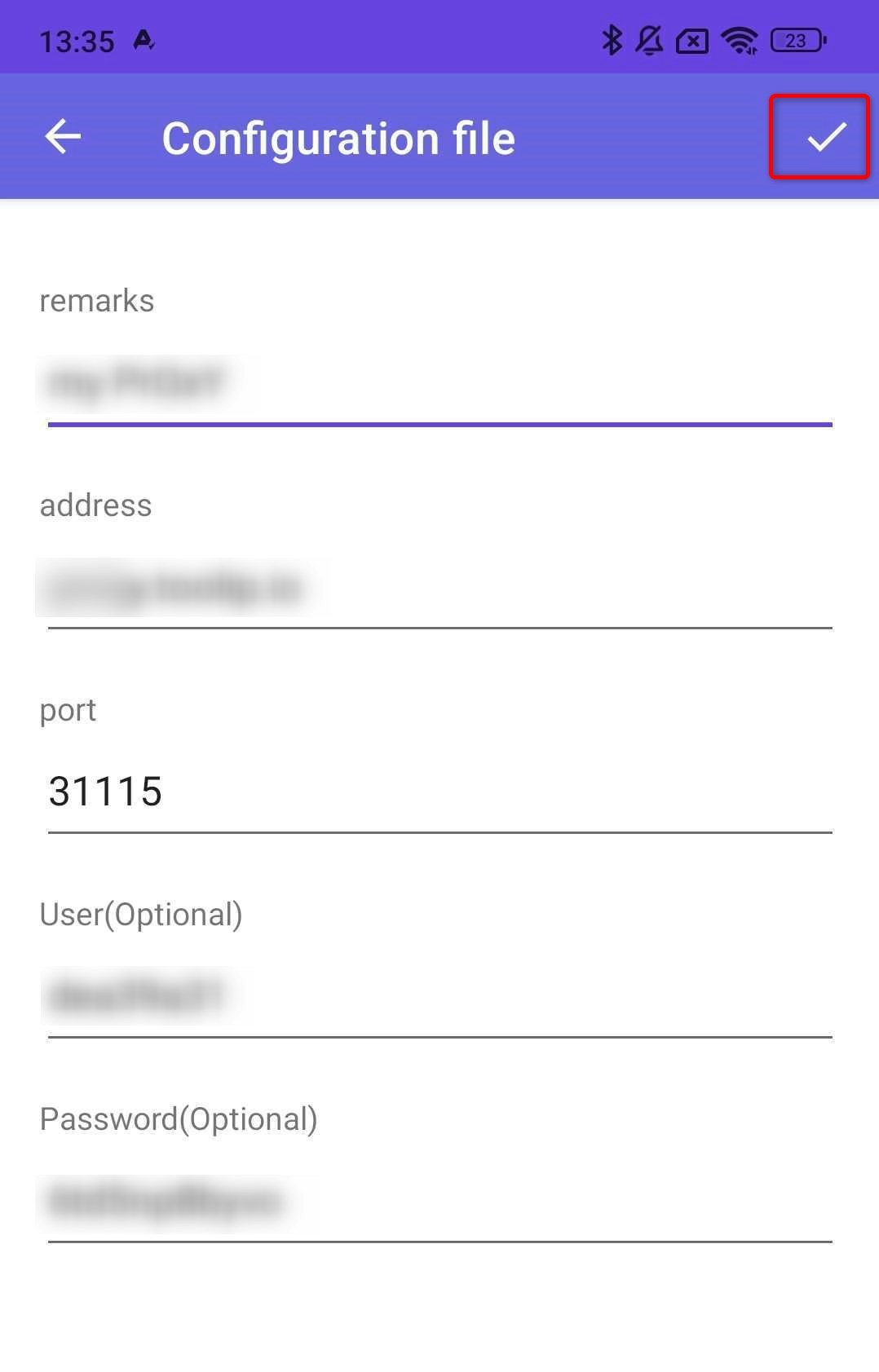
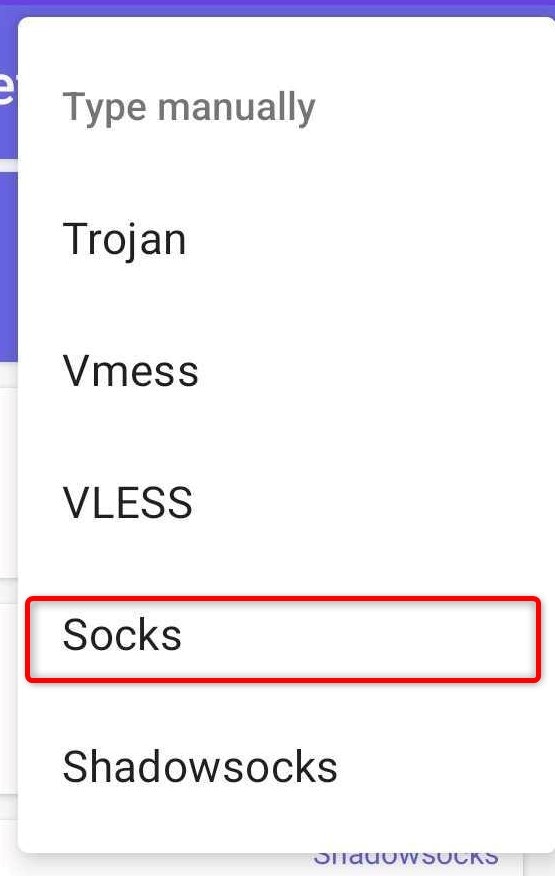 Now fill the necessary information: `remarks(proxy name)`, `Address(Host)`, `Port(31115)`, `User` and `Password`, then hit **Save**.
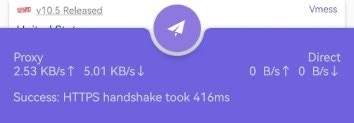
 When finished, hit the **paper airplane button** at the bottom of the screen to activate the proxy! **And now you're all set-up**🚀.