> ## Documentation Index
> Fetch the complete documentation index at: https://docs.toolip.io/llms.txt
> Use this file to discover all available pages before exploring further.
# How to Set Up Toolip With SessionBox
> Using Toolip with SessionBox enables secure, efficient multi-session browsing, offering flexible proxy solutions for undetectable and streamlined account management.
 ## What is SessionBox?
**SessionBox** is a browser extension that allows you to manage multiple sessions simultaneously. Each tab runs as an isolated session with its own cookies, cache, and login credentials, making it ideal for managing multiple accounts on the same platform. Lightweight and simple, SessionBox is perfect for social media management, account switching, and basic online tasks requiring separate logins.
Prefer an enterprise-grade guide? Learn more about Oculus Proxies Sessionbox Integration Guide.
Targeting search engines like Google, Bing, or Yandex requires a specialized proxy to ensure stable access and avoid blocks. **Toolip’s Search Engine ISP Proxies** are designed specifically for this, providing reliable performance where standard proxies may fail. If your proxy test isn't working on search engines, switching to **Search Engine ISP Proxies** can resolve the issue.
1\. Visit the [SessionBox extension page](https://chrome.google.com/webstore/detail/sessionbox-multi-login-to/megbklhjamjbcafknkgmokldgolkdfig).
2\. Add the extension to your Chrome browser.
1\. Click the **SessionBox icon** in your browser toolbar.
2\. Open the menu by clicking the **three horizontal lines** in the extension interface.
3\. Select **Settings** from the menu.
## What is SessionBox?
**SessionBox** is a browser extension that allows you to manage multiple sessions simultaneously. Each tab runs as an isolated session with its own cookies, cache, and login credentials, making it ideal for managing multiple accounts on the same platform. Lightweight and simple, SessionBox is perfect for social media management, account switching, and basic online tasks requiring separate logins.
Prefer an enterprise-grade guide? Learn more about Oculus Proxies Sessionbox Integration Guide.
Targeting search engines like Google, Bing, or Yandex requires a specialized proxy to ensure stable access and avoid blocks. **Toolip’s Search Engine ISP Proxies** are designed specifically for this, providing reliable performance where standard proxies may fail. If your proxy test isn't working on search engines, switching to **Search Engine ISP Proxies** can resolve the issue.
1\. Visit the [SessionBox extension page](https://chrome.google.com/webstore/detail/sessionbox-multi-login-to/megbklhjamjbcafknkgmokldgolkdfig).
2\. Add the extension to your Chrome browser.
1\. Click the **SessionBox icon** in your browser toolbar.
2\. Open the menu by clicking the **three horizontal lines** in the extension interface.
3\. Select **Settings** from the menu.
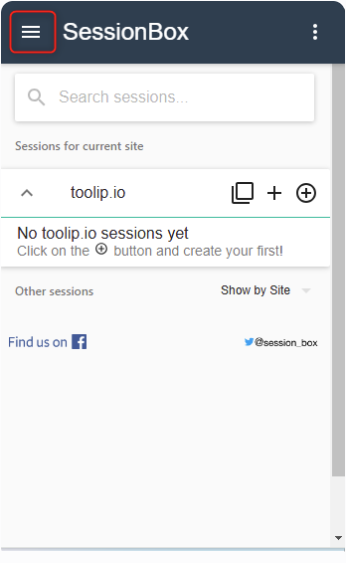 1\. Navigate to the **Proxy** tab within the SessionBox settings.
2\. Click **Add New** to create a new proxy profile.
1\. Navigate to the **Proxy** tab within the SessionBox settings.
2\. Click **Add New** to create a new proxy profile.
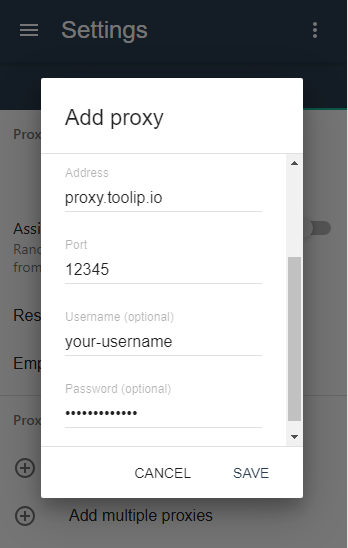
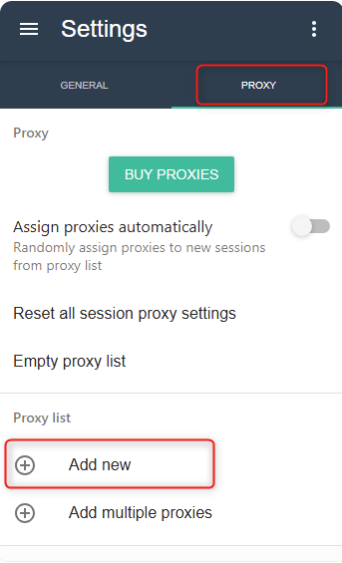 1\. Enter the following proxy details in the fields provided:
* **Address**: `proxy.toolip.io`
* **Port**: Retrieve from your [Toolip dashboard](https://toolip.io/dashboard/page/plans).
* **Username**: Your Toolip username.
* **Password**: Your Toolip password.
2\. Click **Save** to store your proxy settings.
1\. Enter the following proxy details in the fields provided:
* **Address**: `proxy.toolip.io`
* **Port**: Retrieve from your [Toolip dashboard](https://toolip.io/dashboard/page/plans).
* **Username**: Your Toolip username.
* **Password**: Your Toolip password.
2\. Click **Save** to store your proxy settings.
 **For country-specific proxies, you can enter a format like `your-username-country-US` to receive a US exit node.**
1\. Visit any website and open the SessionBox extension.
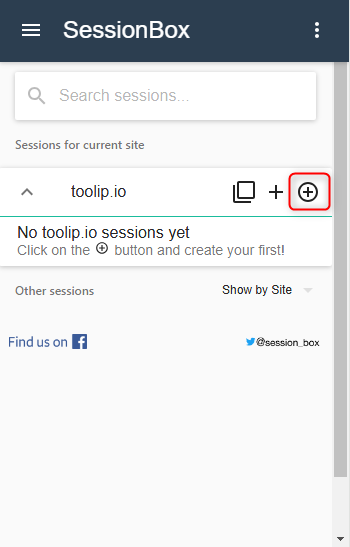
2\. Click the **New Stored Session** button to create a session.
**For country-specific proxies, you can enter a format like `your-username-country-US` to receive a US exit node.**
1\. Visit any website and open the SessionBox extension.
2\. Click the **New Stored Session** button to create a session.
 1\. Locate the session you just created in SessionBox.
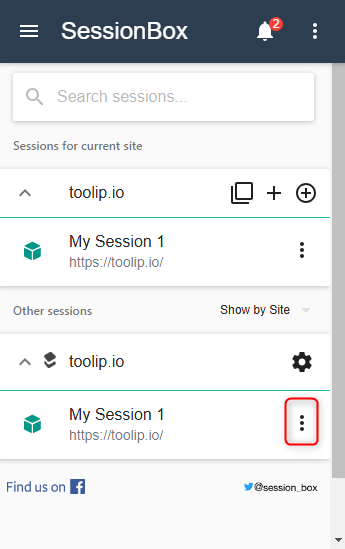
2\. Click the **three dots** next to the session and select **Settings**.
1\. Locate the session you just created in SessionBox.
2\. Click the **three dots** next to the session and select **Settings**.
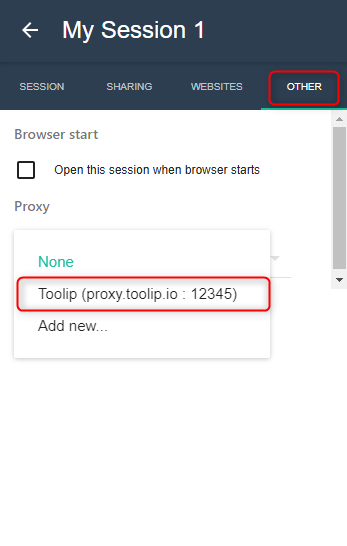
 1\. In the **Settings** menu, go to the **Other** tab.
2\. Under the **Proxy** section, select the proxy profile you created earlier.
3\. Save your changes and reload the tab to apply the proxy settings.
1\. In the **Settings** menu, go to the **Other** tab.
2\. Under the **Proxy** section, select the proxy profile you created earlier.
3\. Save your changes and reload the tab to apply the proxy settings.
 1\. Go to the [SessionBox download page](https://sessionbox.io/download).
2\. Download the application and install it.
3\. **Create an account if you don't have one.**
1\. Launch the application.
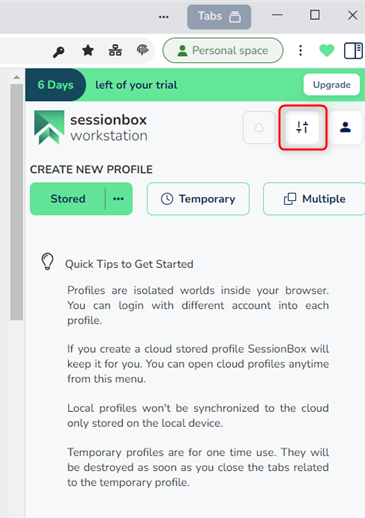
2\. Open the menu by clicking the **two bars** icon on the right.
1\. Go to the [SessionBox download page](https://sessionbox.io/download).
2\. Download the application and install it.
3\. **Create an account if you don't have one.**
1\. Launch the application.
2\. Open the menu by clicking the **two bars** icon on the right.
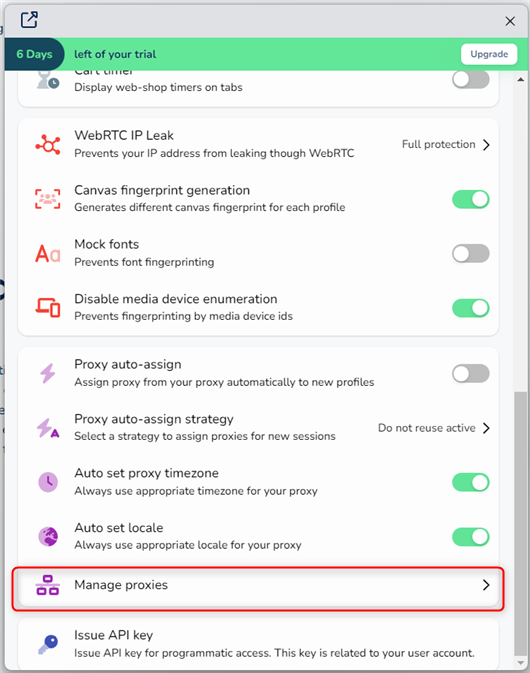
 1\. Click **Manage proxies** in the menu.
 1\. Click **Add Proxy** to set up a new connection.
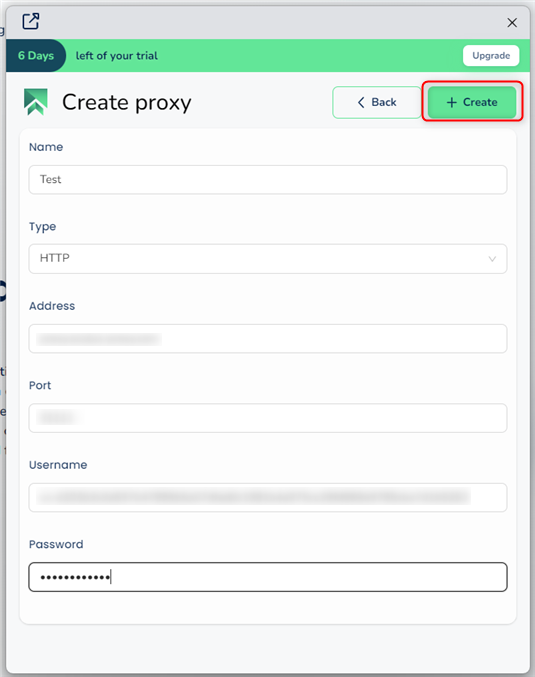
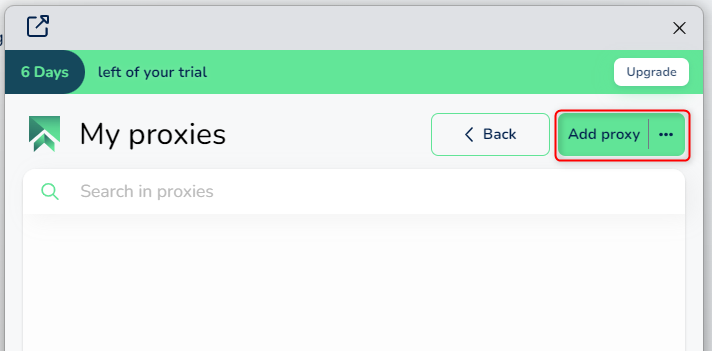 1\. Enter the following details:
* **Name**: A descriptive name for the proxy.
* **Type**: Select HTTP, HTTPS, or SOCKS5.
* **Address**: `proxy.toolip.io`
* **Port**: Retrieve from your [Toolip dashboard](https://toolip.io/dashboard/page/plans).
* **Username**: Your Toolip username.
* **Password**: Your Toolip password.
2\. Click **Create** to save the settings.
1\. Enter the following details:
* **Name**: A descriptive name for the proxy.
* **Type**: Select HTTP, HTTPS, or SOCKS5.
* **Address**: `proxy.toolip.io`
* **Port**: Retrieve from your [Toolip dashboard](https://toolip.io/dashboard/page/plans).
* **Username**: Your Toolip username.
* **Password**: Your Toolip password.
2\. Click **Create** to save the settings.
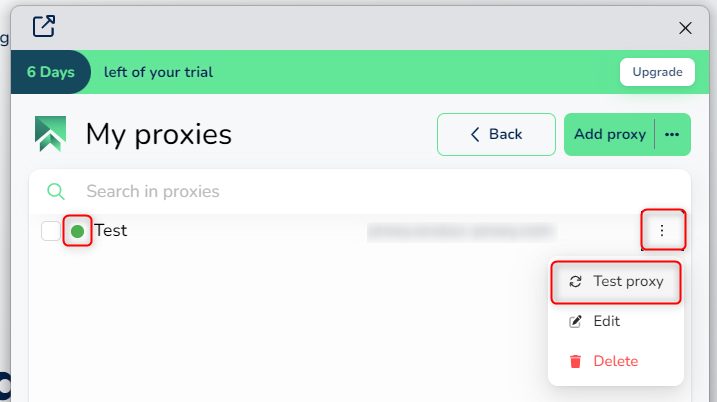
 1\. Click **Test Proxy** to verify the connection.
2\. If successful, a green dot will appear next to the proxy.
1\. Click **Test Proxy** to verify the connection.
2\. If successful, a green dot will appear next to the proxy.
 Your Toolip proxies are now fully integrated with SessionBox, allowing you to manage multiple sessions and accounts securely while staying anonymous. 🚀