> ## Documentation Index
> Fetch the complete documentation index at: https://docs.toolip.io/llms.txt
> Use this file to discover all available pages before exploring further.
# How to Set Up Toolip With Potatso
> Take full control of your network privacy with Potatso, a powerful proxy manager for iOS. This guide will show you how to configure Toolip to bypass restrictions, secure your browsing, and optimize network performance.
 ## What is Potatso?
**Potatso** is an advanced proxy manager for iOS that supports multiple proxy types, including **Shadowsocks, ShadowsocksR, HTTP, and SOCKS5**. Whether you need to bypass geo-restrictions, secure your internet connection, or optimize your network routing, Potatso provides a seamless way to manage your proxy configurations.
By integrating **Toolip**, you can improve connection privacy, ensure stable browsing, and securely manage traffic over both **Wi-Fi and cellular networks**.
Prefer an enterprise-grade guide? Learn more about Oculus Proxies Potatso Integration Guide.
If you’re using **Toolip** for accessing search engines like **Google, Bing, or Yandex** and encountering connection issues, you may need a specialized proxy. **Toolip’s Search Engine ISP Proxies** are designed to provide stable and unrestricted access, preventing the blocks that standard proxies might face. Switching to **Search Engine ISP Proxies** ensures smooth performance.
## How to Integrate Toolip With Potatso
1\. Open the **App Store** on your iPhone.
2\. Search for **Potatso** and tap [Download](https://apps.apple.com/us/app/potatso/id1239860606).
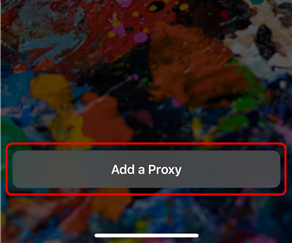
1\. Open **Potatso** and tap **Add a Proxy** on the main screen.
## What is Potatso?
**Potatso** is an advanced proxy manager for iOS that supports multiple proxy types, including **Shadowsocks, ShadowsocksR, HTTP, and SOCKS5**. Whether you need to bypass geo-restrictions, secure your internet connection, or optimize your network routing, Potatso provides a seamless way to manage your proxy configurations.
By integrating **Toolip**, you can improve connection privacy, ensure stable browsing, and securely manage traffic over both **Wi-Fi and cellular networks**.
Prefer an enterprise-grade guide? Learn more about Oculus Proxies Potatso Integration Guide.
If you’re using **Toolip** for accessing search engines like **Google, Bing, or Yandex** and encountering connection issues, you may need a specialized proxy. **Toolip’s Search Engine ISP Proxies** are designed to provide stable and unrestricted access, preventing the blocks that standard proxies might face. Switching to **Search Engine ISP Proxies** ensures smooth performance.
## How to Integrate Toolip With Potatso
1\. Open the **App Store** on your iPhone.
2\. Search for **Potatso** and tap [Download](https://apps.apple.com/us/app/potatso/id1239860606).
1\. Open **Potatso** and tap **Add a Proxy** on the main screen.
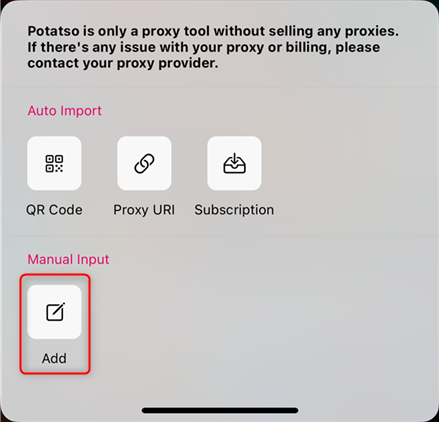
 1\. Choose **Add** to manually input your proxy settings.
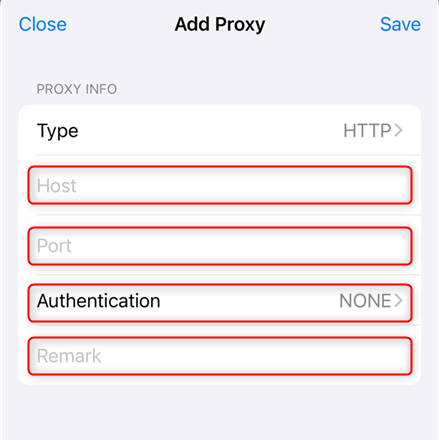
 1\. Fill in the required fields with your **Toolip proxy credentials**:
* **Host**: `proxy.toolip.io`
* **Port**: Enter the port number from your [Toolip dashboard](https://toolip.io/dashboard).
* **Remark**: Assign a name to identify this proxy configuration.
2\. Toggle **Authentication** on and enter:
* **Username**: Your Toolip username.
* **Password**: Your Toolip password.
1\. Fill in the required fields with your **Toolip proxy credentials**:
* **Host**: `proxy.toolip.io`
* **Port**: Enter the port number from your [Toolip dashboard](https://toolip.io/dashboard).
* **Remark**: Assign a name to identify this proxy configuration.
2\. Toggle **Authentication** on and enter:
* **Username**: Your Toolip username.
* **Password**: Your Toolip password.
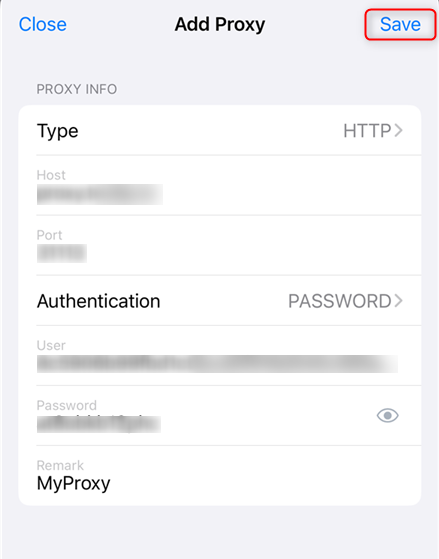
 1\. Tap **Save** to store the proxy settings.
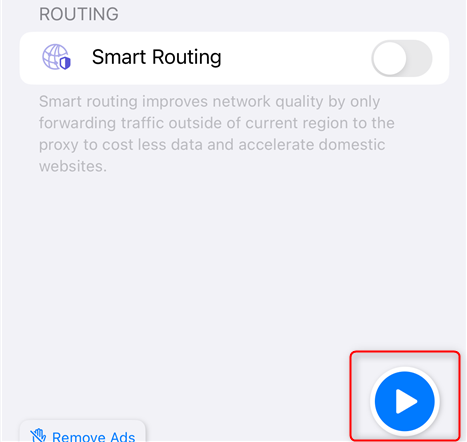
 1\. Tap the **Play button** at the bottom of the screen to activate the proxy.
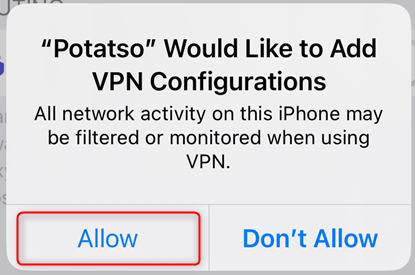
 1\. When prompted, tap **Allow** to approve **VPN Configurations**.
2\. Enter your device passcode if required.
1\. When prompted, tap **Allow** to approve **VPN Configurations**.
2\. Enter your device passcode if required.
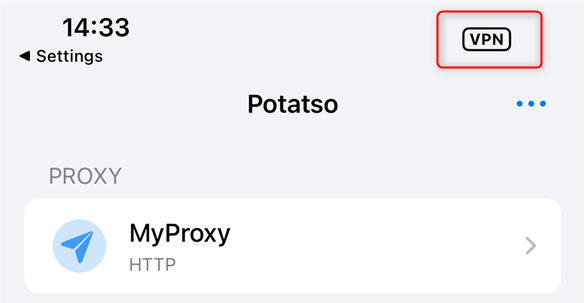
 1\. Once the proxy is active, you will see a **VPN** icon at the top of your iPhone screen.
2\. Open **Safari** or any browser and visit [httpbin.org/ip](http://httpbin.org/ip) to check if your IP address matches the Toolip proxy.
1\. Once the proxy is active, you will see a **VPN** icon at the top of your iPhone screen.
2\. Open **Safari** or any browser and visit [httpbin.org/ip](http://httpbin.org/ip) to check if your IP address matches the Toolip proxy.
 With **Toolip** successfully integrated into **Potatso**, your browsing is now **secure, private, and unrestricted**. Enjoy seamless access to geo-blocked content, enhanced online anonymity, and optimized connection stability on your iOS device!