> ## Documentation Index
> Fetch the complete documentation index at: https://docs.toolip.io/llms.txt
> Use this file to discover all available pages before exploring further.
# How to Use Toolip With Postman
> Streamline your API testing with Toolip in Postman. This guide shows you how to configure proxies for secure, anonymous, and geo-targeted API requests.
 Prefer an enterprise-grade guide? Learn more about Oculus Proxies Postman Guide.
## What is Postman?
**Postman** is a widely-used API platform that simplifies testing, developing, and managing APIs. It allows developers to send requests, monitor responses, and organize workflows efficiently. By integrating **Toolip**, you can ensure privacy, security, and the ability to test APIs from different geo-locations.
Targeting search engines like Google, Bing, or Yandex requires a specialized proxy to ensure stable access and avoid blocks. **Toolip’s Search Engine ISP Proxies** are designed specifically for this, providing reliable performance where standard proxies may fail. If your proxy test isn't working on search engines, switching to **Search Engine ISP Proxies** can resolve the issue.
## How to Integrate Toolip With Postman
1\. Download and install the latest version of \[Postman ([https://www.postman.com/downloads/](https://www.postman.com/downloads/)).
2\. Launch the application and sign in to your account.
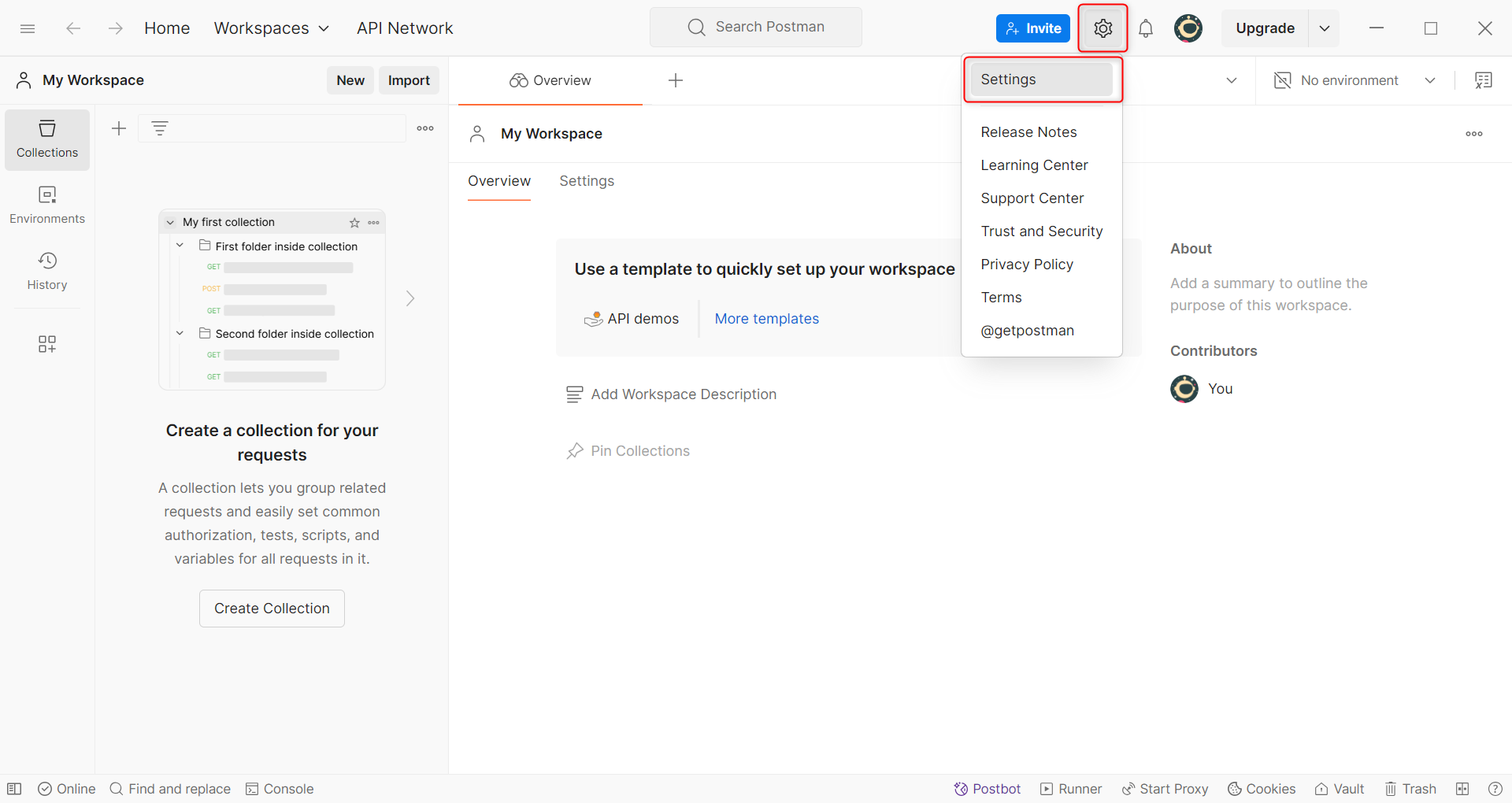
1\. Click the **gear icon** in the top-right corner of the Postman interface to access the **Settings** menu.
Prefer an enterprise-grade guide? Learn more about Oculus Proxies Postman Guide.
## What is Postman?
**Postman** is a widely-used API platform that simplifies testing, developing, and managing APIs. It allows developers to send requests, monitor responses, and organize workflows efficiently. By integrating **Toolip**, you can ensure privacy, security, and the ability to test APIs from different geo-locations.
Targeting search engines like Google, Bing, or Yandex requires a specialized proxy to ensure stable access and avoid blocks. **Toolip’s Search Engine ISP Proxies** are designed specifically for this, providing reliable performance where standard proxies may fail. If your proxy test isn't working on search engines, switching to **Search Engine ISP Proxies** can resolve the issue.
## How to Integrate Toolip With Postman
1\. Download and install the latest version of \[Postman ([https://www.postman.com/downloads/](https://www.postman.com/downloads/)).
2\. Launch the application and sign in to your account.
1\. Click the **gear icon** in the top-right corner of the Postman interface to access the **Settings** menu.
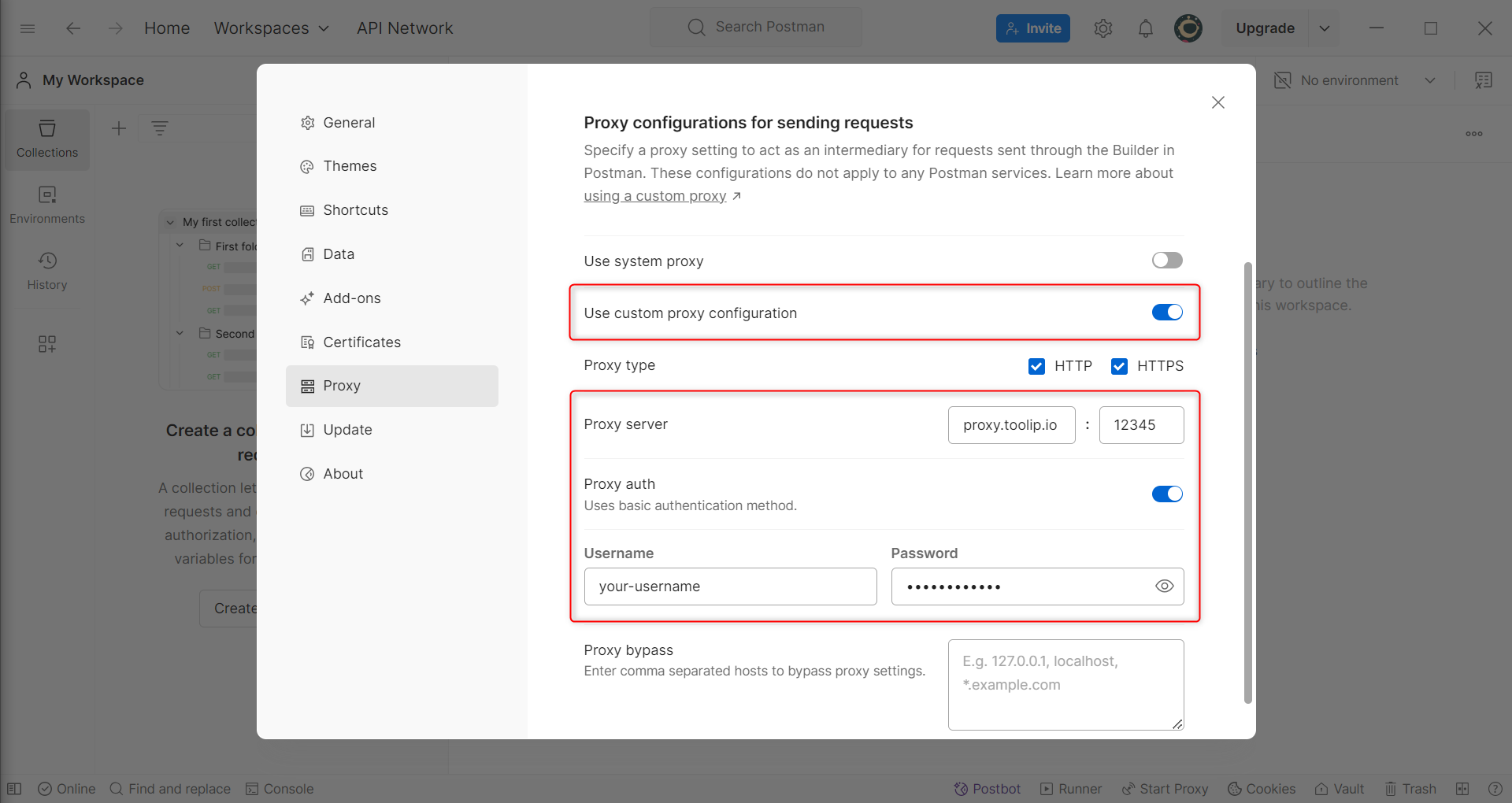
 1\. Navigate to the **Proxy** tab in the settings menu.
2\. Toggle **Use custom proxy configuration** to **On**.
3\. Enter your **Toolip** proxy details:
* **Type**: Select `HTTP` or `HTTPS` based on your Toolip proxy type.
* **Host**: `proxy.toolip.io`
* **Port**: Use the port number from your [Toolip dashboard](https://toolip.io/dashboard/page/plans).
* **Username**: Your Toolip username.
* **Password**: Your Toolip password.
1\. Navigate to the **Proxy** tab in the settings menu.
2\. Toggle **Use custom proxy configuration** to **On**.
3\. Enter your **Toolip** proxy details:
* **Type**: Select `HTTP` or `HTTPS` based on your Toolip proxy type.
* **Host**: `proxy.toolip.io`
* **Port**: Use the port number from your [Toolip dashboard](https://toolip.io/dashboard/page/plans).
* **Username**: Your Toolip username.
* **Password**: Your Toolip password.
 1\. Create a **new request** in Postman.
2\. Set the method to **GET** and enter this test URL: `https://httpbin.org/ip`
3\. Click **Send** to execute the request.
4\. If the response shows the **IP address of your Toolip**, the setup is successful.
By integrating **Toolip** with **Postman**, you improve your API testing workflows with security, anonymity, and geo-flexibility. Whether you're debugging, developing, or scaling your API tasks, Toolip ensures a stable and private connection. Try it today to streamline your API testing experience!
1\. Create a **new request** in Postman.
2\. Set the method to **GET** and enter this test URL: `https://httpbin.org/ip`
3\. Click **Send** to execute the request.
4\. If the response shows the **IP address of your Toolip**, the setup is successful.
By integrating **Toolip** with **Postman**, you improve your API testing workflows with security, anonymity, and geo-flexibility. Whether you're debugging, developing, or scaling your API tasks, Toolip ensures a stable and private connection. Try it today to streamline your API testing experience!