> ## Documentation Index
> Fetch the complete documentation index at: https://docs.toolip.io/llms.txt
> Use this file to discover all available pages before exploring further.
# How to Set Up Toolip With Octoparse
> Enhance your web scraping efficiency by integrating Toolip with Octoparse. This guide will walk you through setting up secure and anonymous data extraction while minimizing the risk of IP blocks.
 ## What is Octoparse?
**Octoparse** is a user-friendly, no-code web scraping tool that allows you to extract structured data from websites without coding skills. Its **point-and-click interface** makes it easy to collect data for **market research, price tracking, lead generation**, and more. With **Toolip proxies**, you can prevent detection, avoid IP bans, and ensure seamless web scraping.
Prefer an enterprise-grade guide? Learn more about Oculus Proxies Octoparse Integration Guide.
Targeting search engines like Google, Bing, or Yandex requires a specialized proxy to ensure stable access and avoid blocks. **Toolip’s Search Engine ISP Proxies** are designed specifically for this, providing reliable performance where standard proxies may fail. If your proxy test isn’t working on search engines, switching to **Search Engine ISP Proxies** can resolve the issue.
## How to Set Up Toolip With Octoparse
1\. Visit the [Octoparse website](https://www.octoparse.com/download).
2\. Download and install Octoparse on your computer.
3\. Open Octoparse and log in to your account.
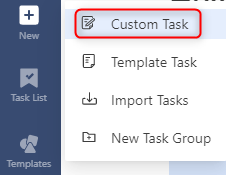
1\. In the Octoparse dashboard, click the **+New** button in the top-left corner.
2\. Select **Custom Task** to start configuring your scraping workflow.
## What is Octoparse?
**Octoparse** is a user-friendly, no-code web scraping tool that allows you to extract structured data from websites without coding skills. Its **point-and-click interface** makes it easy to collect data for **market research, price tracking, lead generation**, and more. With **Toolip proxies**, you can prevent detection, avoid IP bans, and ensure seamless web scraping.
Prefer an enterprise-grade guide? Learn more about Oculus Proxies Octoparse Integration Guide.
Targeting search engines like Google, Bing, or Yandex requires a specialized proxy to ensure stable access and avoid blocks. **Toolip’s Search Engine ISP Proxies** are designed specifically for this, providing reliable performance where standard proxies may fail. If your proxy test isn’t working on search engines, switching to **Search Engine ISP Proxies** can resolve the issue.
## How to Set Up Toolip With Octoparse
1\. Visit the [Octoparse website](https://www.octoparse.com/download).
2\. Download and install Octoparse on your computer.
3\. Open Octoparse and log in to your account.
1\. In the Octoparse dashboard, click the **+New** button in the top-left corner.
2\. Select **Custom Task** to start configuring your scraping workflow.
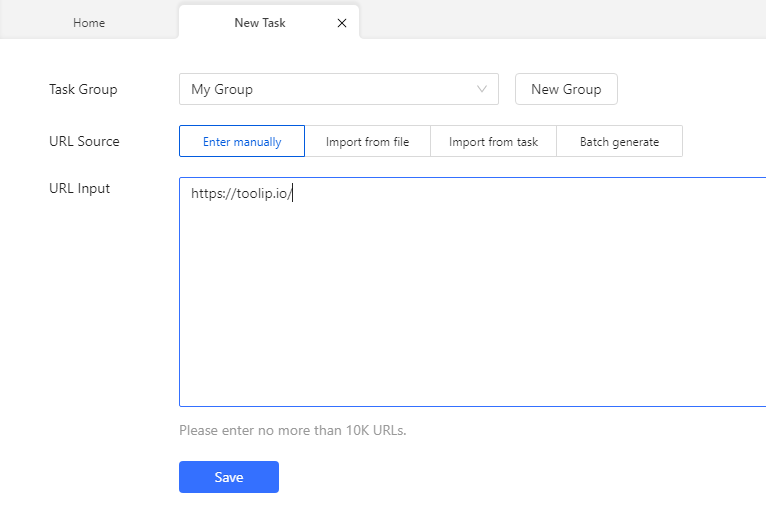
 1\. In the **URL Input** field, paste the website link you want to scrape.
2\. Click **Save** to load the webpage inside Octoparse.
1\. In the **URL Input** field, paste the website link you want to scrape.
2\. Click **Save** to load the webpage inside Octoparse.
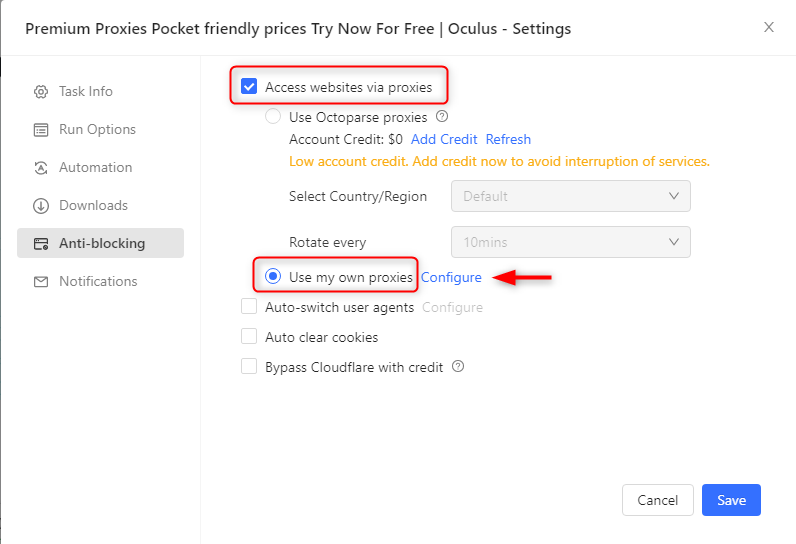
 1\. Once the page loads, navigate to **Task Settings > Anti-blocking**.
 2\. Check the box for **Access websites via proxies**.
3\. Select **Use my own proxies**, then click **Configure** to open the proxy setup window.
2\. Check the box for **Access websites via proxies**.
3\. Select **Use my own proxies**, then click **Configure** to open the proxy setup window.
 1\. Log in to your [Toolip Dashboard](https://toolip.io/dashboard/page/plans).
2\. Click **Show Configured List** under the **Generic** tab to copy your proxy details.
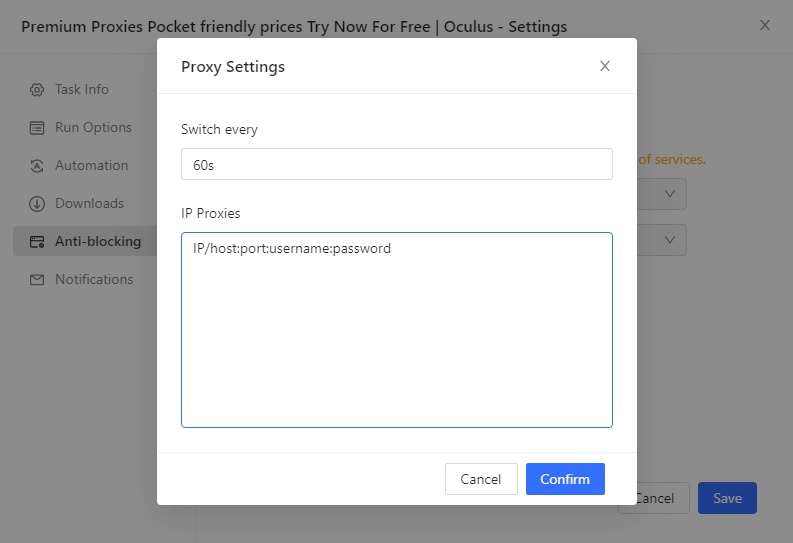
3\. Paste the proxy information into the **IP Proxies** field in Octoparse.
4\. If using rotating proxies, set the **Switch interval** to adjust IP rotation frequency.
5\. Click **Confirm** and then **Save** to apply the proxy settings.
6\. Once confirmed, start your scraping task with fully secured and anonymous connections.
1\. Log in to your [Toolip Dashboard](https://toolip.io/dashboard/page/plans).
2\. Click **Show Configured List** under the **Generic** tab to copy your proxy details.
3\. Paste the proxy information into the **IP Proxies** field in Octoparse.
4\. If using rotating proxies, set the **Switch interval** to adjust IP rotation frequency.
5\. Click **Confirm** and then **Save** to apply the proxy settings.
6\. Once confirmed, start your scraping task with fully secured and anonymous connections.
 If you need proxies for a specific country, append a **country code** to your username (e.g., `your-username-country-US` for a **US-based IP**).
Your **Toolip** are now successfully integrated with **Octoparse**! You can scrape data efficiently while ensuring anonymity and avoiding detection.
If you need proxies for a specific country, append a **country code** to your username (e.g., `your-username-country-US` for a **US-based IP**).
Your **Toolip** are now successfully integrated with **Octoparse**! You can scrape data efficiently while ensuring anonymity and avoiding detection.