> ## Documentation Index
> Fetch the complete documentation index at: https://docs.toolip.io/llms.txt
> Use this file to discover all available pages before exploring further.
# How to Set Up Toolip With Octo Browser
> Enhance your multi-account management and web scraping by integrating Toolip with Octo Browser. This guide will help you configure Toolip proxies for secure and undetectable browsing.
 ## What is Octo Browser?
**Octo Browser** is a powerful anti-detection browser designed for users who need to manage multiple accounts while maintaining privacy. It allows you to create unique browser profiles with isolated **IP addresses, cookies, and device fingerprints**, preventing tracking and bans.
With native support for **HTTP, HTTPS, and SOCKS5 proxies**, Octo Browser seamlessly integrates with **Toolip**, ensuring stable, anonymous browsing. Whether you’re a marketer, web scraper, or e-commerce professional, Octo Browser combined with Toolip proxies helps you **scale operations efficiently while remaining undetected**.
Prefer an enterprise-grade guide? Learn more about Oculus Proxies Octobrowser Integration Guide.
Targeting search engines like Google, Bing, or Yandex requires a specialized proxy to ensure stable access and avoid blocks. **Toolip’s Search Engine ISP Proxies** are designed specifically for this, providing reliable performance where standard proxies may fail. If your proxy test isn’t working on search engines, switching to **Search Engine ISP Proxies** can resolve the issue.
## How to Set Up Toolip With Octo Browser
[Download](https://octobrowser.net/download/), install Octo Browser and log in to your account.
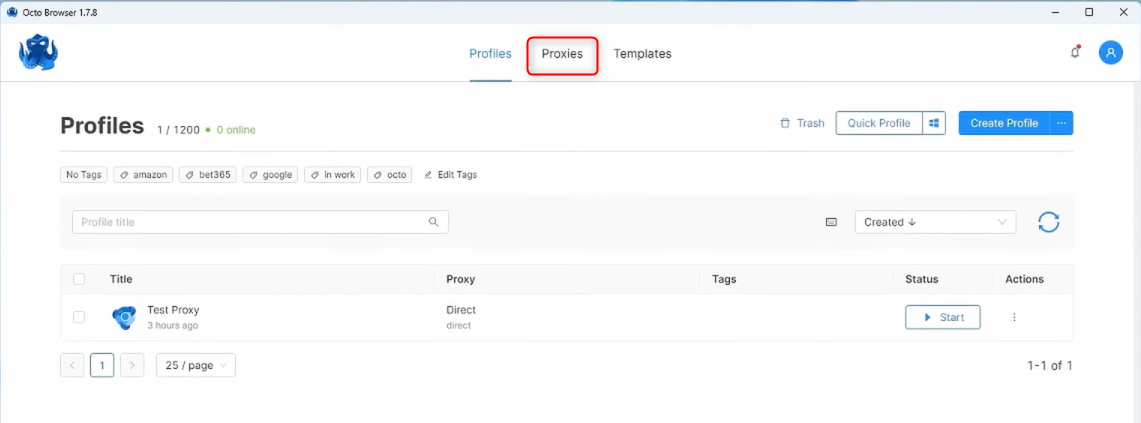
Navigate to the **Proxies tab** located at the top of the application.
## What is Octo Browser?
**Octo Browser** is a powerful anti-detection browser designed for users who need to manage multiple accounts while maintaining privacy. It allows you to create unique browser profiles with isolated **IP addresses, cookies, and device fingerprints**, preventing tracking and bans.
With native support for **HTTP, HTTPS, and SOCKS5 proxies**, Octo Browser seamlessly integrates with **Toolip**, ensuring stable, anonymous browsing. Whether you’re a marketer, web scraper, or e-commerce professional, Octo Browser combined with Toolip proxies helps you **scale operations efficiently while remaining undetected**.
Prefer an enterprise-grade guide? Learn more about Oculus Proxies Octobrowser Integration Guide.
Targeting search engines like Google, Bing, or Yandex requires a specialized proxy to ensure stable access and avoid blocks. **Toolip’s Search Engine ISP Proxies** are designed specifically for this, providing reliable performance where standard proxies may fail. If your proxy test isn’t working on search engines, switching to **Search Engine ISP Proxies** can resolve the issue.
## How to Set Up Toolip With Octo Browser
[Download](https://octobrowser.net/download/), install Octo Browser and log in to your account.
Navigate to the **Proxies tab** located at the top of the application.
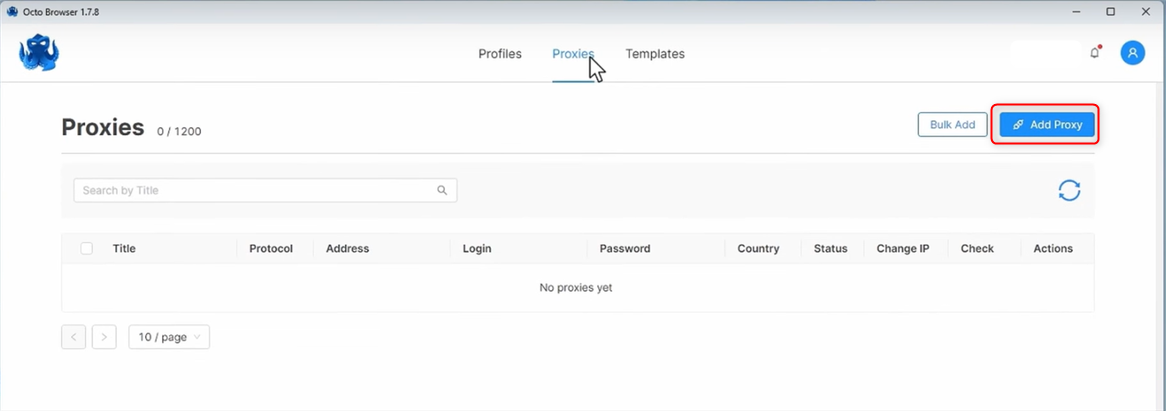
 Click on **Add proxy**.
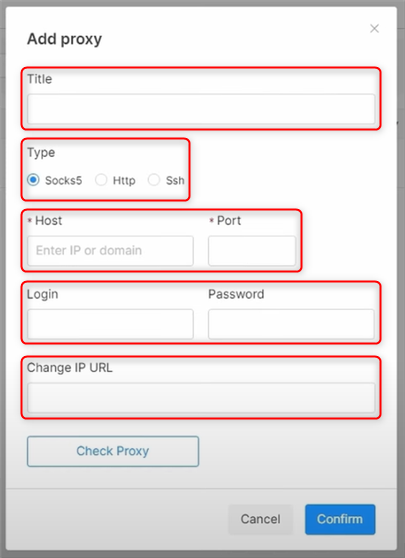
 In the pop-up window, fill in the required fields:
* **Title**: Give a name
* **Type**: HTTP/S or SOCKS5
* **Host**: `proxy.toolip.io`
* **Port**: Get this from your [Toolip dashboard](https://toolip.io/dashboard)
* **Username**: Your Toolip username
* **Password**: Your Toolip password
* **URL:** (Optional)
In the pop-up window, fill in the required fields:
* **Title**: Give a name
* **Type**: HTTP/S or SOCKS5
* **Host**: `proxy.toolip.io`
* **Port**: Get this from your [Toolip dashboard](https://toolip.io/dashboard)
* **Username**: Your Toolip username
* **Password**: Your Toolip password
* **URL:** (Optional)
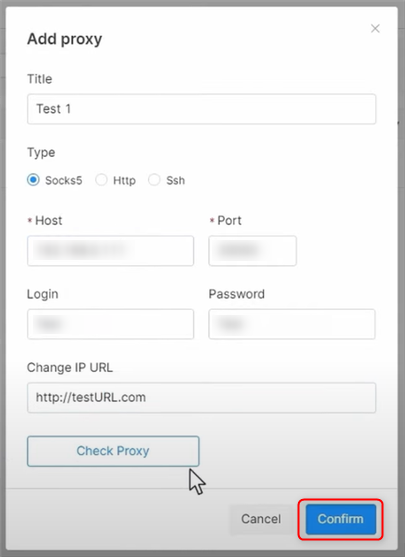
 Click **Confirm** to save the proxy configuration.
 Go back to the **Profiles tab** and locate the **direct** option in the proxy column.
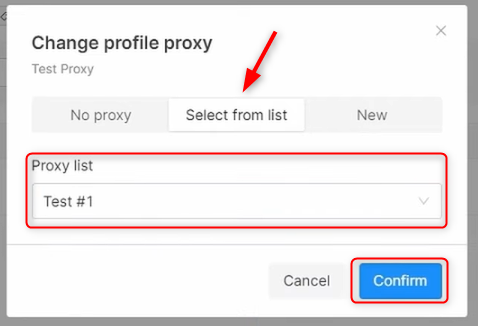
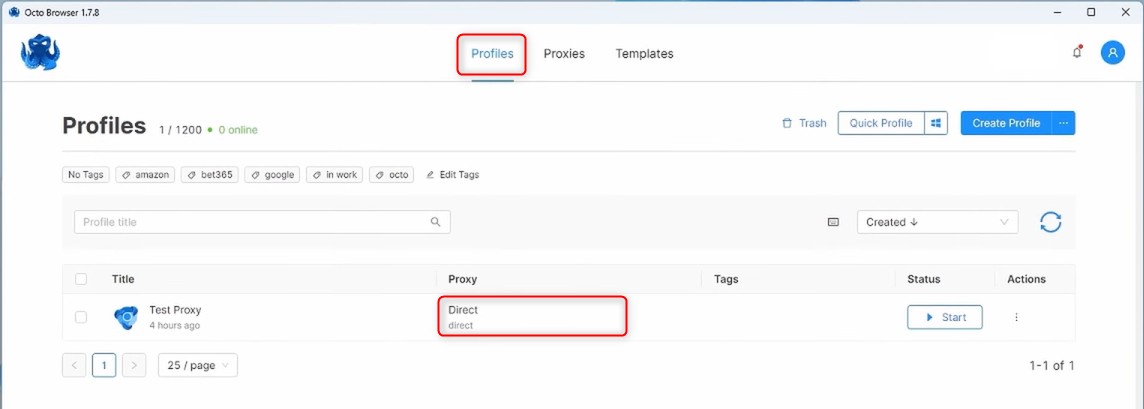 Click **Select from list**, choose the proxy you created earlier, and press **Confirm**.
 Once Direct changes to the selected proxy, click **Start** to launch it.
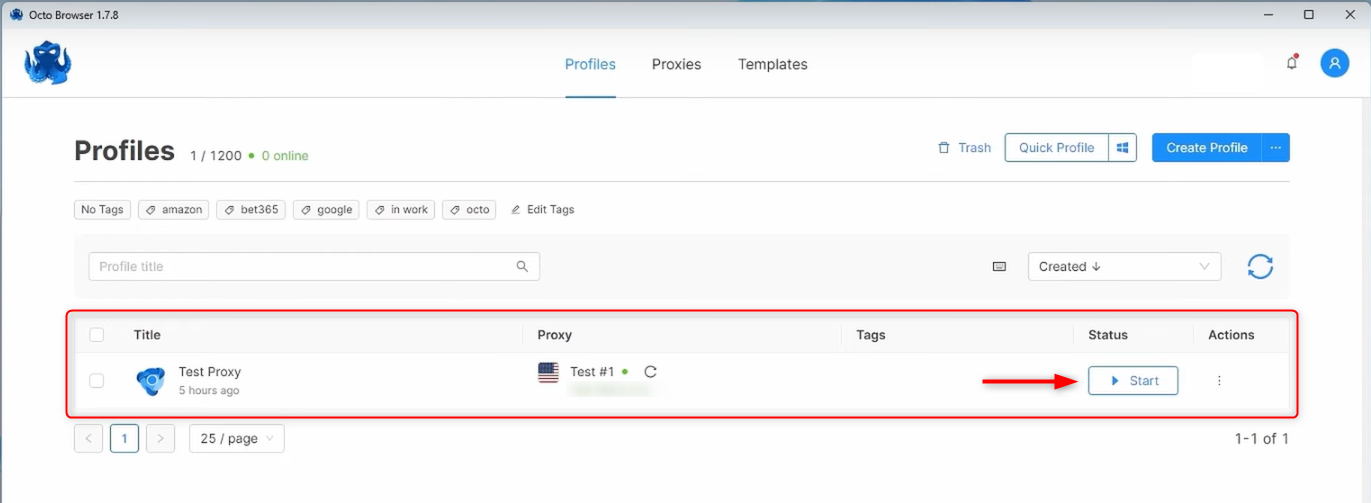 Your **Toolip** proxy is now successfully integrated with **Octo Browser**. You can securely manage multiple accounts, scrape data, and automate tasks with complete privacy and flexibility.