> ## Documentation Index
> Fetch the complete documentation index at: https://docs.toolip.io/llms.txt
> Use this file to discover all available pages before exploring further.
# How to Set Up Toolip With NikeShoeBot 👟
> You've been trying to get into the sneaker game for some time already and you've heard people talking about sneaker bots, maybe even tried some yourself. NikeShoeBot can even help you buy multiple items, using Toolip.
## What is NikeShoeBot?
**NikeShoeBot** is an automation software designed for sneaker and streetwear purchases, enabling automatic add-to-cart and checkout. And together with **Toolip** NikeShoeBot allows you to purchase multiple items effortlessly. It supports Nike SNKRS, Adidas, Finish Line, JD Sports, and excels on Shopify and Supreme with advanced modules and AI CAPTCHA-solving. The latest addition, Asos, further enhances its capabilities for copping and reselling.
Prefer an enterprise-grade guide? Learn more about Oculus Proxies Nikeshoebot Integration Guide.
Targeting search engines like Google, Bing, or Yandex requires a specialized proxy to ensure stable access and avoid blocks. **Toolip’s Search Engine ISP Proxies** are designed specifically for this, providing reliable performance where standard proxies may fail. If your proxy test isn’t working on search engines, switching to **Search Engine ISP Proxies** can resolve the issue.
## How to Set Up Toolip With NikeShoeBot
Visit the [NikeShoeBot](https://www.nikeshoebot.com/) website and get the software.
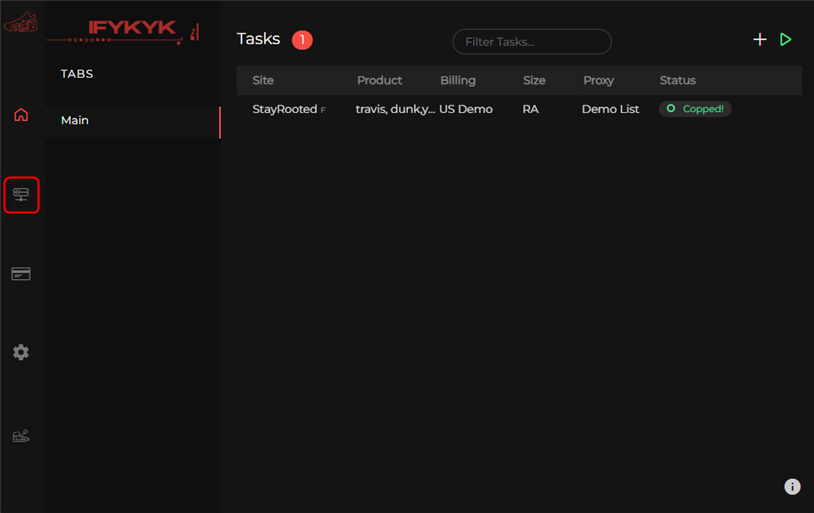
Open the software and navigate to the **Proxy** Settings on the left panel.
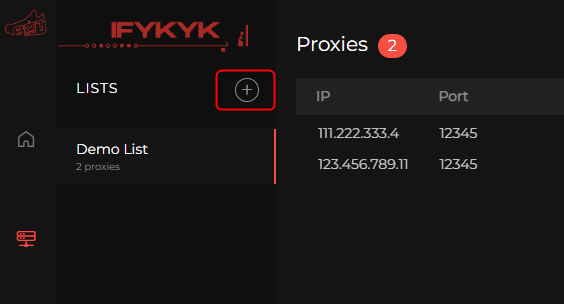
 Click the **+ button** to add a new proxy.
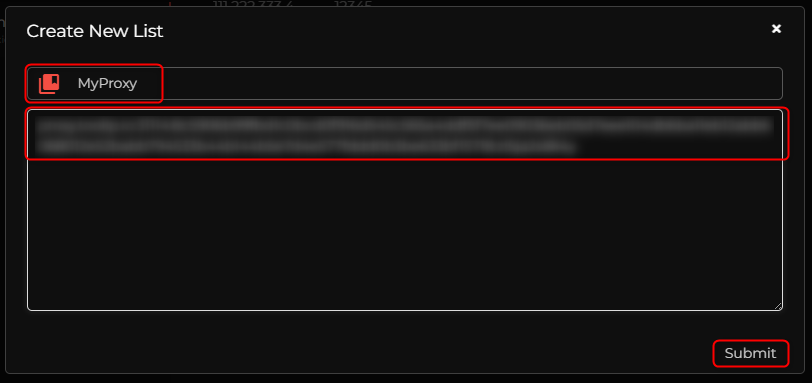
 Assign a **name** and enter the proxy details in the format: `host:port:username:password`, then click **Submit**.
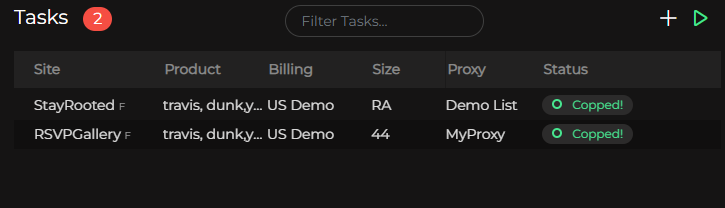
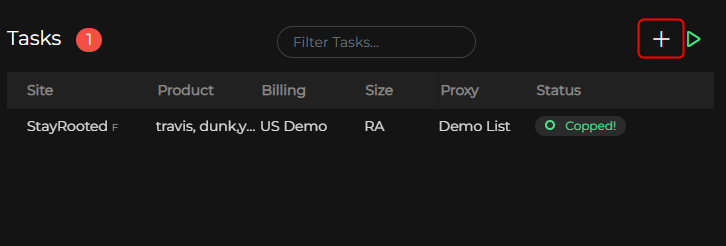
 Go to the **Tasks** window and click the **+ button** on the right to add a new task.
 Select the **destination website**, specify the **shoe model** and **size**, and choose the **proxy** you added. Click **Submit** to save the task.
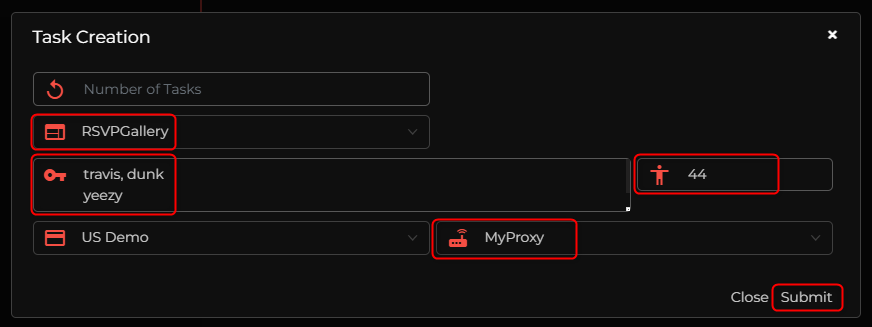 The newly created task will appear in the main window. Click the **grey Idle tag** to activate it.
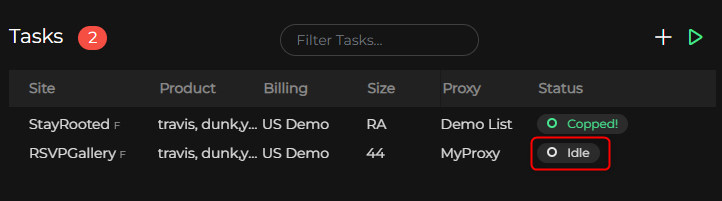 If the setup is correct, the Idle tag will turn green, indicating the task is running successfully.