> ## Documentation Index
> Fetch the complete documentation index at: https://docs.toolip.io/llms.txt
> Use this file to discover all available pages before exploring further.
# How to Set Up Toolip With Multilogin
> Integrating Toolip with Multilogin enhances your multi-account management, offering secure, undetectable browsing with improved privacy and reduced risk of account bans.
 ## What is Multilogin?
**Multilogin** is a robust tool designed for managing multiple online accounts without risking detection or bans. It’s an essential platform for marketers, e-commerce professionals, affiliate marketers, and growth hackers who need to bypass platform restrictions tied to shared IP addresses or device fingerprints.
With Multilogin, you can create unique, isolated browser profiles that mimic separate devices. Each profile has its own digital identity, allowing you to operate multiple accounts as if they’re being accessed from entirely different locations or devices. This ensures secure, undetectable browsing for confident account management.
Prefer an enterprise-grade guide? Learn more about Oculus Proxies Multilogin Integration Guide.
Targeting search engines like Google, Bing, or Yandex requires a specialized proxy to ensure stable access and avoid blocks. **Toolip’s Search Engine ISP Proxies** are designed specifically for this, providing reliable performance where standard proxies may fail. If your proxy test isn't working on search engines, switching to **Search Engine ISP Proxies** can resolve the issue.
## How to Set Up Toolip With Multilogin
Go to the [Multilogin website](https://multilogin.com/), download the application, and complete the installation.
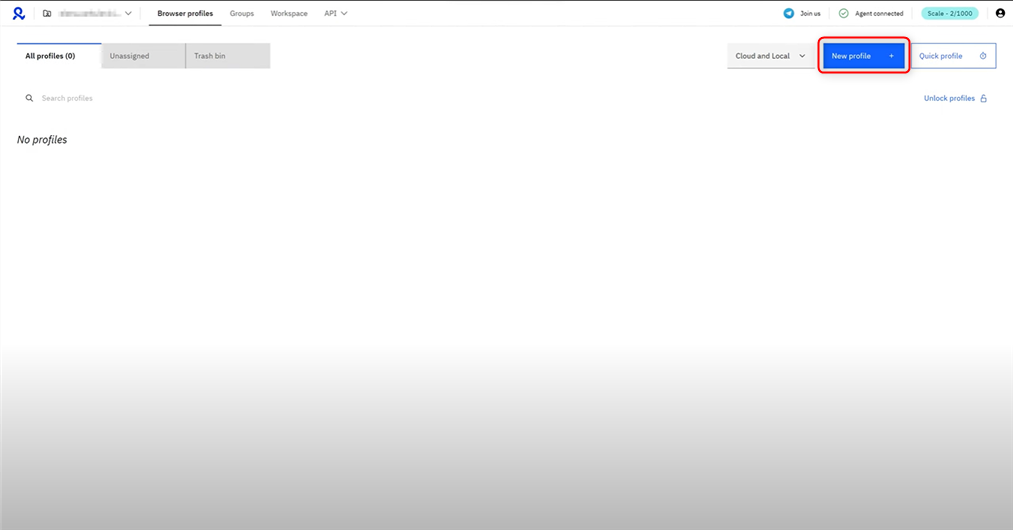
1\. From the dashboard, click **New Profile** to initiate the creation of a virtual browser profile.
## What is Multilogin?
**Multilogin** is a robust tool designed for managing multiple online accounts without risking detection or bans. It’s an essential platform for marketers, e-commerce professionals, affiliate marketers, and growth hackers who need to bypass platform restrictions tied to shared IP addresses or device fingerprints.
With Multilogin, you can create unique, isolated browser profiles that mimic separate devices. Each profile has its own digital identity, allowing you to operate multiple accounts as if they’re being accessed from entirely different locations or devices. This ensures secure, undetectable browsing for confident account management.
Prefer an enterprise-grade guide? Learn more about Oculus Proxies Multilogin Integration Guide.
Targeting search engines like Google, Bing, or Yandex requires a specialized proxy to ensure stable access and avoid blocks. **Toolip’s Search Engine ISP Proxies** are designed specifically for this, providing reliable performance where standard proxies may fail. If your proxy test isn't working on search engines, switching to **Search Engine ISP Proxies** can resolve the issue.
## How to Set Up Toolip With Multilogin
Go to the [Multilogin website](https://multilogin.com/), download the application, and complete the installation.
1\. From the dashboard, click **New Profile** to initiate the creation of a virtual browser profile.
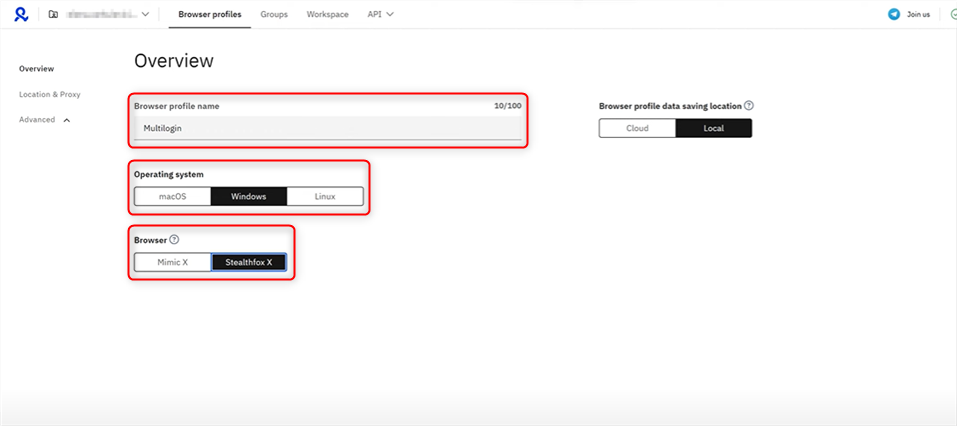
 2\. Enter the following details:
* **Profile Name**: Give your profile a descriptive name (e.g., "Toolip").
* **Operating System**: Select the OS that matches your setup (e.g., Windows, macOS, Linux) to maintain fingerprint consistency.
* **Storage Type**: Choose **Cloud Storage** if you plan to share or use the profile across devices.
* **Browser Type**: Select **Mimic** (Chrome-based) or **Stealthfox** (Firefox-based), both optimized for anti-detection.
2\. Enter the following details:
* **Profile Name**: Give your profile a descriptive name (e.g., "Toolip").
* **Operating System**: Select the OS that matches your setup (e.g., Windows, macOS, Linux) to maintain fingerprint consistency.
* **Storage Type**: Choose **Cloud Storage** if you plan to share or use the profile across devices.
* **Browser Type**: Select **Mimic** (Chrome-based) or **Stealthfox** (Firefox-based), both optimized for anti-detection.
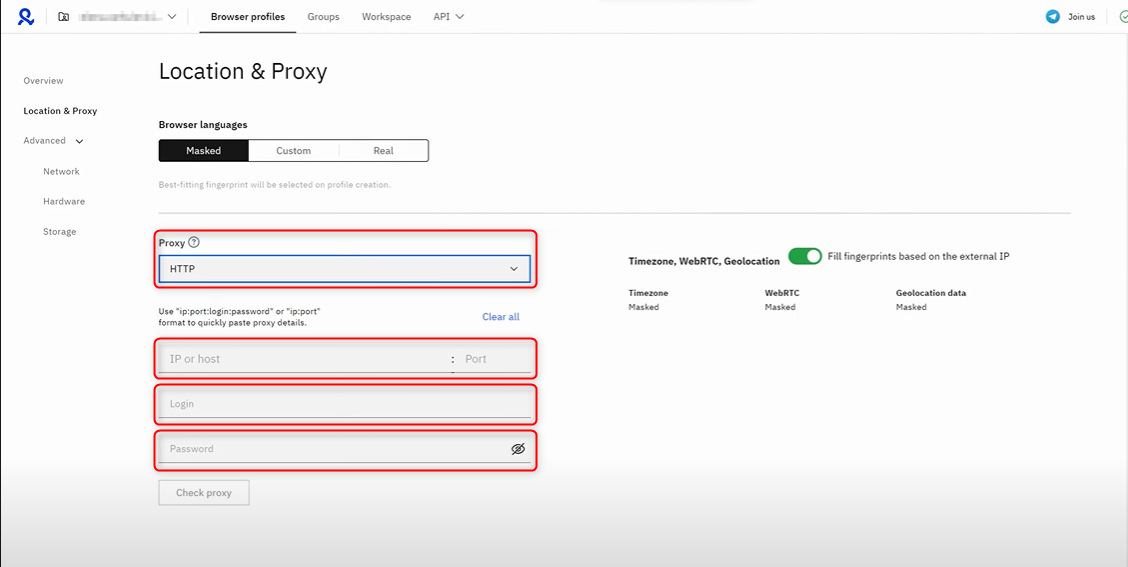
 1\. Navigate to the **Proxy** section in the profile settings.
2\. Select **Custom** as your proxy type and enter the following details:
* **Protocol**: Choose `HTTP`, `HTTPS`, or `SOCKS5` based on your proxy type.
* **Address**: Input `proxy.toolip.io`.
* **Port**: Enter the port number from your [Toolip dashboard](https://toolip.io/dashboard).
* **Login**: Input your Toolip proxy username.
* **Password**: Input your Toolip proxy password.
1\. Navigate to the **Proxy** section in the profile settings.
2\. Select **Custom** as your proxy type and enter the following details:
* **Protocol**: Choose `HTTP`, `HTTPS`, or `SOCKS5` based on your proxy type.
* **Address**: Input `proxy.toolip.io`.
* **Port**: Enter the port number from your [Toolip dashboard](https://toolip.io/dashboard).
* **Login**: Input your Toolip proxy username.
* **Password**: Input your Toolip proxy password.
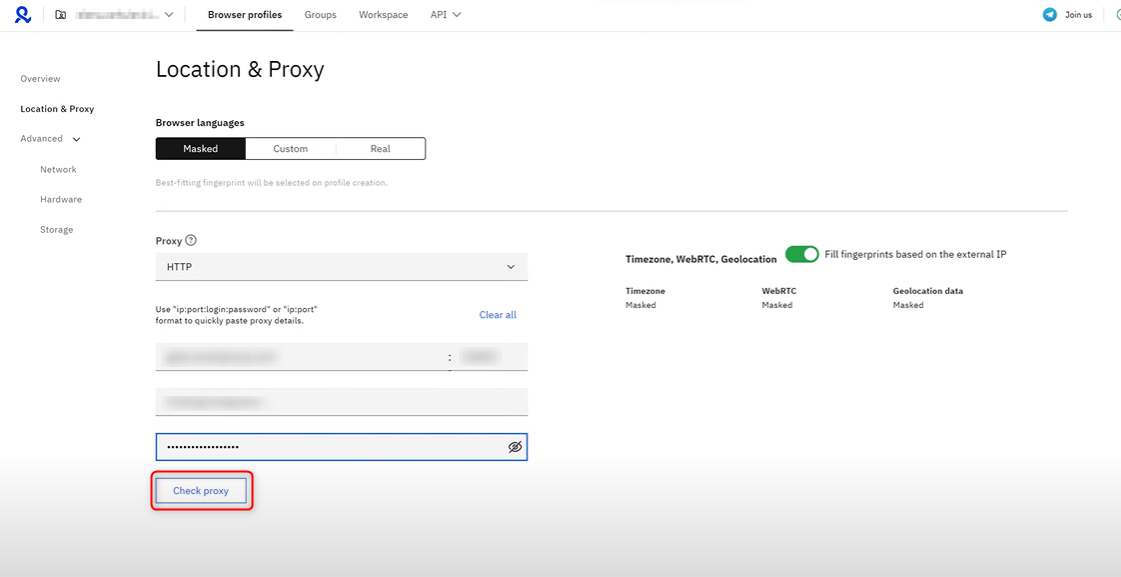
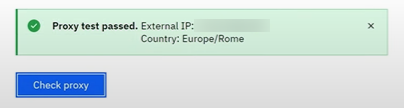
 3\. Click **Check Proxy** to verify the connection is working correctly.
**For country-specific proxies, append the country code to your username (e.g., `your-username-country-US` for a US exit node).**
3\. Click **Check Proxy** to verify the connection is working correctly.
**For country-specific proxies, append the country code to your username (e.g., `your-username-country-US` for a US exit node).**
 4\. If the test is successful, proceed to save the profile.
 1\. After confirming your proxy settings, click **Create Profile** to save your configuration.
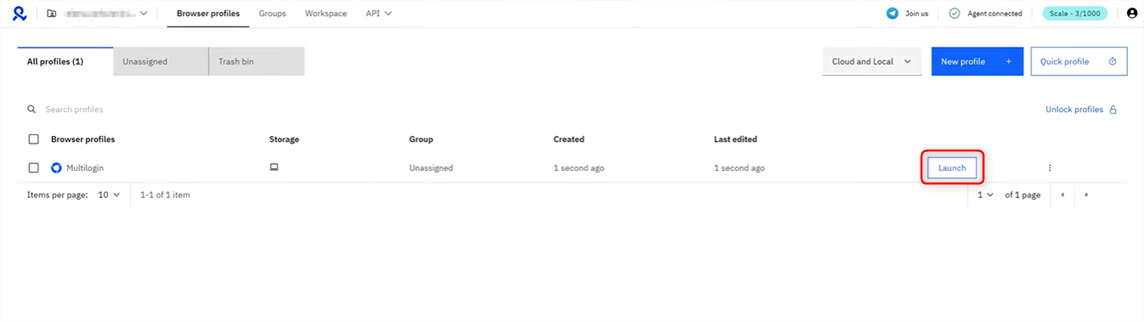
2\. Locate your newly created profile in the dashboard and click **Launch** to launch it.
1\. After confirming your proxy settings, click **Create Profile** to save your configuration.
2\. Locate your newly created profile in the dashboard and click **Launch** to launch it.
 You’ve successfully integrated **Toolip** proxies with **Multilogin**. Now, you can manage multiple accounts securely, bypass restrictions, and enjoy seamless operations across various platforms.