> ## Documentation Index
> Fetch the complete documentation index at: https://docs.toolip.io/llms.txt
> Use this file to discover all available pages before exploring further.
# How to Use Toolip with MuLogin
> Enhance your MuLogin experience by integrating Toolip proxies. This guide shows you how to set up secure, anonymous connections for better automation, data gathering, and account management.
 ## What is MuLogin?
**MuLogin** is a multi-profile browser management tool that helps you run multiple online accounts without them interfering with each other. It’s designed to protect your privacy, prevent detection, and streamline your digital operations. With MuLogin, you can handle multiple sessions seamlessly—perfect for managing e-commerce stores, social media profiles, and other online projects.
Prefer an enterprise-grade guide? Learn more about Oculus Proxies Mulogin Integration Guide.
Targeting search engines like Google, Bing, or Yandex requires a specialized proxy to ensure stable access and avoid blocks. **Toolip’s Search Engine ISP Proxies** are designed specifically for this, providing reliable performance where standard proxies may fail. If your proxy test isn't working on search engines, switching to **Search Engine ISP Proxies** can resolve the issue.
## How to Integrate Toolip with MuLogin
1\. Visit [MuLogin](https://www.mulogin.com/) and sign in to your account.
2\. Once logged in, you’ll see your dashboard with existing browser profiles (if any).
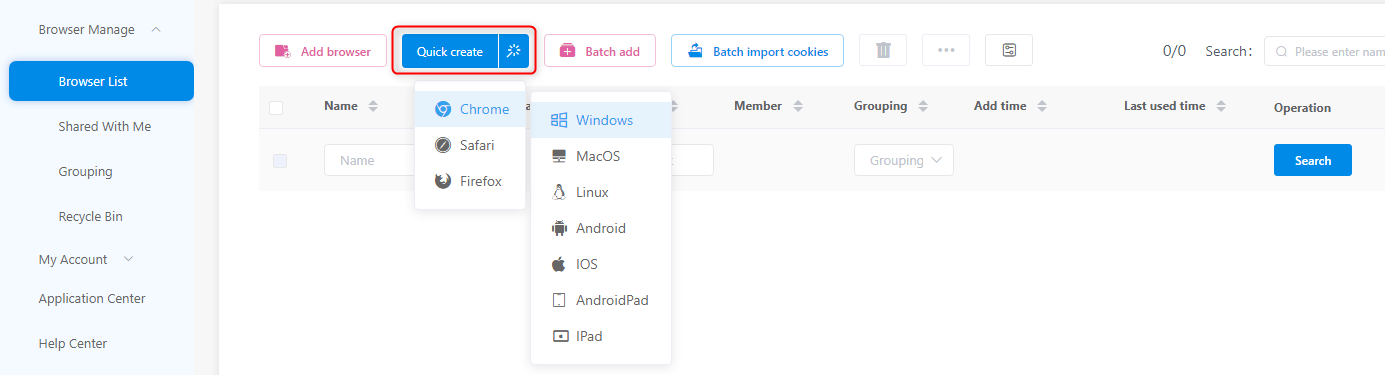
1\. If you need a new profile, click **Quick create**.
2\. If you want to modify an existing profile, select it from the list and click **Edit**, **Settings**, or the **gear icon**—the exact naming may vary based on MuLogin’s current UI.
## What is MuLogin?
**MuLogin** is a multi-profile browser management tool that helps you run multiple online accounts without them interfering with each other. It’s designed to protect your privacy, prevent detection, and streamline your digital operations. With MuLogin, you can handle multiple sessions seamlessly—perfect for managing e-commerce stores, social media profiles, and other online projects.
Prefer an enterprise-grade guide? Learn more about Oculus Proxies Mulogin Integration Guide.
Targeting search engines like Google, Bing, or Yandex requires a specialized proxy to ensure stable access and avoid blocks. **Toolip’s Search Engine ISP Proxies** are designed specifically for this, providing reliable performance where standard proxies may fail. If your proxy test isn't working on search engines, switching to **Search Engine ISP Proxies** can resolve the issue.
## How to Integrate Toolip with MuLogin
1\. Visit [MuLogin](https://www.mulogin.com/) and sign in to your account.
2\. Once logged in, you’ll see your dashboard with existing browser profiles (if any).
1\. If you need a new profile, click **Quick create**.
2\. If you want to modify an existing profile, select it from the list and click **Edit**, **Settings**, or the **gear icon**—the exact naming may vary based on MuLogin’s current UI.
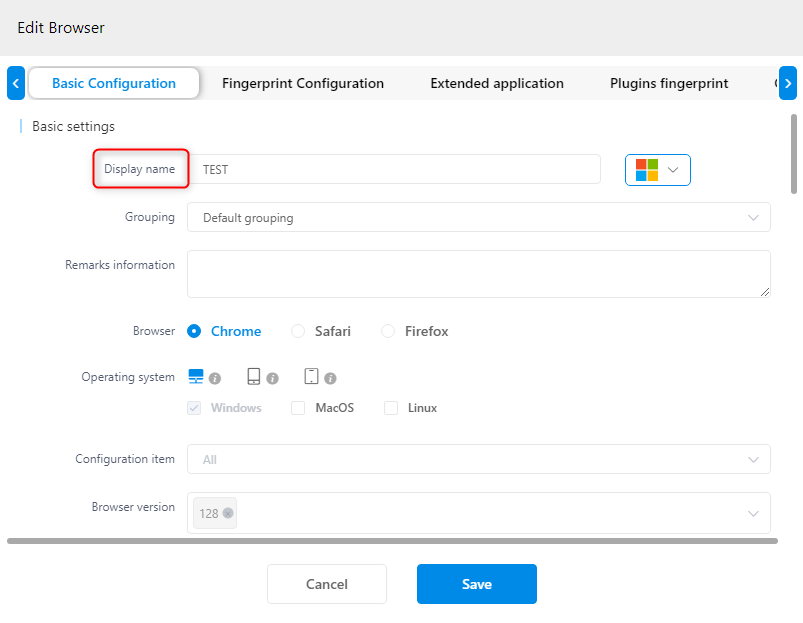
 1\. On the profile configuration page, under **Basic Configuration**, find the **Display Name** field and enter a clear, recognizable name.
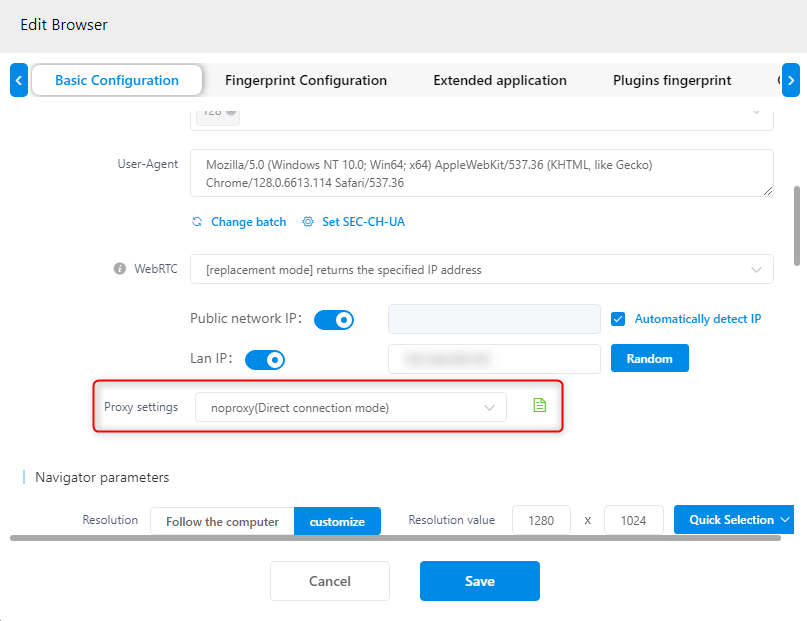
2\. Scroll down to locate the **Proxy Settings** option and click to open the proxy configuration window.
1\. On the profile configuration page, under **Basic Configuration**, find the **Display Name** field and enter a clear, recognizable name.
2\. Scroll down to locate the **Proxy Settings** option and click to open the proxy configuration window.
 1\. Choose the correct **Protocol/Type** (`HTTP`, `HTTPS`, or `SOCKS5`).
2\. **Host**: Enter `proxy.toolip.io`.
3\. **Port**: Use the port number from your [Toolip dashboard](https://toolip.io/dashboard).
4\. **Username & Password**: Input your Toolip credentials. If you need a specific region, format your username as `your-username-country-US`.
5\. Click **Check the network** or ***Test*** **Proxy** to verify the connection.
6\. If the test is successful, click **Save** to confirm the setup.
1\. Choose the correct **Protocol/Type** (`HTTP`, `HTTPS`, or `SOCKS5`).
2\. **Host**: Enter `proxy.toolip.io`.
3\. **Port**: Use the port number from your [Toolip dashboard](https://toolip.io/dashboard).
4\. **Username & Password**: Input your Toolip credentials. If you need a specific region, format your username as `your-username-country-US`.
5\. Click **Check the network** or ***Test*** **Proxy** to verify the connection.
6\. If the test is successful, click **Save** to confirm the setup.
 1\. After saving, launch the profile from your MuLogin dashboard.
2\. Inside the browser, navigate to [httpbin.org/ip](http://httpbin.org/ip) to verify that the displayed IP matches your Toolip proxy.
3\. If the IP matches, your MuLogin profile is successfully using Toolip proxies.
1\. After saving, launch the profile from your MuLogin dashboard.
2\. Inside the browser, navigate to [httpbin.org/ip](http://httpbin.org/ip) to verify that the displayed IP matches your Toolip proxy.
3\. If the IP matches, your MuLogin profile is successfully using Toolip proxies.
 With **Toolip** integrated into **MuLogin**, you’ve taken your online operations up a notch. Now you can manage multiple profiles more confidently—enjoying greater privacy, fewer detection issues, and a smooth, reliable workflow.