> ## Documentation Index
> Fetch the complete documentation index at: https://docs.toolip.io/llms.txt
> Use this file to discover all available pages before exploring further.
# How to Set Up Toolip With MoreLogin
> Enhance your multi-account management with Toolip on MoreLogin for secure, anonymous browsing and better protection against detection.
 ## What is MoreLogin?
**MoreLogin** is a versatile tool that helps you manage multiple online profiles securely and efficiently. Designed for marketers, social media managers, and privacy-conscious users, it allows you to create unique digital identities for each profile. Each profile comes with its own IP address, cookies, and device fingerprints, ensuring you remain undetected and protected from account bans.
With seamless proxy integration, MoreLogin adds an extra layer of anonymity, making it ideal for managing multiple accounts, scaling e-commerce operations, and running affiliate marketing campaigns. Whether you're juggling a few accounts or handling large-scale projects, MoreLogin streamlines your workflow while keeping your data secure.
Prefer an enterprise-grade guide? Learn more about Oculus Proxies Morelogin Integration Guide.
Targeting search engines like Google, Bing, or Yandex requires a specialized proxy to ensure stable access and avoid blocks. **Toolip’s Search Engine ISP Proxies** are designed specifically for this, providing reliable performance where standard proxies may fail. If your proxy test isn't working on search engines, switching to **Search Engine ISP Proxies** can resolve the issue.
## How to Set Up Toolip With MoreLogin
1\. Visit the [**MoreLogin website**](https://www.morelogin.com/).
2\. Download the application and follow the installation instructions.
3\. Launch MoreLogin and log in to your account.
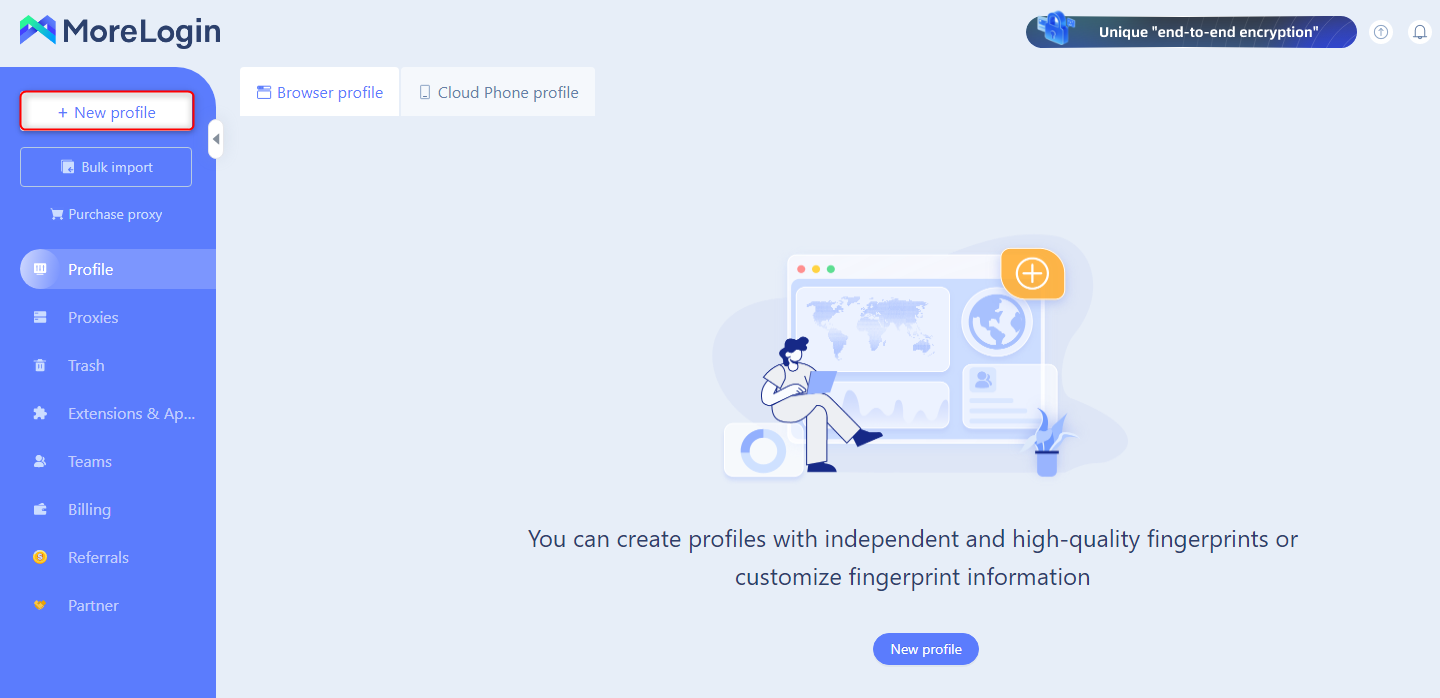
1\. On the main dashboard, click **+New profile** to start setting up a new browser profile.
## What is MoreLogin?
**MoreLogin** is a versatile tool that helps you manage multiple online profiles securely and efficiently. Designed for marketers, social media managers, and privacy-conscious users, it allows you to create unique digital identities for each profile. Each profile comes with its own IP address, cookies, and device fingerprints, ensuring you remain undetected and protected from account bans.
With seamless proxy integration, MoreLogin adds an extra layer of anonymity, making it ideal for managing multiple accounts, scaling e-commerce operations, and running affiliate marketing campaigns. Whether you're juggling a few accounts or handling large-scale projects, MoreLogin streamlines your workflow while keeping your data secure.
Prefer an enterprise-grade guide? Learn more about Oculus Proxies Morelogin Integration Guide.
Targeting search engines like Google, Bing, or Yandex requires a specialized proxy to ensure stable access and avoid blocks. **Toolip’s Search Engine ISP Proxies** are designed specifically for this, providing reliable performance where standard proxies may fail. If your proxy test isn't working on search engines, switching to **Search Engine ISP Proxies** can resolve the issue.
## How to Set Up Toolip With MoreLogin
1\. Visit the [**MoreLogin website**](https://www.morelogin.com/).
2\. Download the application and follow the installation instructions.
3\. Launch MoreLogin and log in to your account.
1\. On the main dashboard, click **+New profile** to start setting up a new browser profile.
 2\. Enter a **Profile Name** to identify the profile.
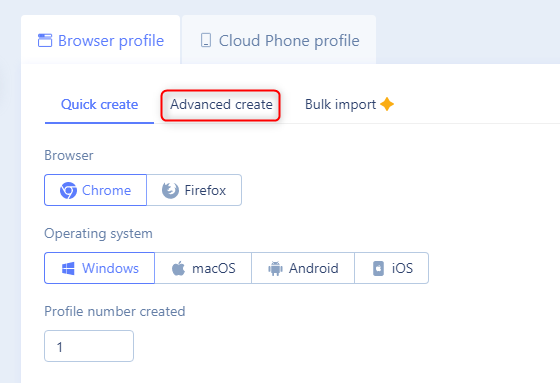
3\. Select your preferred **Browser** and **Operating System**, then click **Advanced Create** to access additional configuration options.
2\. Enter a **Profile Name** to identify the profile.
3\. Select your preferred **Browser** and **Operating System**, then click **Advanced Create** to access additional configuration options.
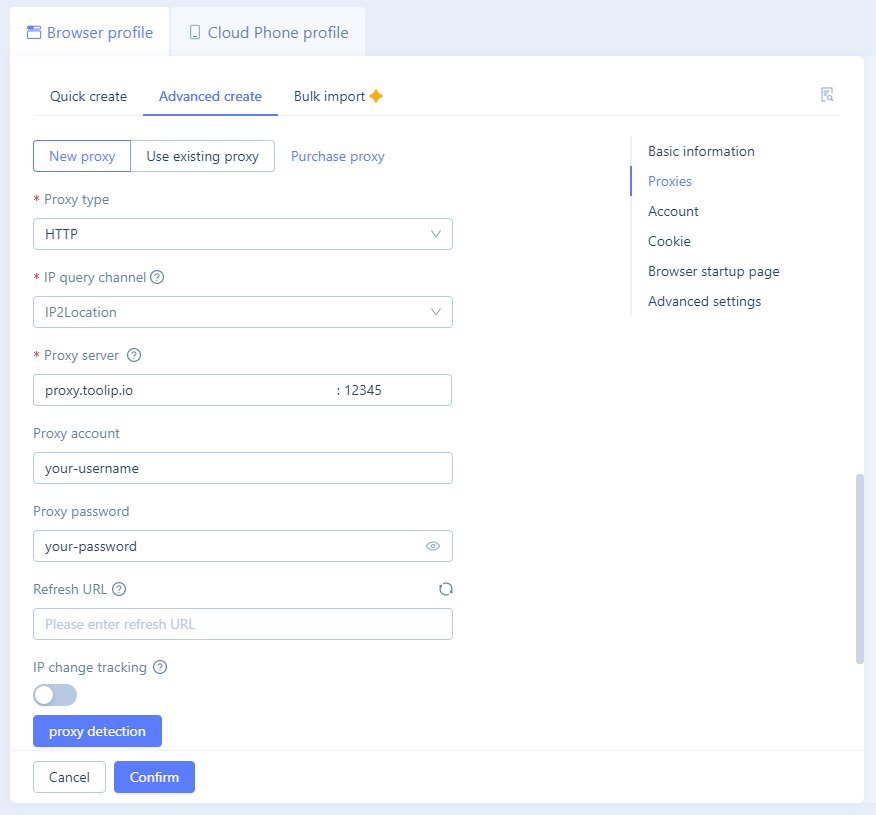
 1\. Enter your Toolip proxy details as follows:
* **Proxy Type**: Choose `HTTP`, `HTTPS`, or `SOCKS5` based on your proxy type.
* **Proxy Server**: Enter `proxy.toolip.io`.
* **Proxy Port**: Use the port number from your [Toolip dashboard](https://toolip.io/dashboard/page/plans).
* **Proxy Account**: Input your Toolip proxy `username`.
* **Proxy Password**: Input your Toolip proxy `password`.
2\. Click **Check Proxy** to ensure the connection works.
3\. If the test is successful, click **Confirm** to save your profile settings.
1\. Enter your Toolip proxy details as follows:
* **Proxy Type**: Choose `HTTP`, `HTTPS`, or `SOCKS5` based on your proxy type.
* **Proxy Server**: Enter `proxy.toolip.io`.
* **Proxy Port**: Use the port number from your [Toolip dashboard](https://toolip.io/dashboard/page/plans).
* **Proxy Account**: Input your Toolip proxy `username`.
* **Proxy Password**: Input your Toolip proxy `password`.
2\. Click **Check Proxy** to ensure the connection works.
3\. If the test is successful, click **Confirm** to save your profile settings.
 **You can also specify a country for your proxy. For instance, entering `your-username-country-US` will give you a US-based exit node.**
1\. On the dashboard, locate your newly created profile.
2\. Click **Start** to open a secure browsing session with your configured Toolip proxy.
**You can also specify a country for your proxy. For instance, entering `your-username-country-US` will give you a US-based exit node.**
1\. On the dashboard, locate your newly created profile.
2\. Click **Start** to open a secure browsing session with your configured Toolip proxy.
 You’ve successfully integrated **Toolip** with **MoreLogin**. Now you can manage multiple accounts securely, protect your privacy, and enjoy seamless browsing tailored to your needs.