> ## Documentation Index
> Fetch the complete documentation index at: https://docs.toolip.io/llms.txt
> Use this file to discover all available pages before exploring further.
# How to Use Toolip With MarketerBrowser
> Effortlessly enhance your browser profile management with Toolip. Integrating Toolip with MarketerBrowser allows you to secure your connections, manage multiple accounts, and explore region-specific content with ease. Follow this guide to set up Toolip with MarketerBrowser today.
 ## What is MarketerBrowser?
**MarketerBrowser** is a specialized browser designed for professionals managing multiple accounts or campaigns. It allows you to create isolated browser profiles, ensuring security and privacy for each session. By integrating **Toolip**, you can enhance anonymity, access geo-restricted content, and reduce detection risks for your workflows.
Prefer an enterprise-grade guide? Learn more about Oculus Proxies Marketerbrowser Integration Guide.
Targeting search engines like Google, Bing, or Yandex requires a specialized proxy to ensure stable access and avoid blocks. **Toolip’s Search Engine ISP Proxies** are designed specifically for this, providing reliable performance where standard proxies may fail. If your proxy test isn't working on search engines, switching to **Search Engine ISP Proxies** can resolve the issue.
## How to Integrate Toolip With MarketerBrowser
1\. Download MarketerBrowser from the [official website](https://www.marketerbrowser.com/).
2\. Follow the installation steps and launch the application.
3\. Log in to your MarketerBrowser account. If you don’t have an account, register for one.
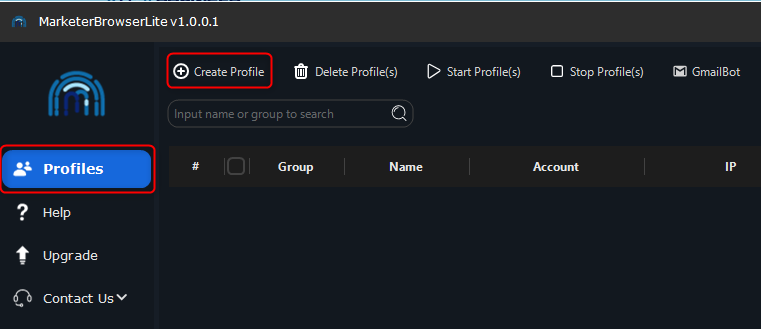
1\. Open the **Profiles** section.
2\. Click **Create Profile** to set up a new browser instance or edit an existing one.
3\. Assign a **Profile Name** for easy identification.
## What is MarketerBrowser?
**MarketerBrowser** is a specialized browser designed for professionals managing multiple accounts or campaigns. It allows you to create isolated browser profiles, ensuring security and privacy for each session. By integrating **Toolip**, you can enhance anonymity, access geo-restricted content, and reduce detection risks for your workflows.
Prefer an enterprise-grade guide? Learn more about Oculus Proxies Marketerbrowser Integration Guide.
Targeting search engines like Google, Bing, or Yandex requires a specialized proxy to ensure stable access and avoid blocks. **Toolip’s Search Engine ISP Proxies** are designed specifically for this, providing reliable performance where standard proxies may fail. If your proxy test isn't working on search engines, switching to **Search Engine ISP Proxies** can resolve the issue.
## How to Integrate Toolip With MarketerBrowser
1\. Download MarketerBrowser from the [official website](https://www.marketerbrowser.com/).
2\. Follow the installation steps and launch the application.
3\. Log in to your MarketerBrowser account. If you don’t have an account, register for one.
1\. Open the **Profiles** section.
2\. Click **Create Profile** to set up a new browser instance or edit an existing one.
3\. Assign a **Profile Name** for easy identification.
 1\. Navigate to the **Proxy** section in the profile setup.
2\. Enter the following Toolip proxy details:
* **Type**: Select `HTTP`, `HTTPS`, or `SOCKS5`.
* **Server**: `proxy.toolip.io`
* **Port**: Use the port number from your [Toolip dashboard](https://toolip.io/dashboard).
* **Username**: Your Toolip username.
* **Password**: Your Toolip password.
3\. Click **Check** to verify the connection.
4\. If the test is successful, click **Create** to save your profile.
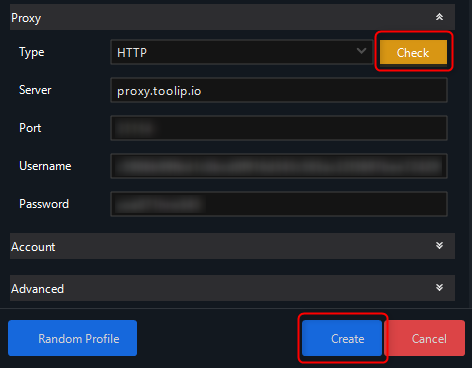
1\. Navigate to the **Proxy** section in the profile setup.
2\. Enter the following Toolip proxy details:
* **Type**: Select `HTTP`, `HTTPS`, or `SOCKS5`.
* **Server**: `proxy.toolip.io`
* **Port**: Use the port number from your [Toolip dashboard](https://toolip.io/dashboard).
* **Username**: Your Toolip username.
* **Password**: Your Toolip password.
3\. Click **Check** to verify the connection.
4\. If the test is successful, click **Create** to save your profile.
 1\. Go to the **Profiles** section.
2\. Select the newly configured profile.
3\. Toggle the **Launch** switch to *On* to activate the profile with your Toolip settings.
1\. Go to the **Profiles** section.
2\. Select the newly configured profile.
3\. Toggle the **Launch** switch to *On* to activate the profile with your Toolip settings.
 1\. Launch the profile and open a web browser.
2\. Navigate to [httpbin.org/ip](http://httpbin.org/ip).
3\. Confirm that the displayed IP matches your Toolip proxy, ensuring the setup is correct.
By integrating **Toolip** with **MarketerBrowser**, you create a seamless and secure environment for managing multiple accounts, accessing geo-specific content, and maintaining anonymity. Follow these steps to optimize your workflows and enhance privacy with Toolip and MarketerBrowser today!
1\. Launch the profile and open a web browser.
2\. Navigate to [httpbin.org/ip](http://httpbin.org/ip).
3\. Confirm that the displayed IP matches your Toolip proxy, ensuring the setup is correct.
By integrating **Toolip** with **MarketerBrowser**, you create a seamless and secure environment for managing multiple accounts, accessing geo-specific content, and maintaining anonymity. Follow these steps to optimize your workflows and enhance privacy with Toolip and MarketerBrowser today!