> ## Documentation Index
> Fetch the complete documentation index at: https://docs.toolip.io/llms.txt
> Use this file to discover all available pages before exploring further.
# How to Use Toolip on macOS 🍏
> Integrate Toolip proxies into your macOS network settings for secure, private, and geo-flexible browsing. This guide will walk you through the entire configuration process to help you stay efficient and protected online.
 Prefer an enterprise-grade guide? Learn more about Oculus Proxies Macos Integration Guide.
Targeting search engines like Google, Bing, or Yandex requires a specialized proxy to ensure stable access and avoid blocks. **Toolip’s Search Engine ISP Proxies** are designed specifically for this, providing reliable performance where standard proxies may fail. If your proxy test isn't working on search engines, switching to **Search Engine ISP Proxies** can resolve the issue.
## Setting Up Toolip on macOS
1\. Click the **Apple menu** in the top-left corner.
2\. Select **System Settings** (or **System Preferences** on older macOS versions).
3\. Choose **Network** and select the connection you want to configure (e.g., **Wi-Fi** or **Ethernet**).
Prefer an enterprise-grade guide? Learn more about Oculus Proxies Macos Integration Guide.
Targeting search engines like Google, Bing, or Yandex requires a specialized proxy to ensure stable access and avoid blocks. **Toolip’s Search Engine ISP Proxies** are designed specifically for this, providing reliable performance where standard proxies may fail. If your proxy test isn't working on search engines, switching to **Search Engine ISP Proxies** can resolve the issue.
## Setting Up Toolip on macOS
1\. Click the **Apple menu** in the top-left corner.
2\. Select **System Settings** (or **System Preferences** on older macOS versions).
3\. Choose **Network** and select the connection you want to configure (e.g., **Wi-Fi** or **Ethernet**).
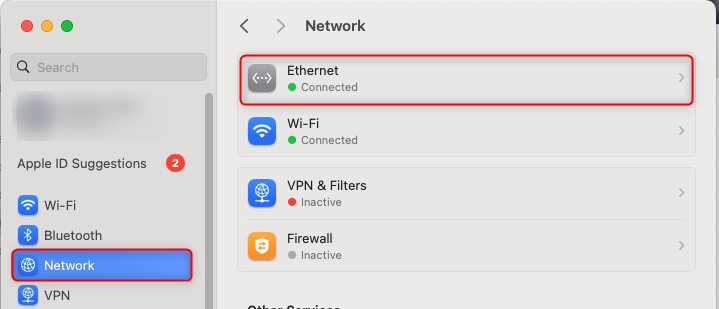 1\. Click the "**Details…**" button in the top-right corner of the Network pane.
2\. In the new window, select the **Proxies** tab.
1\. Click the "**Details…**" button in the top-right corner of the Network pane.
2\. In the new window, select the **Proxies** tab.
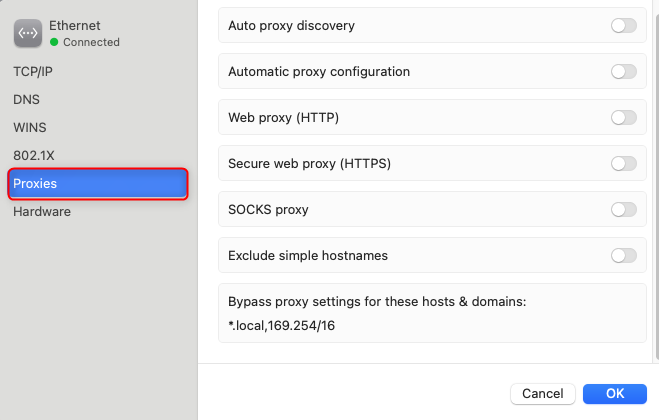 Check the box next to the proxy protocol you need to configure:
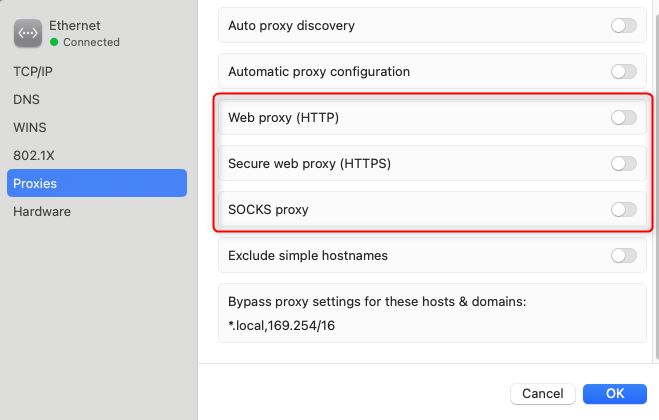
* **HTTP** or **HTTPS** → Select **Web Proxy (HTTP)** or **Secure Web Proxy (HTTPS)**.
* **SOCKS5** → Select **SOCKS Proxy**.
If you're not sure - choose HTTP
Check the box next to the proxy protocol you need to configure:
* **HTTP** or **HTTPS** → Select **Web Proxy (HTTP)** or **Secure Web Proxy (HTTPS)**.
* **SOCKS5** → Select **SOCKS Proxy**.
If you're not sure - choose HTTP
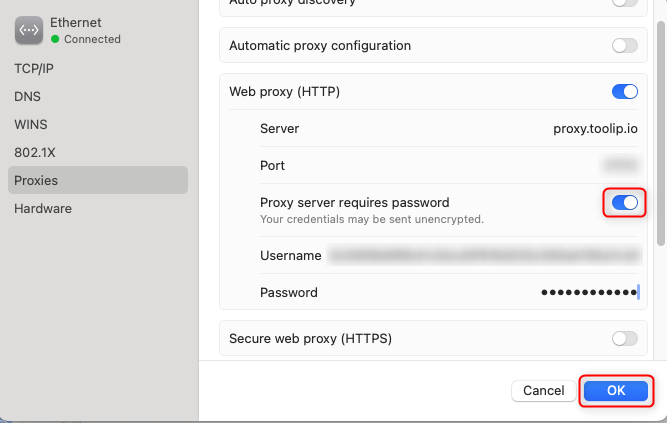
 1\. **Server**: Enter `proxy.toolip.io`.
2\. **Port**: Input the port number from your [Toolip dashboard](https://toolip.io/dashboard).
3\. **Enable Authentication**: Check **Proxy server requires password**.
4\. **Username** and **Password**: Input your Toolip credentials.
5\. Click **OK** to save the settings.
1\. **Server**: Enter `proxy.toolip.io`.
2\. **Port**: Input the port number from your [Toolip dashboard](https://toolip.io/dashboard).
3\. **Enable Authentication**: Check **Proxy server requires password**.
4\. **Username** and **Password**: Input your Toolip credentials.
5\. Click **OK** to save the settings.
 **For geo-targeted proxies**, modify your username as `your-username-country-XX` (e.g., `your-username-country-US`).
1\. Open a browser like **Safari** or **Chrome**.
2\. Visit [httpbin.org/ip](http://httpbin.org/ip) to check your IP.
3\. If the displayed IP matches your **Toolip proxy**, your macOS traffic is now routed securely through Toolip.
Now that **Toolip is successfully set up** on your macOS, your browsing is secure, private, and flexible across all applications. Enjoy unrestricted access, anonymous browsing, and enhanced security on your Mac!
**For geo-targeted proxies**, modify your username as `your-username-country-XX` (e.g., `your-username-country-US`).
1\. Open a browser like **Safari** or **Chrome**.
2\. Visit [httpbin.org/ip](http://httpbin.org/ip) to check your IP.
3\. If the displayed IP matches your **Toolip proxy**, your macOS traffic is now routed securely through Toolip.
Now that **Toolip is successfully set up** on your macOS, your browsing is secure, private, and flexible across all applications. Enjoy unrestricted access, anonymous browsing, and enhanced security on your Mac!