> ## Documentation Index
> Fetch the complete documentation index at: https://docs.toolip.io/llms.txt
> Use this file to discover all available pages before exploring further.
# How to Set Up Toolip With Lauth Browser
> Boost your privacy and optimize your online activities with Toolip in Lauth Browser. This guide will walk you through setting up secure and dependable proxy connections for your browser profiles.
 ## What is Lauth Browser?
**Lauth Browser** is an anti-detect browser designed for users who need multiple isolated browser profiles with unique fingerprints. It helps marketers, researchers, and businesses manage multiple accounts securely while preventing tracking, fingerprinting, and detection by websites. With **Toolip**, you can enhance anonymity, use reliable proxy connections, and bypass IP bans for seamless online operations.
Prefer an enterprise-grade guide? Learn more about Oculus Proxies Lauth Browser Integration Guide.
If you're using **Toolip** for search engines like **Google, Bing, or Yandex**, you may need **Search Engine ISP Proxies** to avoid blocks and ensure stable access. Standard proxies might not work reliably for these platforms.
## How to Integrate Toolip With Lauth Browser
1\. Visit the [Lauth Browser website](https://www.lauth.com.br/baixar-lauth).
2\. Download and install the application on your device.
1\. Open **Lauth Browser**.
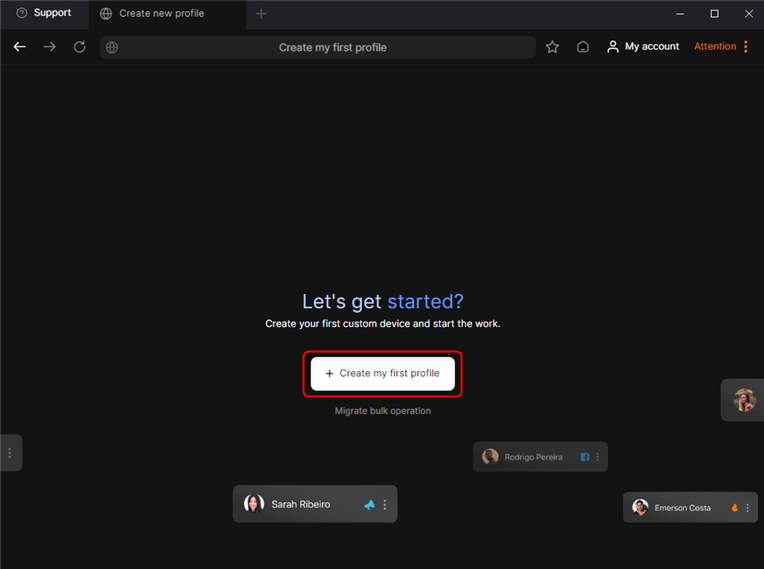
2\. Click **+Create my first profile** to start a new browsing session.
## What is Lauth Browser?
**Lauth Browser** is an anti-detect browser designed for users who need multiple isolated browser profiles with unique fingerprints. It helps marketers, researchers, and businesses manage multiple accounts securely while preventing tracking, fingerprinting, and detection by websites. With **Toolip**, you can enhance anonymity, use reliable proxy connections, and bypass IP bans for seamless online operations.
Prefer an enterprise-grade guide? Learn more about Oculus Proxies Lauth Browser Integration Guide.
If you're using **Toolip** for search engines like **Google, Bing, or Yandex**, you may need **Search Engine ISP Proxies** to avoid blocks and ensure stable access. Standard proxies might not work reliably for these platforms.
## How to Integrate Toolip With Lauth Browser
1\. Visit the [Lauth Browser website](https://www.lauth.com.br/baixar-lauth).
2\. Download and install the application on your device.
1\. Open **Lauth Browser**.
2\. Click **+Create my first profile** to start a new browsing session.
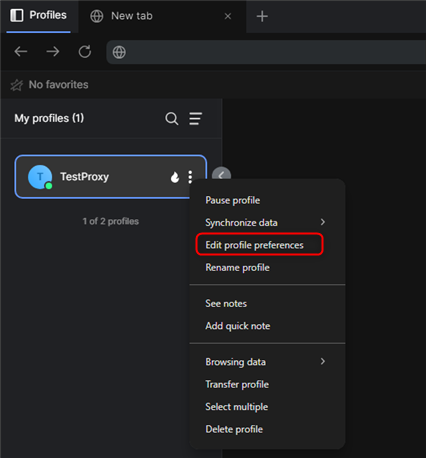
 1\. Navigate to **Edit Profile Preferences** to configure your browsing settings.
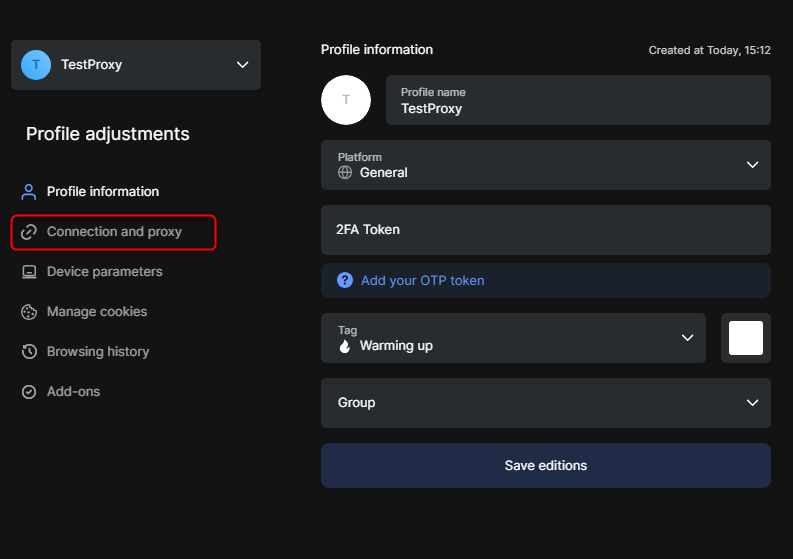
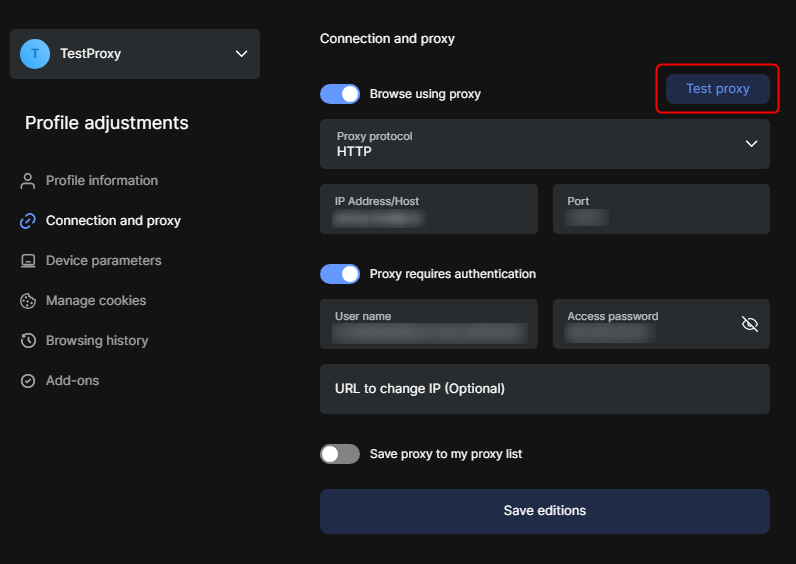
 1\. Select **Connection and Proxy** to open the proxy configuration panel.
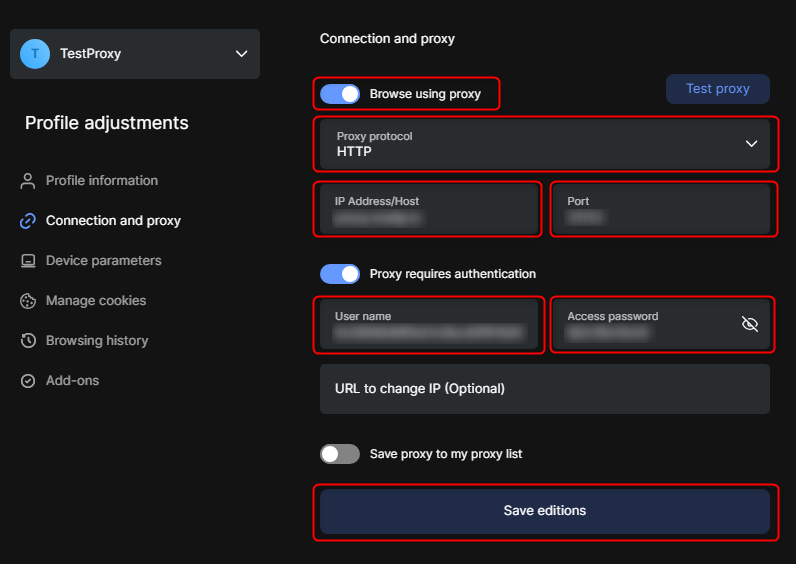
 1\. Toggle **Browse using proxy** to enable proxy support.
2\. Choose the appropriate **Proxy Protocol** (`HTTP`, `HTTPS`, or `SOCKS5`).
3\. Enter your **Toolip proxy** details:
* **Host**: `proxy.toolip.io`
* **Port**: Retrieve the correct port from your [Toolip dashboard](https://toolip.io/dashboard).
* **User name**: Enter your Toolip proxy username.
* **Access Password**: Enter your Toolip proxy password.
4\. Click **Save editions** to apply the proxy settings.
1\. Toggle **Browse using proxy** to enable proxy support.
2\. Choose the appropriate **Proxy Protocol** (`HTTP`, `HTTPS`, or `SOCKS5`).
3\. Enter your **Toolip proxy** details:
* **Host**: `proxy.toolip.io`
* **Port**: Retrieve the correct port from your [Toolip dashboard](https://toolip.io/dashboard).
* **User name**: Enter your Toolip proxy username.
* **Access Password**: Enter your Toolip proxy password.
4\. Click **Save editions** to apply the proxy settings.
 For geo-targeted proxies, modify your username format to `your-username-country-XX` (e.g., `your-username-country-US`) to route traffic through a specific region.
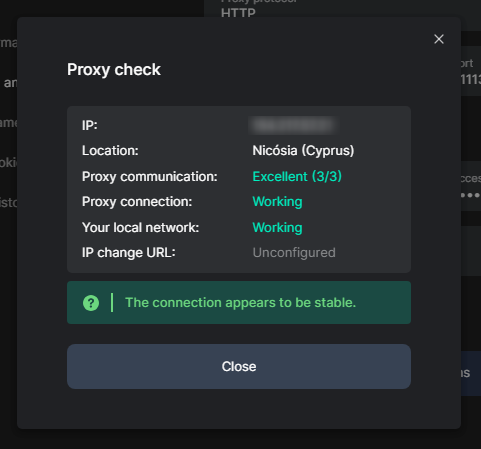
1\. Click **Test Proxy** to check the connection stability.
2\. If the test is successful, your proxy is correctly set up and ready to use.
For geo-targeted proxies, modify your username format to `your-username-country-XX` (e.g., `your-username-country-US`) to route traffic through a specific region.
1\. Click **Test Proxy** to check the connection stability.
2\. If the test is successful, your proxy is correctly set up and ready to use.
 With **Toolip** successfully integrated into **Lauth Browser**, you can now enjoy secure, anonymous browsing with multiple accounts. Whether you're handling e-commerce, marketing, or research tasks, this setup provides seamless privacy and flexibility.