> ## Documentation Index
> Fetch the complete documentation index at: https://docs.toolip.io/llms.txt
> Use this file to discover all available pages before exploring further.
# How to Set Up Toolip With Lalicat
> Integrating Toolip with Lalicat ensures secure, anonymous multi-account management, offering flexible proxy solutions for reliable and efficient browsing.
 ## What is Lalicat?
**Lalicat** is a privacy-focused anti-detection browser designed for managing multiple online accounts securely. By creating isolated browser profiles with unique digital fingerprints—including IP addresses, device configurations, and cookies—Lalicat helps prevent tracking and account bans.
It’s the perfect tool for marketers, e-commerce sellers, social media managers, and web scrapers who need to operate multiple accounts without detection.
Prefer an enterprise-grade guide? Learn more about Oculus Proxies Lalicat Integration Guide.
If you're using **Toolip** for search engines like **Google, Bing, or Yandex**, you may need **Search Engine ISP Proxies** to avoid blocks and ensure stable access. Standard proxies might not work reliably for these platforms.
## How to Integrate Toolip With Lalicat
1\. Visit the [**Lalicat website**](https://www.lalicat.com/download) and download the application.
2\. Install Lalicat and log in with your account credentials.
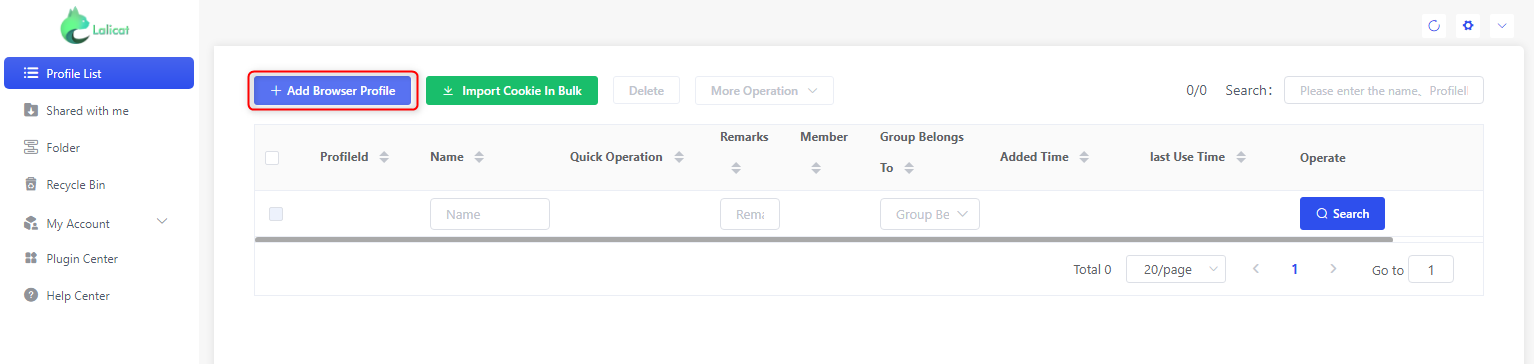
1\. On the Lalicat home screen, click **+Add Browser** to create a new profile.
## What is Lalicat?
**Lalicat** is a privacy-focused anti-detection browser designed for managing multiple online accounts securely. By creating isolated browser profiles with unique digital fingerprints—including IP addresses, device configurations, and cookies—Lalicat helps prevent tracking and account bans.
It’s the perfect tool for marketers, e-commerce sellers, social media managers, and web scrapers who need to operate multiple accounts without detection.
Prefer an enterprise-grade guide? Learn more about Oculus Proxies Lalicat Integration Guide.
If you're using **Toolip** for search engines like **Google, Bing, or Yandex**, you may need **Search Engine ISP Proxies** to avoid blocks and ensure stable access. Standard proxies might not work reliably for these platforms.
## How to Integrate Toolip With Lalicat
1\. Visit the [**Lalicat website**](https://www.lalicat.com/download) and download the application.
2\. Install Lalicat and log in with your account credentials.
1\. On the Lalicat home screen, click **+Add Browser** to create a new profile.
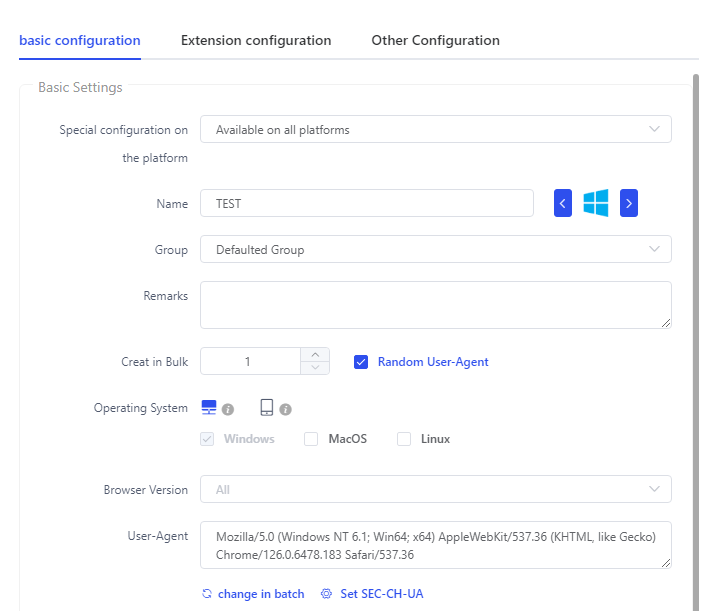
 2\. In the **Basic Configuration** section, set up the profile by:
* Entering a **Profile Name** for easy identification.
* Selecting the **Operating System** (Windows or macOS).
* Adjusting any additional settings based on your needs.
2\. In the **Basic Configuration** section, set up the profile by:
* Entering a **Profile Name** for easy identification.
* Selecting the **Operating System** (Windows or macOS).
* Adjusting any additional settings based on your needs.
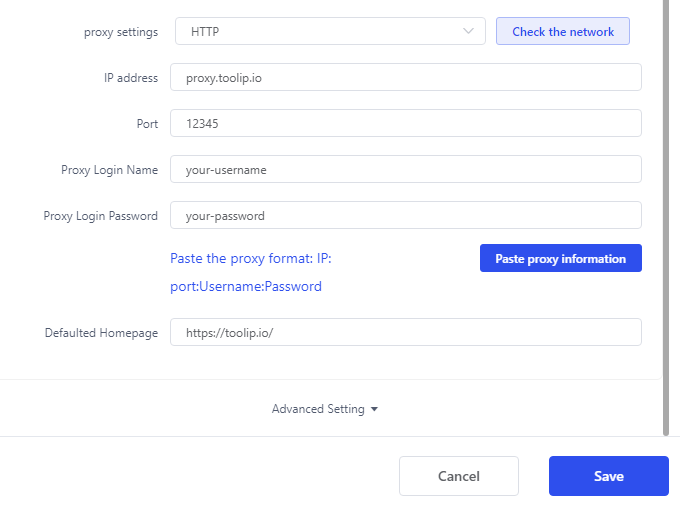
 1\. Scroll down to the **Proxy Settings** section.
2\. Enter your **Toolip proxy** details:
* **Proxy Settings**: Select `HTTP`, `HTTPS`, or `SOCKS5` depending on your proxy type.
* **IP Address**: `proxy.toolip.io`
* **Port**: Retrieve the correct port number from your [Toolip dashboard](https://toolip.io/dashboard).
* **Username**: Enter your Toolip proxy username.
* **Password**: Enter your Toolip proxy password.
3\. Click **Check the Proxy** to verify your connection.
4\. Once verified, click **Save** to finalize the settings.
1\. Scroll down to the **Proxy Settings** section.
2\. Enter your **Toolip proxy** details:
* **Proxy Settings**: Select `HTTP`, `HTTPS`, or `SOCKS5` depending on your proxy type.
* **IP Address**: `proxy.toolip.io`
* **Port**: Retrieve the correct port number from your [Toolip dashboard](https://toolip.io/dashboard).
* **Username**: Enter your Toolip proxy username.
* **Password**: Enter your Toolip proxy password.
3\. Click **Check the Proxy** to verify your connection.
4\. Once verified, click **Save** to finalize the settings.
 For geo-targeted proxies, modify your username format to `your-username-country-XX` (e.g., `your-username-country-US`) to route traffic through a specific region.
1\. From the Lalicat dashboard, locate your newly created profile.
2\. Click **Start** to launch the browser with your configured Toolip proxy.
With **Toolip** successfully integrated into **Lalicat**, you can now enjoy secure, anonymous browsing for multi-account management, data scraping, and marketing campaigns—all while reducing detection risks. Get started today!
For geo-targeted proxies, modify your username format to `your-username-country-XX` (e.g., `your-username-country-US`) to route traffic through a specific region.
1\. From the Lalicat dashboard, locate your newly created profile.
2\. Click **Start** to launch the browser with your configured Toolip proxy.
With **Toolip** successfully integrated into **Lalicat**, you can now enjoy secure, anonymous browsing for multi-account management, data scraping, and marketing campaigns—all while reducing detection risks. Get started today!