> ## Documentation Index
> Fetch the complete documentation index at: https://docs.toolip.io/llms.txt
> Use this file to discover all available pages before exploring further.
# How to Set Up Toolip With Kameleo
> Integrate Toolip with Kameleo for secure browsing and efficient management of multiple profiles, offering enhanced privacy and robust protection against detection.
 ## What is Kameleo?
**Kameleo** is an advanced anti-detection browser designed for managing multiple online profiles securely. Whether you're handling social media accounts, e-commerce stores, or web scraping projects, Kameleo helps prevent tracking and account linking by offering customizable browser fingerprints and seamless proxy integration.
With Kameleo, each profile operates as an independent browsing session, featuring unique IP addresses, device settings, and user agents. By integrating **Toolip**, you can enhance your anonymity, bypass geo-restrictions, and optimize your workflow.
Prefer an enterprise-grade guide? Learn more about Oculus Proxies Kameleo Integration Guide.
If you're using **Toolip** for search engines like **Google, Bing, or Yandex**, consider switching to **Search Engine ISP Proxies** for better stability and performance. Standard proxies may not always work reliably on these platforms.
## How to Integrate Toolip With Kameleo
1\. Visit the [Kameleo website](https://kameleo.io/downloads/) and download the application.
2\. Install Kameleo and log in using your account credentials.
1\. Open Kameleo and navigate to the **New Profile** section.
2\. Choose your desired device type, operating system, browser, and language settings.
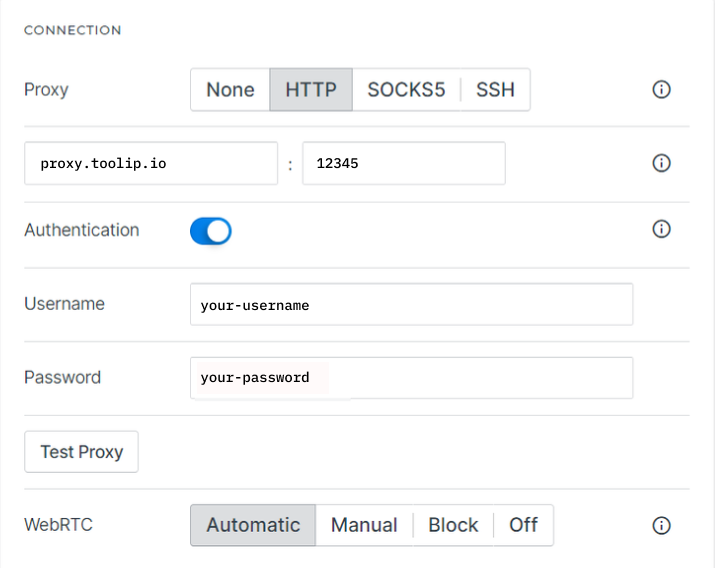
1\. Go to the **Connection** section in the profile settings.
2\. Enter the following **Toolip** proxy details:
* **Proxy Type**: Select HTTP, HTTPS, or SOCKS5.
* **Proxy Host**: `proxy.toolip.io`
* **Proxy Port**: Use the port from your [Toolip dashboard](https://toolip.io/dashboard/page/plans).
3\. Enable **Authentication** and enter your **Toolip username** and **password**.
4\. Click **Test Proxy** to verify the connection.
## What is Kameleo?
**Kameleo** is an advanced anti-detection browser designed for managing multiple online profiles securely. Whether you're handling social media accounts, e-commerce stores, or web scraping projects, Kameleo helps prevent tracking and account linking by offering customizable browser fingerprints and seamless proxy integration.
With Kameleo, each profile operates as an independent browsing session, featuring unique IP addresses, device settings, and user agents. By integrating **Toolip**, you can enhance your anonymity, bypass geo-restrictions, and optimize your workflow.
Prefer an enterprise-grade guide? Learn more about Oculus Proxies Kameleo Integration Guide.
If you're using **Toolip** for search engines like **Google, Bing, or Yandex**, consider switching to **Search Engine ISP Proxies** for better stability and performance. Standard proxies may not always work reliably on these platforms.
## How to Integrate Toolip With Kameleo
1\. Visit the [Kameleo website](https://kameleo.io/downloads/) and download the application.
2\. Install Kameleo and log in using your account credentials.
1\. Open Kameleo and navigate to the **New Profile** section.
2\. Choose your desired device type, operating system, browser, and language settings.
1\. Go to the **Connection** section in the profile settings.
2\. Enter the following **Toolip** proxy details:
* **Proxy Type**: Select HTTP, HTTPS, or SOCKS5.
* **Proxy Host**: `proxy.toolip.io`
* **Proxy Port**: Use the port from your [Toolip dashboard](https://toolip.io/dashboard/page/plans).
3\. Enable **Authentication** and enter your **Toolip username** and **password**.
4\. Click **Test Proxy** to verify the connection.
 For geo-targeted browsing, format your username as `your-username-country-XX` (e.g., `your-username-country-US`) to access a specific region.
1\. Click **Save** to store your proxy settings for future use.
2\. Click **Start** to launch the browser with your configured profile.
By integrating **Toolip** with **Kameleo**, you can securely manage multiple accounts, protect your privacy, and automate tasks while staying undetected. Enjoy seamless browsing with enhanced anonymity and efficiency!
For geo-targeted browsing, format your username as `your-username-country-XX` (e.g., `your-username-country-US`) to access a specific region.
1\. Click **Save** to store your proxy settings for future use.
2\. Click **Start** to launch the browser with your configured profile.
By integrating **Toolip** with **Kameleo**, you can securely manage multiple accounts, protect your privacy, and automate tasks while staying undetected. Enjoy seamless browsing with enhanced anonymity and efficiency!