> ## Documentation Index
> Fetch the complete documentation index at: https://docs.toolip.io/llms.txt
> Use this file to discover all available pages before exploring further.
# How to Use Toolip on iOS 🍏
> Learn how to set up Toolip proxies on your iOS device to enjoy secure, private, and unrestricted browsing. This guide walks you through the entire configuration process, ensuring a smooth and reliable connection.
 Prefer an enterprise-grade guide? Learn more about Oculus Proxies Ios Integration Guide.
## Why Use Toolip on iOS?
Setting up **Toolip** proxies on your iPhone or iPad allows you to:
* **Protect Your Privacy**: Mask your real IP address and browse securely.
* **Access Geo-Restricted Content**: Connect through different regions to unlock region-specific content.
* **Enhance Reliability**: Minimize detection risks while maintaining stable, anonymous connections for browsing, shopping, or account management.
Targeting search engines like **Google, Bing, or Yandex** requires a specialized proxy to ensure stable access and avoid blocks. **Toolip’s Search Engine ISP Proxies** are designed specifically for this, providing reliable performance where standard proxies may fail. If your proxy test isn’t working on search engines, switching to **Search Engine ISP Proxies** can resolve the issue.
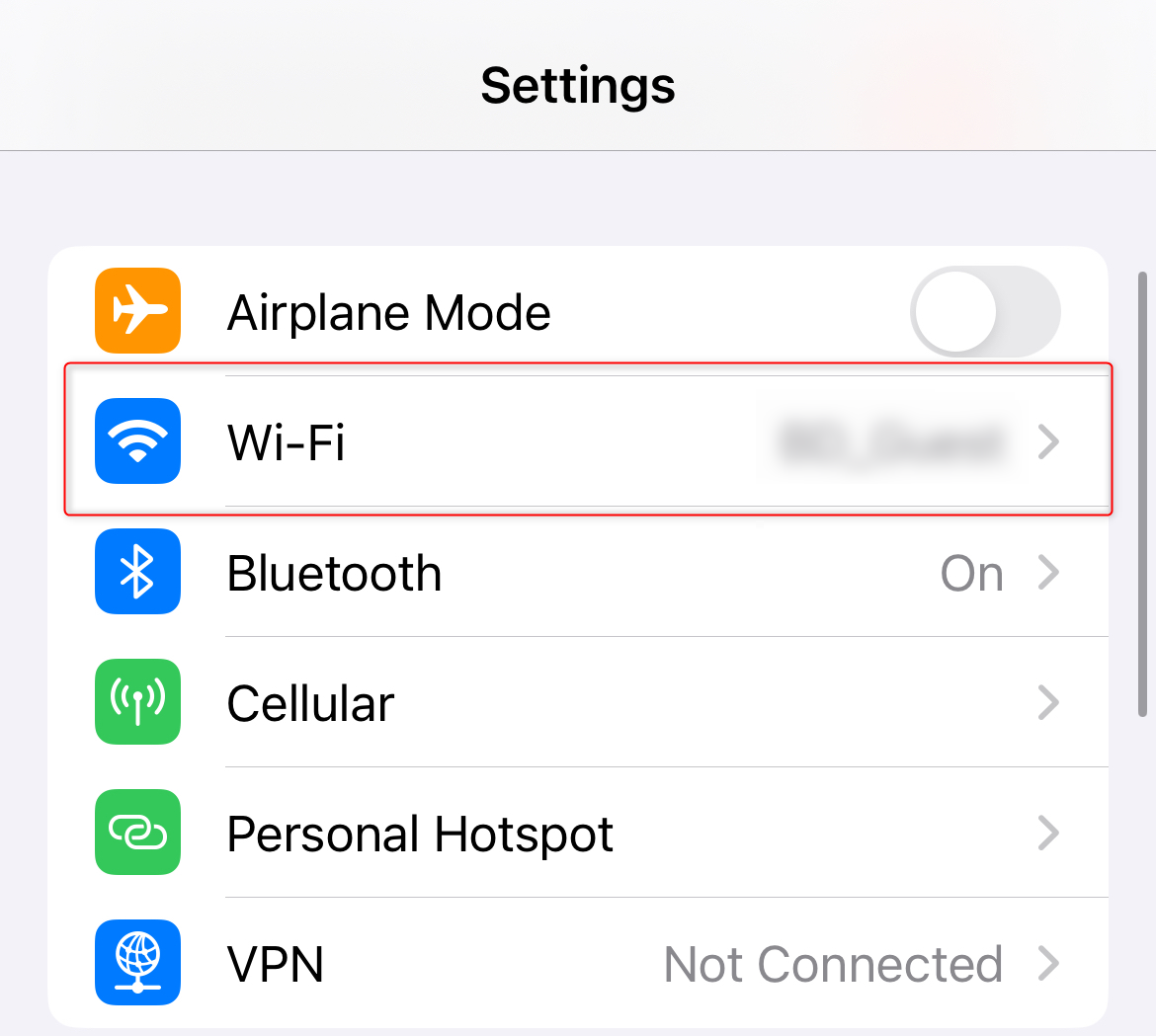
1\. Open the **Settings** app on your iPhone or iPad.
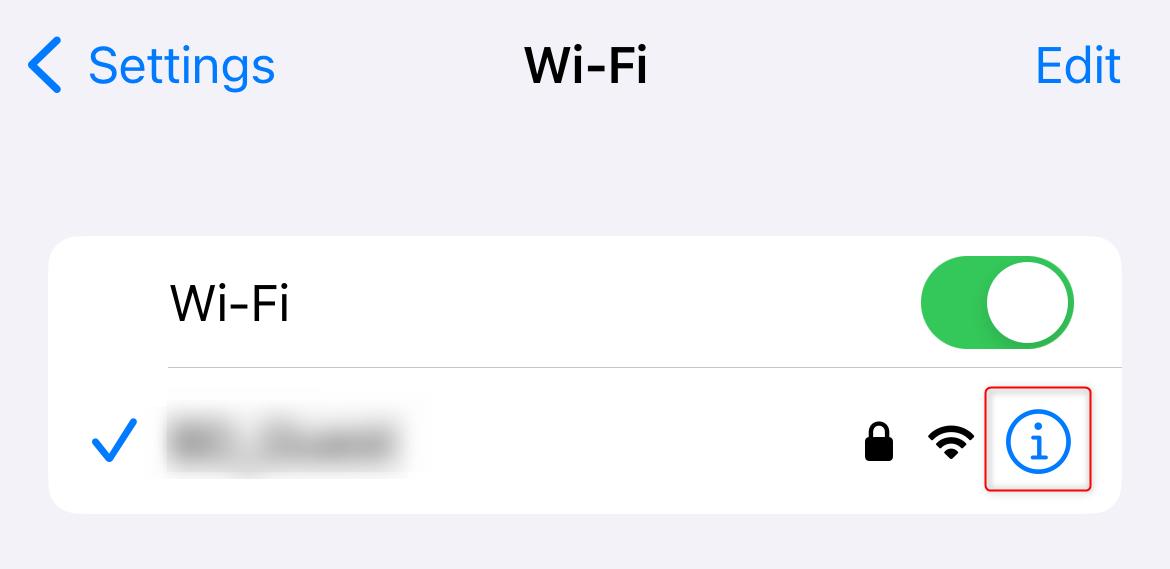
2\. Tap **Wi-Fi**, then tap the **i** (info) icon next to the network you’re connected to.
Prefer an enterprise-grade guide? Learn more about Oculus Proxies Ios Integration Guide.
## Why Use Toolip on iOS?
Setting up **Toolip** proxies on your iPhone or iPad allows you to:
* **Protect Your Privacy**: Mask your real IP address and browse securely.
* **Access Geo-Restricted Content**: Connect through different regions to unlock region-specific content.
* **Enhance Reliability**: Minimize detection risks while maintaining stable, anonymous connections for browsing, shopping, or account management.
Targeting search engines like **Google, Bing, or Yandex** requires a specialized proxy to ensure stable access and avoid blocks. **Toolip’s Search Engine ISP Proxies** are designed specifically for this, providing reliable performance where standard proxies may fail. If your proxy test isn’t working on search engines, switching to **Search Engine ISP Proxies** can resolve the issue.
1\. Open the **Settings** app on your iPhone or iPad.
2\. Tap **Wi-Fi**, then tap the **i** (info) icon next to the network you’re connected to.
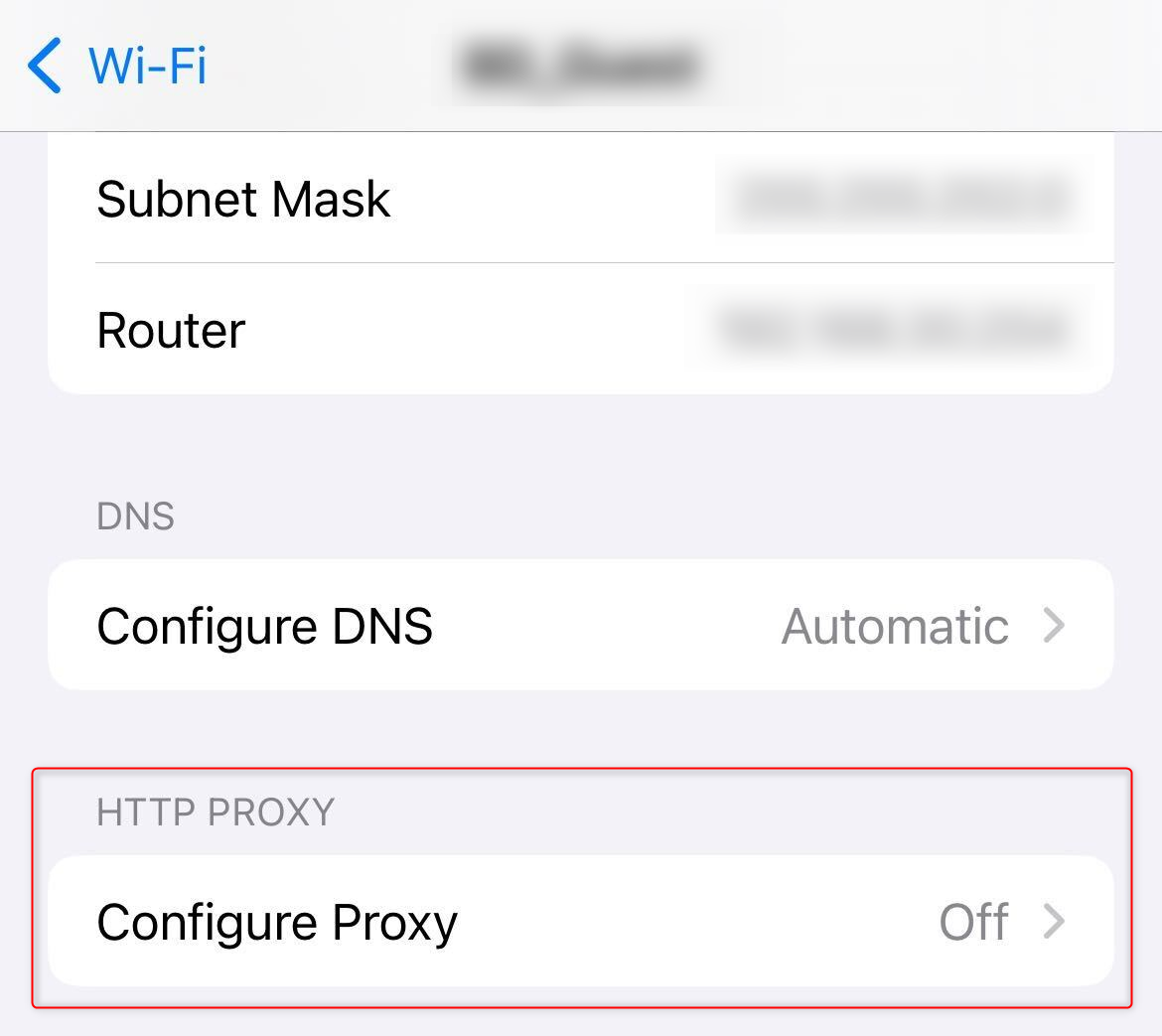
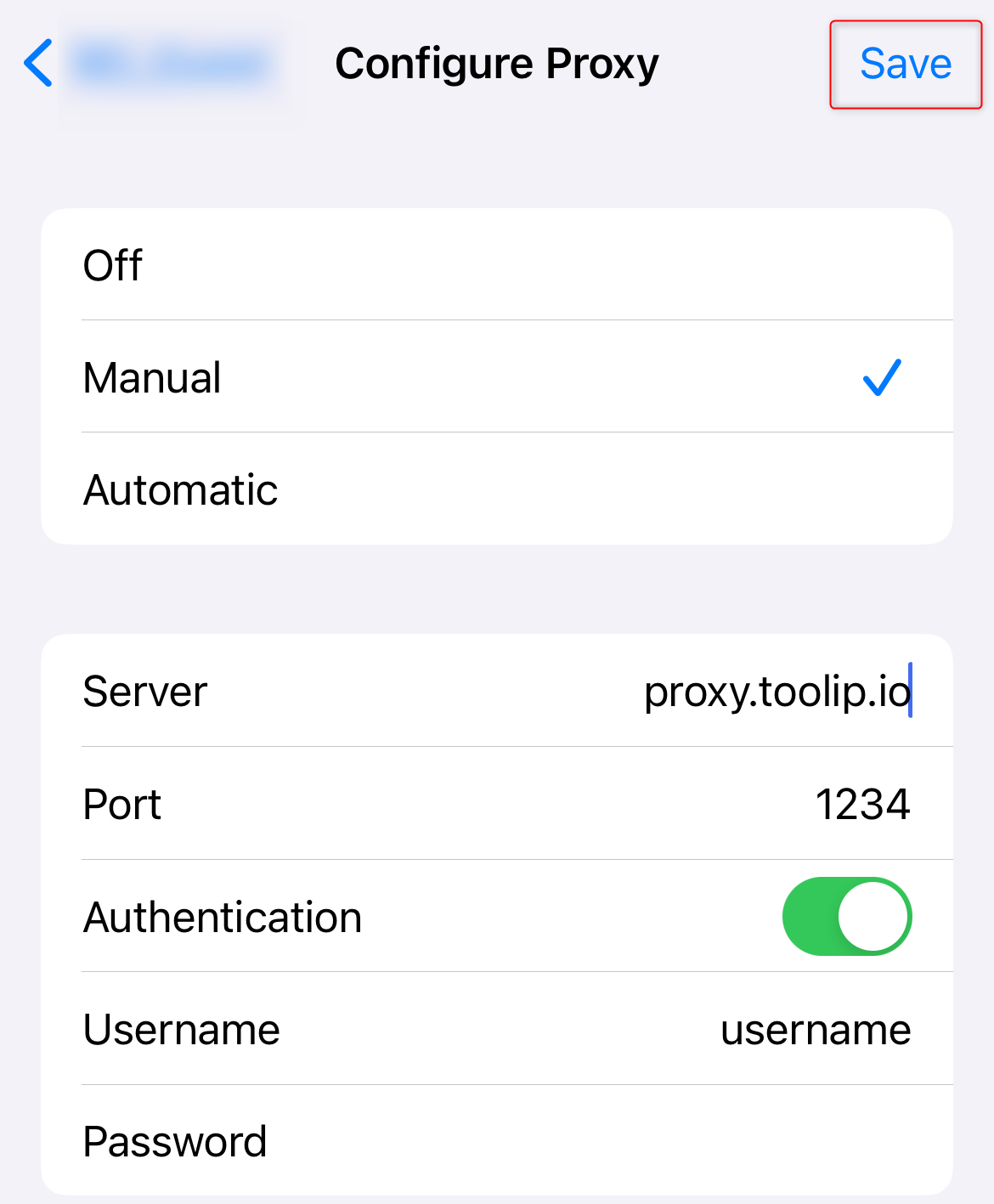
 1\. Scroll down to the **HTTP Proxy** section.
2\. Select **Manual**.
3\. Toggle **Authentication** *On*.
1\. Scroll down to the **HTTP Proxy** section.
2\. Select **Manual**.
3\. Toggle **Authentication** *On*.
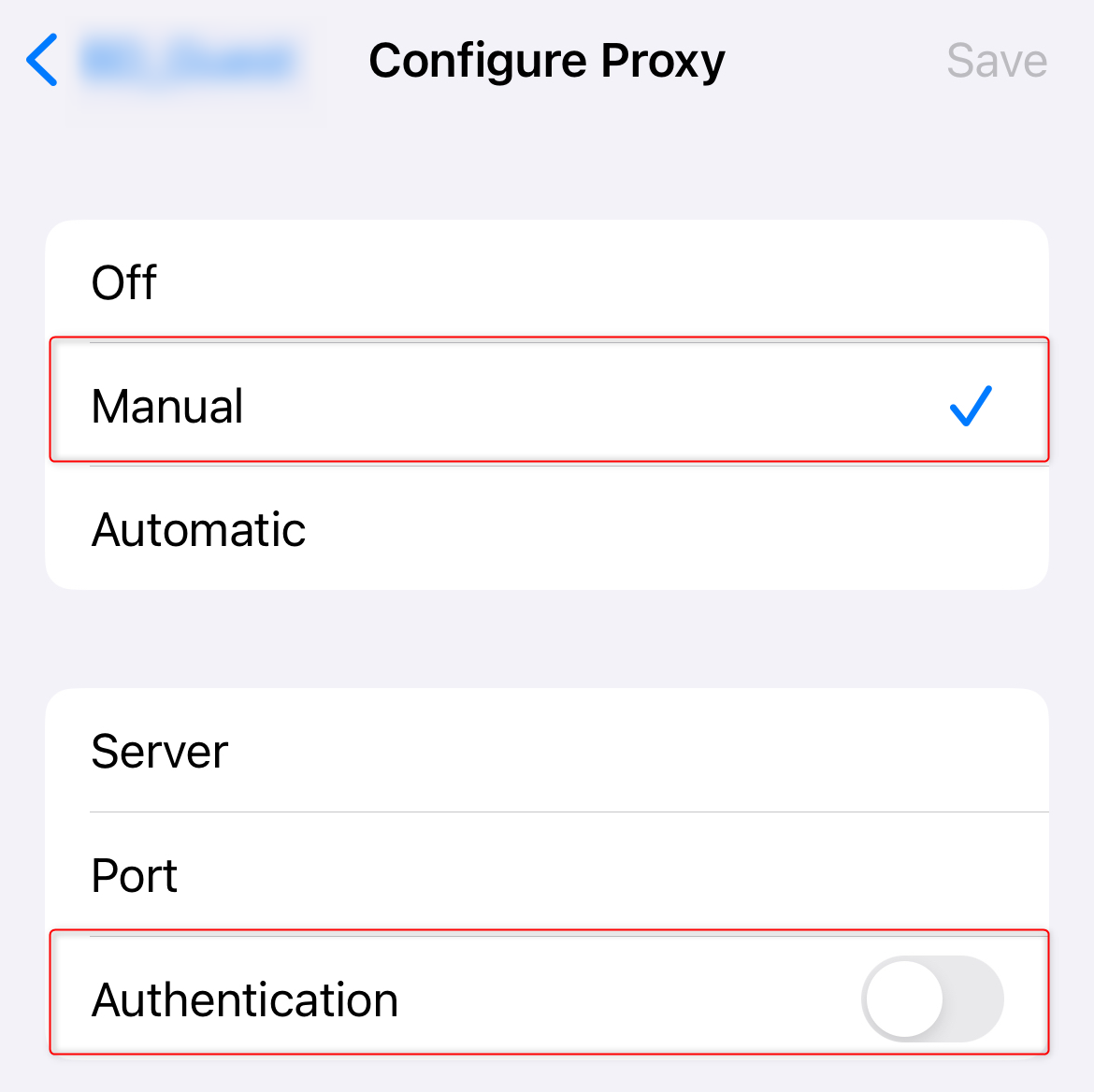 1\. **Server**: Enter `proxy.toolip.io` (or the host provided in your Toolip account).
2\. **Port**: Use the port number from your [Toolip dashboard](https://toolip.io/dashboard).
3\. **Username** and **Password**: Input your Toolip proxy credentials.
4\. Ensure all details are correct.
5\. Tap **Save** to apply the settings.
1\. **Server**: Enter `proxy.toolip.io` (or the host provided in your Toolip account).
2\. **Port**: Use the port number from your [Toolip dashboard](https://toolip.io/dashboard).
3\. **Username** and **Password**: Input your Toolip proxy credentials.
4\. Ensure all details are correct.
5\. Tap **Save** to apply the settings.
 1\. Open **Safari** and visit [httpbin.org/ip](http://httpbin.org/ip).
2\. Check if the displayed IP matches your **Toolip proxy** IP.
3\. If it does, your internet traffic is now secure and private.
With **Toolip** set up on your **iOS device**, you can now enjoy unrestricted browsing, enhanced security, and seamless access to geo-specific content. Stay private, stay secure, and browse with confidence!
1\. Open **Safari** and visit [httpbin.org/ip](http://httpbin.org/ip).
2\. Check if the displayed IP matches your **Toolip proxy** IP.
3\. If it does, your internet traffic is now secure and private.
With **Toolip** set up on your **iOS device**, you can now enjoy unrestricted browsing, enhanced security, and seamless access to geo-specific content. Stay private, stay secure, and browse with confidence!