> ## Documentation Index
> Fetch the complete documentation index at: https://docs.toolip.io/llms.txt
> Use this file to discover all available pages before exploring further.
# How to Set Up Toolip With Insomniac
> Integrating Toolip with Insomniac enhances your automation capabilities by offering private, encrypted connections that lower the chances of being flagged and help maintain consistent performance.
## What is Insomniac?
**Insomniac** is a specialized browser for online buying that conceals your digital identity using multiple isolated sessions. Using **Toolip** it enables you to assign a unique proxy to each tab, allowing every open tab to operate under a separate IP address, effectively masking your online activity.
Prefer an enterprise-grade guide? Learn more about Oculus Proxies Insomniac Integration Guide.
Targeting search engines like Google, Bing, or Yandex requires a specialized proxy to ensure stable access and avoid blocks. **Toolip’s Search Engine ISP Proxies** are designed specifically for this, providing reliable performance where standard proxies may fail. If your proxy test isn't working on search engines, switching to **Search Engine ISP Proxies** can resolve the issue.
Visit the Insomniac website and [download](https://insomniacbrowser.com/download/) the browser to your device.
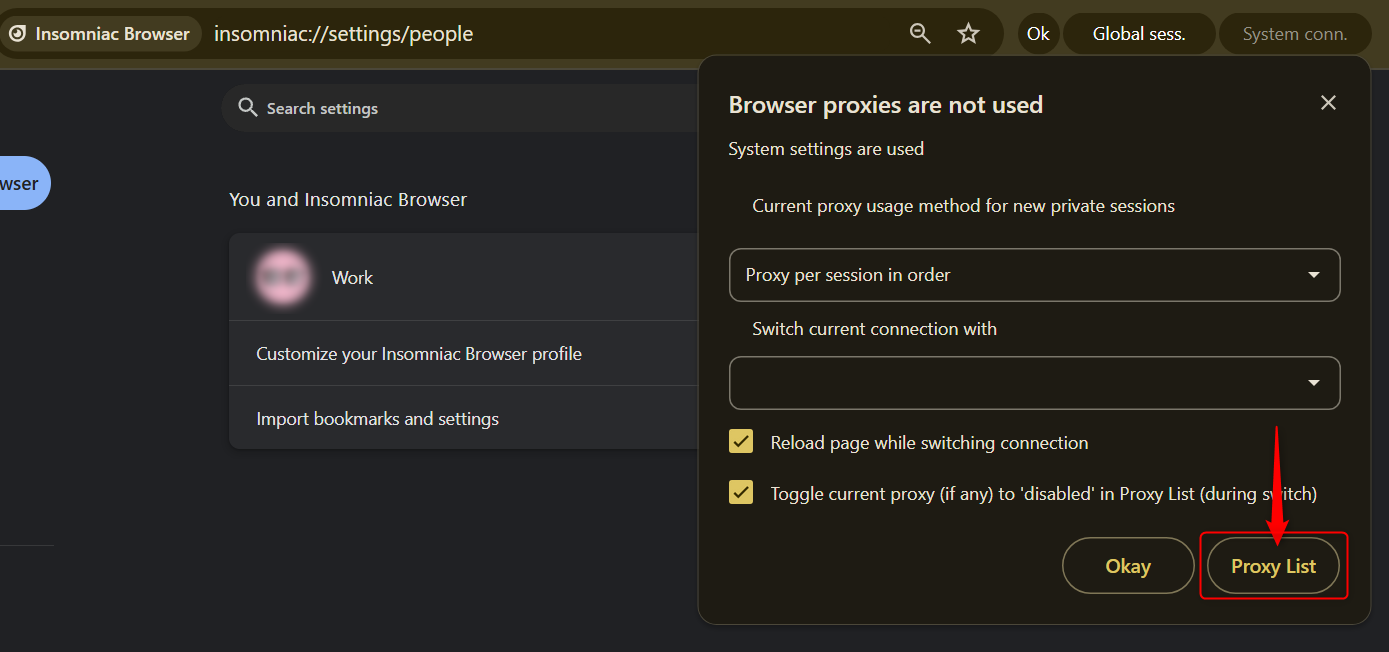
After launching and logging in, click on **Global Sess → Proxy List** to manage your proxy configurations.
 You can either:
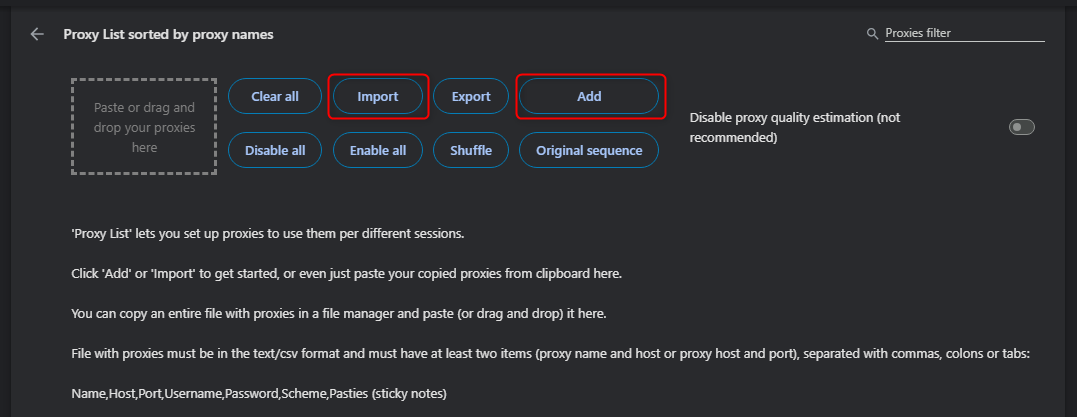
1. Click **Add** to manually enter a single proxy.
2. Click **Import** to upload a `.txt` file containing multiple proxies.
You can either:
1. Click **Add** to manually enter a single proxy.
2. Click **Import** to upload a `.txt` file containing multiple proxies.
 ### 1. Adding a single proxy:
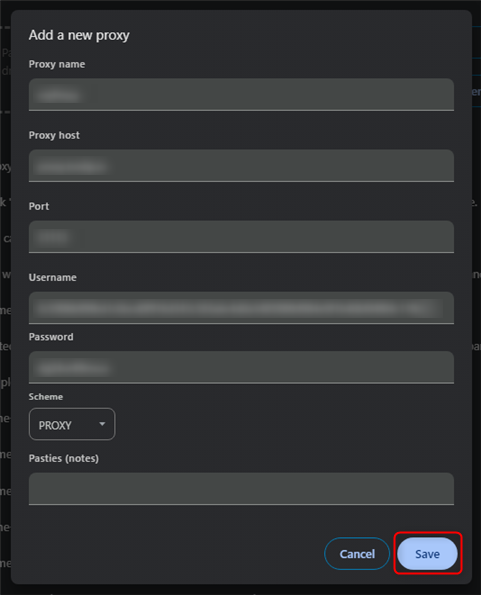
Hit the **Add** option, enter the proxy details: `host`, `port`, `username`, and `password`, then click **Save**.
### 1. Adding a single proxy:
Hit the **Add** option, enter the proxy details: `host`, `port`, `username`, and `password`, then click **Save**.
 ### 2. Adding multiple proxies:
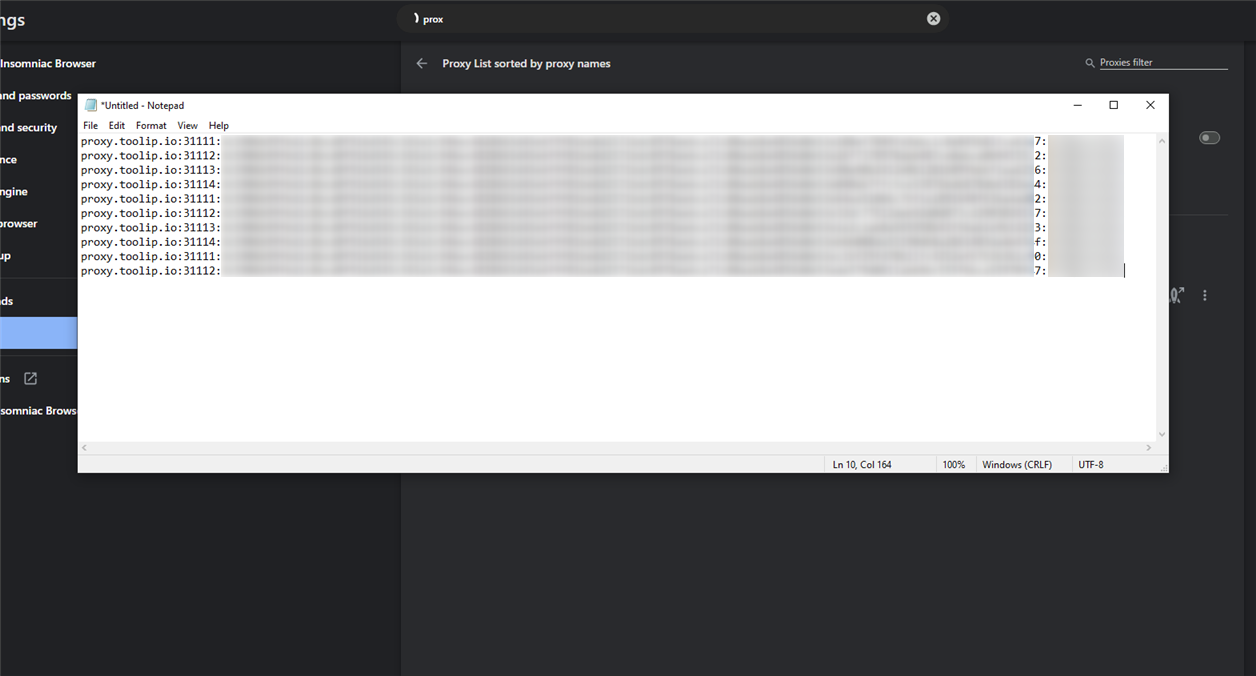
First create a `.txt` file with each proxy in the format: `host,port,username,password`, save the file, and upload it using the **Import** button.
### 2. Adding multiple proxies:
First create a `.txt` file with each proxy in the format: `host,port,username,password`, save the file, and upload it using the **Import** button.