> ## Documentation Index
> Fetch the complete documentation index at: https://docs.toolip.io/llms.txt
> Use this file to discover all available pages before exploring further.
# How to Use Toolip With Insomnia
> Optimize your API development with Toolip in Insomnia. This guide will walk you through setting up proxies for secure, anonymous, and geo-targeted API debugging, testing, and design.
## What is Insomnia?
**Insomnia** is a powerful API client designed for sending HTTP requests and analyzing responses from REST APIs. It provides an intuitive interface that helps developers efficiently debug and test their APIs. By integrating **Toolip**, you can enhance privacy, security, and test APIs from various geo-locations seamlessly.
Prefer an enterprise-grade guide? Learn more about Oculus Proxies Insomnia Guide.
Targeting search engines like Google, Bing, or Yandex requires a specialized proxy to ensure stable access and avoid blocks. **Toolip’s Search Engine ISP Proxies** are designed specifically for this, providing reliable performance where standard proxies may fail. If your proxy test isn't working on search engines, switching to **Search Engine ISP Proxies** can resolve the issue.
## How to Integrate Toolip With Insomnia
Create an account on the [Insomnia website](https://insomnia.rest/) and download the software.
Launch Insomnia and click **Preferences** at the bottom of the interface.
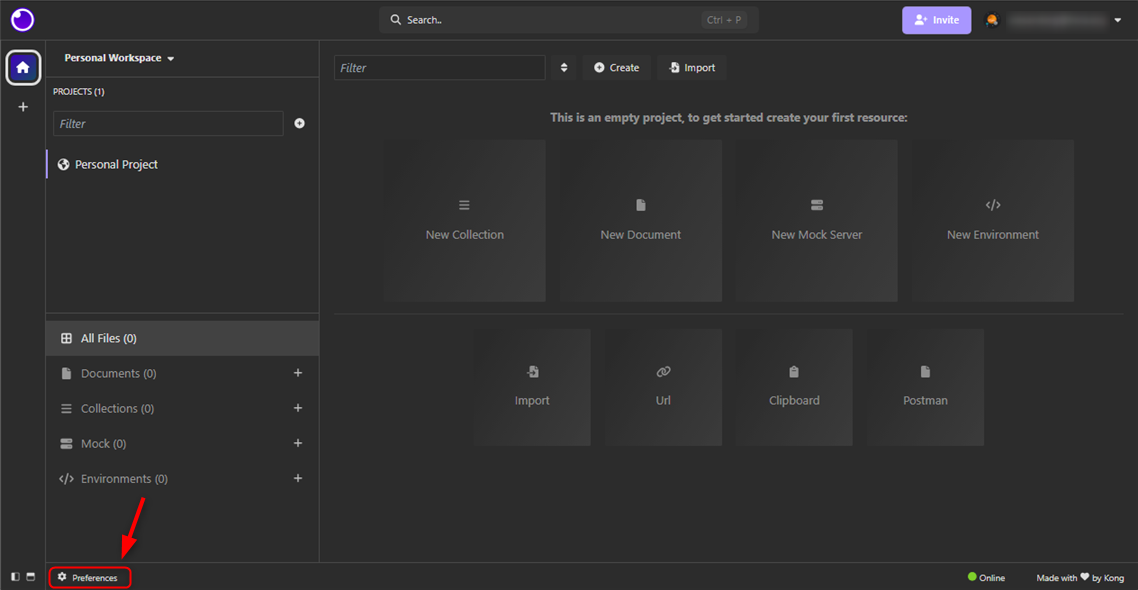 Navigate to the **Proxy** tab and toggle **Enable Proxy** to turn it on.
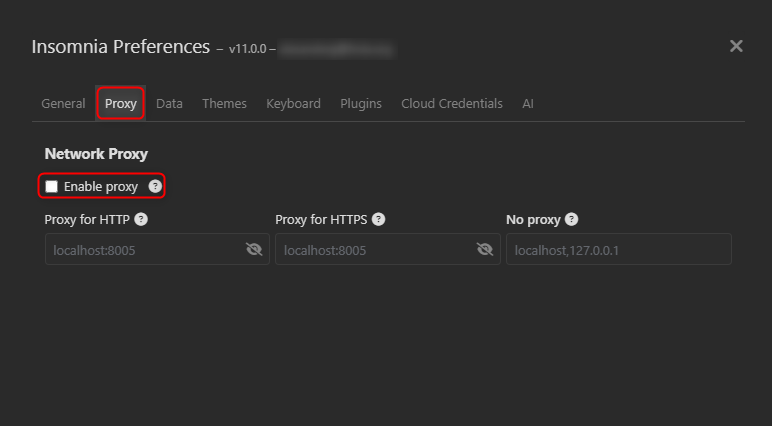 Select your preferred protocol (HTTP, HTTPS, or SOCKS5) and enter the proxy details in the following format:
* `http://proxy.toolip.io:port` for HTTP.
* `https://proxy.toolip.io:port` for HTTPS.
* `socks5h://proxy.toolip.io:port` for SOCKS5.
Select your preferred protocol (HTTP, HTTPS, or SOCKS5) and enter the proxy details in the following format:
* `http://proxy.toolip.io:port` for HTTP.
* `https://proxy.toolip.io:port` for HTTPS.
* `socks5h://proxy.toolip.io:port` for SOCKS5.
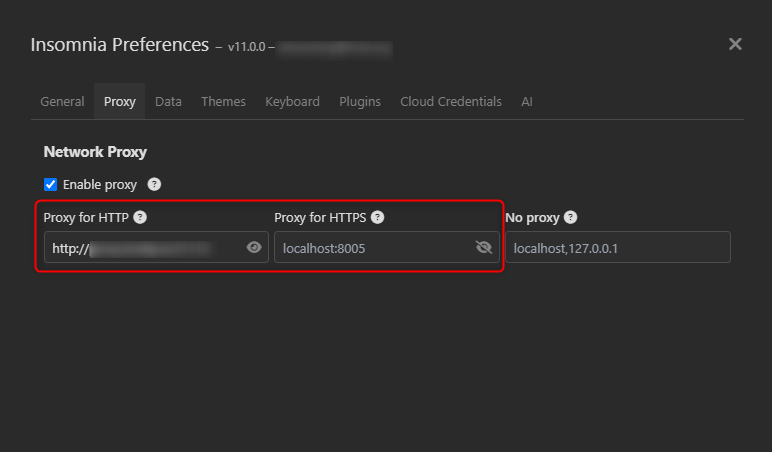 Insomnia also supports proxy server authentication, you can include the `Username` and `Password` in the **URL** inside your projects in the following way: `http://username:password@proxy.toolip.io:port`