> ## Documentation Index
> Fetch the complete documentation index at: https://docs.toolip.io/llms.txt
> Use this file to discover all available pages before exploring further.
# How to Set Up Toolip With Incogniton
> Integrate Toolip with Incogniton for seamless multi-account management, offering secure and anonymous browsing with enhanced protection against detection and bans.
 ## What is Incogniton?
**Incogniton** is a privacy-first browser designed for users who value anonymity and security. It enables you to create and manage multiple browsing profiles, each with separate cookies, local storage, and IP addresses (via proxies). This ensures your online activities stay private and isolated.
Ideal for marketers, businesses, and privacy enthusiasts, Incogniton helps manage multiple accounts on platforms like social media or e-commerce without raising red flags. It’s also perfect for tasks like web scraping and testing, mimicking natural browsing behavior while keeping your data secure.
Prefer an enterprise-grade guide? Learn more about Oculus Proxies Incogniton Integration Guide.
Targeting search engines like Google, Bing, or Yandex requires a specialized proxy to ensure stable access and avoid blocks. **Toolip’s Search Engine ISP Proxies** are designed specifically for this, providing reliable performance where standard proxies may fail. If your proxy test isn't working on search engines, switching to **Search Engine ISP Proxies** can resolve the issue.
1\. Visit the [Incogniton website](https://incogniton.com/) and download the browser for your device.
2\. Install the application by following the on-screen instructions.
1\. Open **Incogniton** and navigate to the **Profile Management** section.
2\. Click **New Profile** to set up your first browsing environment.
## What is Incogniton?
**Incogniton** is a privacy-first browser designed for users who value anonymity and security. It enables you to create and manage multiple browsing profiles, each with separate cookies, local storage, and IP addresses (via proxies). This ensures your online activities stay private and isolated.
Ideal for marketers, businesses, and privacy enthusiasts, Incogniton helps manage multiple accounts on platforms like social media or e-commerce without raising red flags. It’s also perfect for tasks like web scraping and testing, mimicking natural browsing behavior while keeping your data secure.
Prefer an enterprise-grade guide? Learn more about Oculus Proxies Incogniton Integration Guide.
Targeting search engines like Google, Bing, or Yandex requires a specialized proxy to ensure stable access and avoid blocks. **Toolip’s Search Engine ISP Proxies** are designed specifically for this, providing reliable performance where standard proxies may fail. If your proxy test isn't working on search engines, switching to **Search Engine ISP Proxies** can resolve the issue.
1\. Visit the [Incogniton website](https://incogniton.com/) and download the browser for your device.
2\. Install the application by following the on-screen instructions.
1\. Open **Incogniton** and navigate to the **Profile Management** section.
2\. Click **New Profile** to set up your first browsing environment.
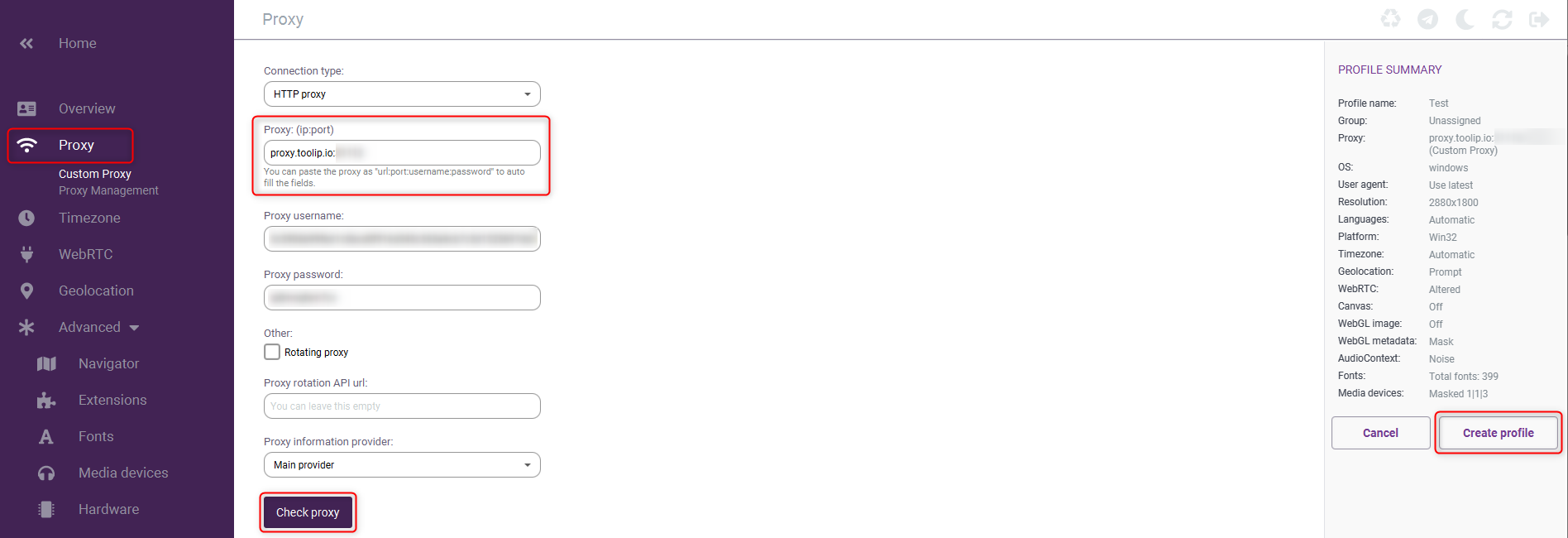
 1\. In the **Profile Setup** menu, click **Proxy** from the left-hand options.
2\. Go to your [Toolip dashboard](https://toolip.io/dashboard/page/plans) and click on the **Show Configured List** button.
3\. Under the **Generic** tab, copy the proxy code provided.
4\. Return to **Incogniton** and paste the proxy details into the **Proxy** field.
5\. Click **Check Proxy** to validate the connection.
6\. Once the proxy settings are verified, click **Create Profile** to save the configuration.
1\. In the **Profile Setup** menu, click **Proxy** from the left-hand options.
2\. Go to your [Toolip dashboard](https://toolip.io/dashboard/page/plans) and click on the **Show Configured List** button.
3\. Under the **Generic** tab, copy the proxy code provided.
4\. Return to **Incogniton** and paste the proxy details into the **Proxy** field.
5\. Click **Check Proxy** to validate the connection.
6\. Once the proxy settings are verified, click **Create Profile** to save the configuration.
 For geo-targeted proxies, format your username as `username-country-XX` (e.g., `username-country-US`) to use a specific location.
1\. From the **Profile Management** section, select your newly created profile.
2\. Click **Start** to open a secure incognito browser window using your Toolip proxy.
For geo-targeted proxies, format your username as `username-country-XX` (e.g., `username-country-US`) to use a specific location.
1\. From the **Profile Management** section, select your newly created profile.
2\. Click **Start** to open a secure incognito browser window using your Toolip proxy.
 You’ve successfully integrated **Toolip** with **Incogniton**. Enjoy secure, anonymous browsing and seamless management of multiple accounts for your professional or personal needs! 🚀