> ## Documentation Index
> Fetch the complete documentation index at: https://docs.toolip.io/llms.txt
> Use this file to discover all available pages before exploring further.
# How to Set Up Toolip With GoLogin
> Boost your web scraping and multi-account management with GoLogin and Toolip, offering robust anti-detection and flexible proxy control.
 ## What is GoLogin?
**GoLogin** simplifies managing multiple accounts by creating separate browser profiles, each with unique fingerprints, IPs, and cookies. This makes every profile appear as a distinct user, ideal for marketers, e-commerce businesses, and professionals managing accounts on platforms with strict tracking.
With GoLogin, you can integrate proxies, automate workflows, and seamlessly switch between profiles while ensuring anonymity. It’s the go-to solution for secure account management, efficient digital marketing, and collaborative team use.
Prefer an enterprise-grade guide? Learn more about Oculus Proxies Gologin Integration Guide.
Targeting search engines like Google, Bing, or Yandex requires a specialized proxy to ensure stable access and avoid blocks. **Toolip’s Search Engine ISP Proxies** are designed specifically for this, providing reliable performance where standard proxies may fail. If your proxy test isn't working on search engines, switching to **Search Engine ISP Proxies** can resolve the issue.
1\. Visit the [GoLogin website](https://gologin.com/) and download the application.
2\. Follow the on-screen instructions to install it on your device.
1\. Launch the application and log in with your GoLogin account credentials.
2\. If you don’t have an account, sign up directly on their website.
1\. From the GoLogin dashboard, click **+ Add Profile** to set up a new browser environment.
2\. Fill in the required details, such as the profile name and browser type.
## What is GoLogin?
**GoLogin** simplifies managing multiple accounts by creating separate browser profiles, each with unique fingerprints, IPs, and cookies. This makes every profile appear as a distinct user, ideal for marketers, e-commerce businesses, and professionals managing accounts on platforms with strict tracking.
With GoLogin, you can integrate proxies, automate workflows, and seamlessly switch between profiles while ensuring anonymity. It’s the go-to solution for secure account management, efficient digital marketing, and collaborative team use.
Prefer an enterprise-grade guide? Learn more about Oculus Proxies Gologin Integration Guide.
Targeting search engines like Google, Bing, or Yandex requires a specialized proxy to ensure stable access and avoid blocks. **Toolip’s Search Engine ISP Proxies** are designed specifically for this, providing reliable performance where standard proxies may fail. If your proxy test isn't working on search engines, switching to **Search Engine ISP Proxies** can resolve the issue.
1\. Visit the [GoLogin website](https://gologin.com/) and download the application.
2\. Follow the on-screen instructions to install it on your device.
1\. Launch the application and log in with your GoLogin account credentials.
2\. If you don’t have an account, sign up directly on their website.
1\. From the GoLogin dashboard, click **+ Add Profile** to set up a new browser environment.
2\. Fill in the required details, such as the profile name and browser type.
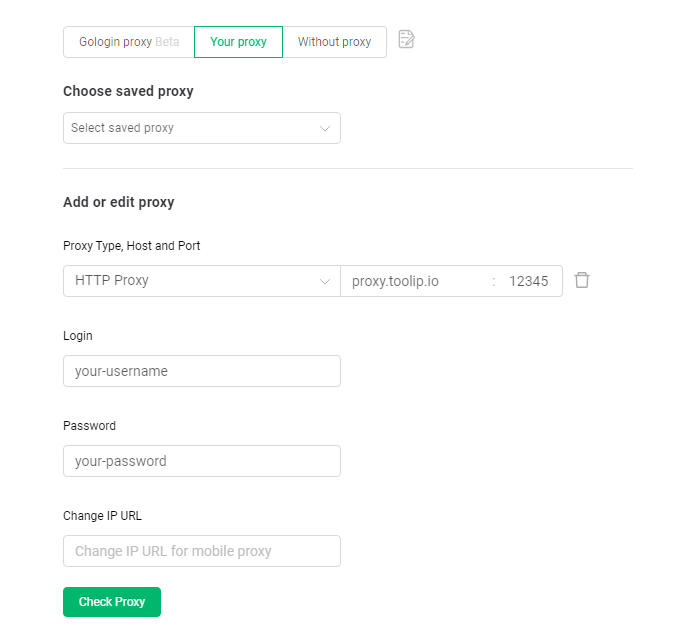
 1\. In the **Your Proxy** section of the profile setup, input your Toolip proxy details:
* **Proxy Type**: Select `HTTP`, `HTTPS`, or `SOCKS5` based on your Toolip proxy type.
* **Host**: Input `proxy.toolip.io`.
* **Port**: Use the port number provided in your [Toolip dashboard](https://toolip.io/dashboard/page/plans).
* **Login**: Enter your Toolip proxy username.
* **Password**: Enter your Toolip proxy password.
2\. Click **Check Proxy** to validate the connection.
For geo-specific proxies, add a country code to your username (e.g., `your-username-country-US`) to route traffic through a specific location.
1\. In the **Your Proxy** section of the profile setup, input your Toolip proxy details:
* **Proxy Type**: Select `HTTP`, `HTTPS`, or `SOCKS5` based on your Toolip proxy type.
* **Host**: Input `proxy.toolip.io`.
* **Port**: Use the port number provided in your [Toolip dashboard](https://toolip.io/dashboard/page/plans).
* **Login**: Enter your Toolip proxy username.
* **Password**: Enter your Toolip proxy password.
2\. Click **Check Proxy** to validate the connection.
For geo-specific proxies, add a country code to your username (e.g., `your-username-country-US`) to route traffic through a specific location.
 1\. Click **Create Profile** to save your new profile with the configured proxy.
2\. Select the profile and click **Run** to launch the browser with your secure Toolip proxy settings.
1\. Click **Create Profile** to save your new profile with the configured proxy.
2\. Select the profile and click **Run** to launch the browser with your secure Toolip proxy settings.
 Your **Toolip** is now integrated with **GoLogin**. You’re ready to manage multiple accounts securely, scrape data efficiently, and maintain anonymity across all your online activities. Enjoy the seamless browsing experience! 🚀