> ## Documentation Index
> Fetch the complete documentation index at: https://docs.toolip.io/llms.txt
> Use this file to discover all available pages before exploring further.
# How to Set Up Toolip With FoxyProxy
> Effortlessly enhance your browsing with FoxyProxy! By integrating Toolip, you can securely manage and switch between proxy servers for smooth and efficient web scraping, secure browsing, and application testing. Use this guide to set up Toolip with FoxyProxy and streamline your online operations.
 ## What is FoxyProxy?
**FoxyProxy** is a versatile browser extension available for Chrome and Firefox, designed to simplify proxy management. With just a few clicks, it lets you switch between multiple proxy servers while leveraging the browser's built-in proxy API. Whether you're scraping data, testing applications, or enhancing your online privacy, FoxyProxy offers an intuitive and efficient solution to handle proxies with ease.
Prefer an enterprise-grade guide? Learn more about Oculus Proxies Foxyproxy Integration Guide.
Targeting search engines like Google, Bing, or Yandex requires a specialized proxy to ensure stable access and avoid blocks. **Toolip’s Search Engine ISP Proxies** are designed specifically for this, providing reliable performance where standard proxies may fail. If your proxy test isn't working on search engines, switching to **Search Engine ISP Proxies** can resolve the issue.
1\. **For Chrome**: Visit the [Chrome Web Store](https://chromewebstore.google.com/detail/foxyproxy/gcknhkkoolaabfmlnjonogaaifnjlfnp) and click **Add to Chrome**.
2\. **For Firefox**: Go to the [Mozilla Add-ons page](https://addons.mozilla.org/en-US/firefox/addon/foxyproxy-standard/) and select **Add to Firefox**.
3\. Once installed, you’ll see the **FoxyProxy icon** in your browser’s toolbar.
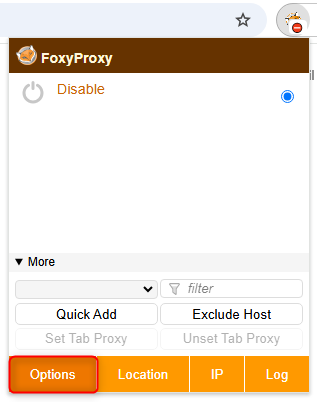
1\. Click the **FoxyProxy icon** in the browser toolbar.
2\. Choose **Options** from the dropdown menu to open the FoxyProxy settings page.
## What is FoxyProxy?
**FoxyProxy** is a versatile browser extension available for Chrome and Firefox, designed to simplify proxy management. With just a few clicks, it lets you switch between multiple proxy servers while leveraging the browser's built-in proxy API. Whether you're scraping data, testing applications, or enhancing your online privacy, FoxyProxy offers an intuitive and efficient solution to handle proxies with ease.
Prefer an enterprise-grade guide? Learn more about Oculus Proxies Foxyproxy Integration Guide.
Targeting search engines like Google, Bing, or Yandex requires a specialized proxy to ensure stable access and avoid blocks. **Toolip’s Search Engine ISP Proxies** are designed specifically for this, providing reliable performance where standard proxies may fail. If your proxy test isn't working on search engines, switching to **Search Engine ISP Proxies** can resolve the issue.
1\. **For Chrome**: Visit the [Chrome Web Store](https://chromewebstore.google.com/detail/foxyproxy/gcknhkkoolaabfmlnjonogaaifnjlfnp) and click **Add to Chrome**.
2\. **For Firefox**: Go to the [Mozilla Add-ons page](https://addons.mozilla.org/en-US/firefox/addon/foxyproxy-standard/) and select **Add to Firefox**.
3\. Once installed, you’ll see the **FoxyProxy icon** in your browser’s toolbar.
1\. Click the **FoxyProxy icon** in the browser toolbar.
2\. Choose **Options** from the dropdown menu to open the FoxyProxy settings page.
 1\. Navigate to the **Proxies** tab in the FoxyProxy settings menu.
2\. Click **Add** to open the proxy configuration window.
1\. Navigate to the **Proxies** tab in the FoxyProxy settings menu.
2\. Click **Add** to open the proxy configuration window.
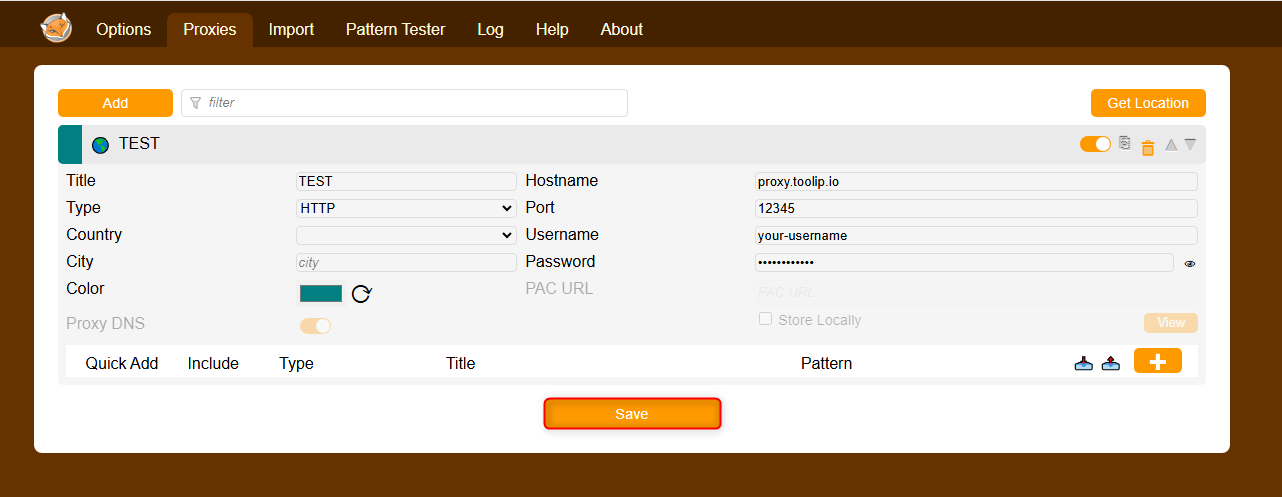
 1\. In the proxy setup form, enter your **Toolip proxy credentials**:
* **Type**: Select `HTTP`, `HTTPS`, or `SOCKS5` depending on your proxy type.
* **Hostname**: Enter `proxy.toolip.io`.
* **Port**: Use the port number from your [Toolip dashboard](https://toolip.io/dashboard/page/plans).
* **Username**: Enter your Toolip username.
* **Password**: Enter your Toolip password.
2\. Click **Save** to store your proxy configuration.
1\. In the proxy setup form, enter your **Toolip proxy credentials**:
* **Type**: Select `HTTP`, `HTTPS`, or `SOCKS5` depending on your proxy type.
* **Hostname**: Enter `proxy.toolip.io`.
* **Port**: Use the port number from your [Toolip dashboard](https://toolip.io/dashboard/page/plans).
* **Username**: Enter your Toolip username.
* **Password**: Enter your Toolip password.
2\. Click **Save** to store your proxy configuration.
 To use a proxy from a specific location, add the country code to your username (e.g., `your-username-country-US` for a US-based proxy).
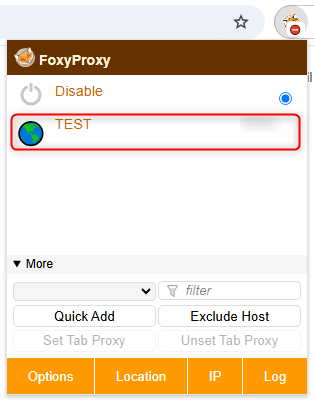
1\. Click the **FoxyProxy icon** in your toolbar.
2\. Select the proxy configuration you just created.
3\. Visit [httpbin.org/ip](http://httpbin.org/ip) to verify the connection. The displayed IP should match your Toolip proxy.
To use a proxy from a specific location, add the country code to your username (e.g., `your-username-country-US` for a US-based proxy).
1\. Click the **FoxyProxy icon** in your toolbar.
2\. Select the proxy configuration you just created.
3\. Visit [httpbin.org/ip](http://httpbin.org/ip) to verify the connection. The displayed IP should match your Toolip proxy.
 With **FoxyProxy and Toolip configured**, you're now set to enjoy secure, seamless browsing and efficient web operations. Whether you're conducting tests, scraping data, or enhancing privacy, this setup makes **proxy management effortless**. 🚀