> ## Documentation Index
> Fetch the complete documentation index at: https://docs.toolip.io/llms.txt
> Use this file to discover all available pages before exploring further.
# How to Set Up Toolip With DuoPlus
> Expand your digital reach with DuoPlus cloud phones, designed to enhance ads, short videos, and live sales for global monetization.
## What is DuoPlus?
**DuoPlus** is a cutting-edge cloud phone solution designed to support all major platforms, enabling businesses to scale their digital presence effortlessly. With global GPS positioning, a vast SIM card library, and real ARM chip phones, DuoPlus replicates real-world mobile conditions, ensuring high engagement and authenticity. Whether you're managing ad campaigns, social media growth, or live commerce, **Toolip together with DuoPlus** provides the tools needed to optimize performance and drive success on a global scale.
Prefer an enterprise-grade guide? Learn more about Oculus Proxies Duoplus Integration Guide.
Targeting search engines like Google, Bing, or Yandex requires a specialized proxy to ensure stable access and avoid blocks. **Toolip’s Search Engine ISP Proxies** are designed specifically for this, providing reliable performance where standard proxies may fail. If your proxy test isn't working on search engines, switching to **Search Engine ISP Proxies** can resolve the issue.
DuoPlus only supports SOCKS5 proxies!
## How to Integrate Toolip With DuoPlus
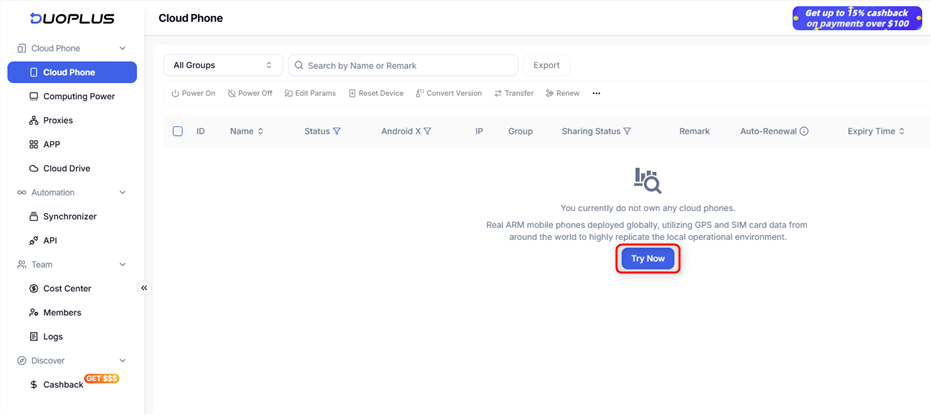
Go to your [DuoPlus dashboard](https://my.duoplus.net/?locale=en) and click **Try Now** to create a new Cloud Phone if you don’t have one.
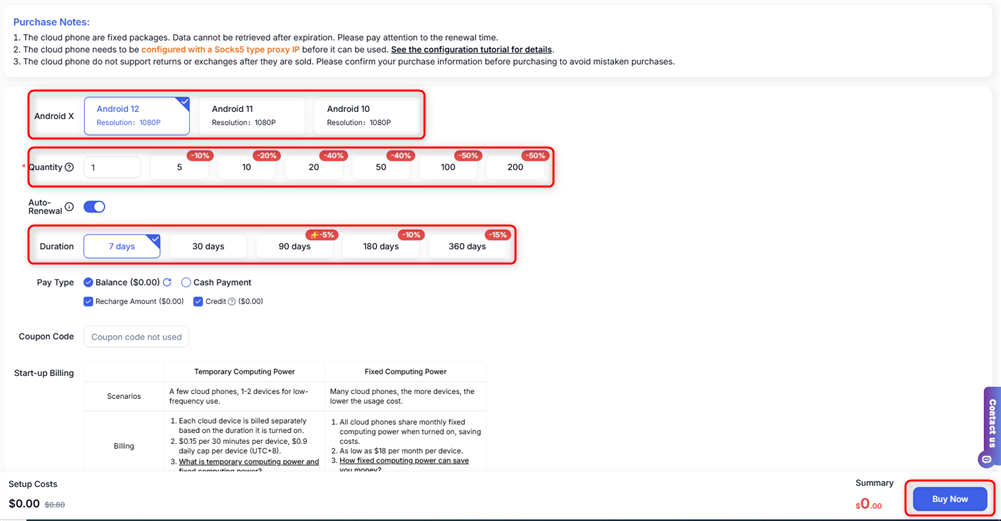
 In the Cloud Phone dashboard, choose your preferred **Android version**, **Quantity**, and **Duration**, then click **Buy Now**.
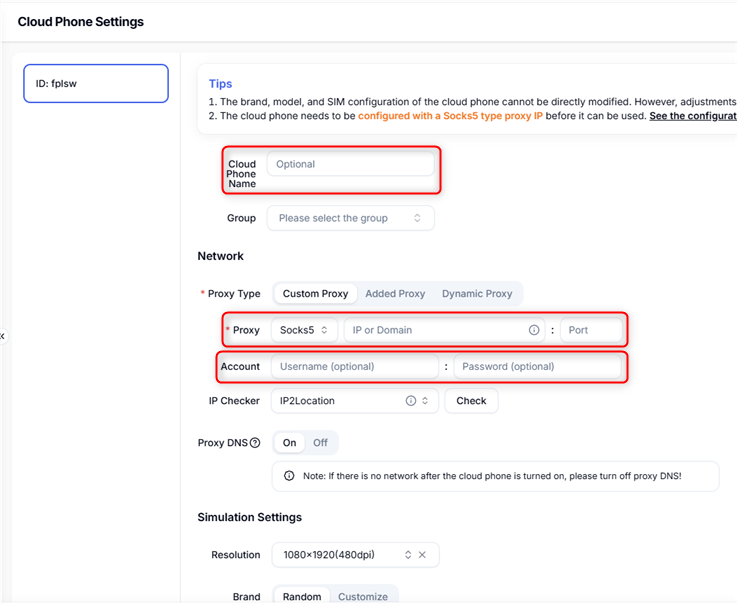
 * A configuration page will open. Enter a `name` for your Cloud Phone, scroll down to Network, and select **SOCKS5**.
* Input your proxy credentials: `Host`, `Port`, `Username`, and `Password`.
Reminder: DuoPlus only supports SOCKS5 proxies!
* A configuration page will open. Enter a `name` for your Cloud Phone, scroll down to Network, and select **SOCKS5**.
* Input your proxy credentials: `Host`, `Port`, `Username`, and `Password`.
Reminder: DuoPlus only supports SOCKS5 proxies!
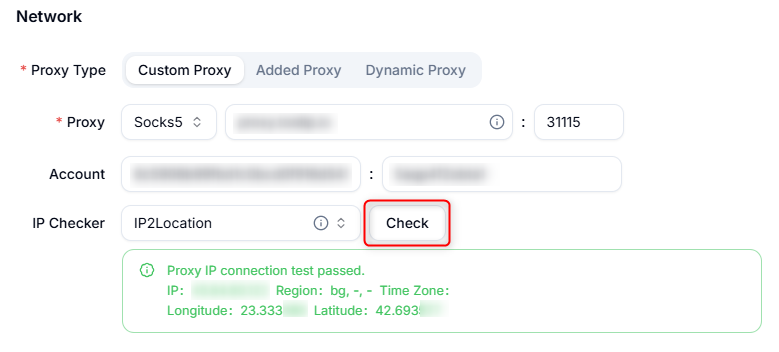
 Click the **Check button** to verify the proxy. If it’s working, a green tab will appear displaying the proxy details.
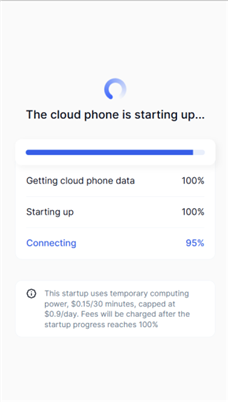
 Complete the configuration, return to the main dashboard, and click **Power On** to start your Cloud Phone.
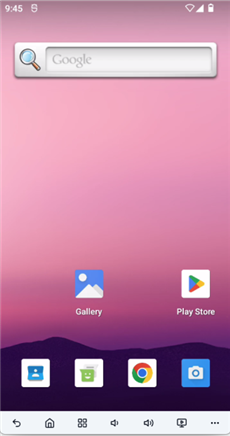
 The phone window will open automatically, allowing you to begin using it immediately.