> ## Documentation Index
> Fetch the complete documentation index at: https://docs.toolip.io/llms.txt
> Use this file to discover all available pages before exploring further.
# How to Set Up Toolip With Dolphin Anty
> Enhance your web scraping and multi-account management with Dolphin Anty and Toolip proxies. Enjoy secure, efficient data extraction and powerful anti-detection features.
 ## What is Dolphin Anty?
**Dolphin Anty** is an anti-detection browser designed for professionals who need to manage multiple accounts securely. It creates unique digital fingerprints for each profile—covering IP addresses, device types, and more—so platforms can’t link accounts to the same user. Perfect for marketers, social media managers, and e-commerce specialists, Dolphin Anty ensures safe and efficient workflows without the risk of account bans.
Prefer an enterprise-grade guide? Learn more about Oculus Proxies Dolphin Anty Integration Guide.
Targeting search engines like Google, Bing, or Yandex requires a specialized proxy to ensure stable access and avoid blocks. **Toolip’s Search Engine ISP Proxies** are designed specifically for this, providing reliable performance where standard proxies may fail. If your proxy test isn't working on search engines, switching to **Search Engine ISP Proxies** can resolve the issue.
## How to Integrate Toolip With Dolphin Anty
1\. Visit the [Dolphin Anty website](https://dolphin-anty.com/) and download the application.
2\. Install Dolphin Anty and launch it on your device.
3\. Sign up for a new account or log in if you already have one.
1\. Navigate to **All Profiles** and click **+ CREATE PROFILE** to set up a new browser environment.
## What is Dolphin Anty?
**Dolphin Anty** is an anti-detection browser designed for professionals who need to manage multiple accounts securely. It creates unique digital fingerprints for each profile—covering IP addresses, device types, and more—so platforms can’t link accounts to the same user. Perfect for marketers, social media managers, and e-commerce specialists, Dolphin Anty ensures safe and efficient workflows without the risk of account bans.
Prefer an enterprise-grade guide? Learn more about Oculus Proxies Dolphin Anty Integration Guide.
Targeting search engines like Google, Bing, or Yandex requires a specialized proxy to ensure stable access and avoid blocks. **Toolip’s Search Engine ISP Proxies** are designed specifically for this, providing reliable performance where standard proxies may fail. If your proxy test isn't working on search engines, switching to **Search Engine ISP Proxies** can resolve the issue.
## How to Integrate Toolip With Dolphin Anty
1\. Visit the [Dolphin Anty website](https://dolphin-anty.com/) and download the application.
2\. Install Dolphin Anty and launch it on your device.
3\. Sign up for a new account or log in if you already have one.
1\. Navigate to **All Profiles** and click **+ CREATE PROFILE** to set up a new browser environment.
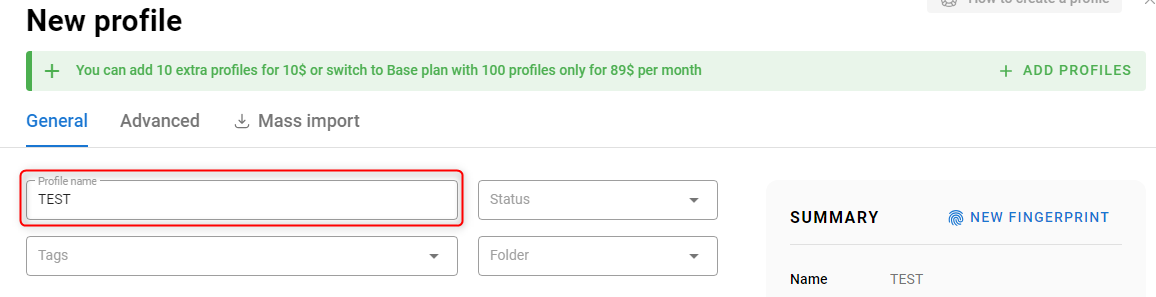
 2\. Fill in the required fields, such as profile name and device type, to customize your browser profile.
 1\. Scroll down to the **New Proxy** section in the profile setup window.
2\. Open your [Toolip dashboard](https://toolip.io/dashboard/page/plans).
3\. Click **Show Configured List** and copy the proxy details under the **Generic** tab.
4\. Paste the copied proxy code into the **Proxy** field in Dolphin Anty.
5\. Click **⮂ Test Connection** to verify that the proxy is working.
6\. Once the test is successful, click **CREATE PROFILE** to save your settings and finalize the proxy configuration.
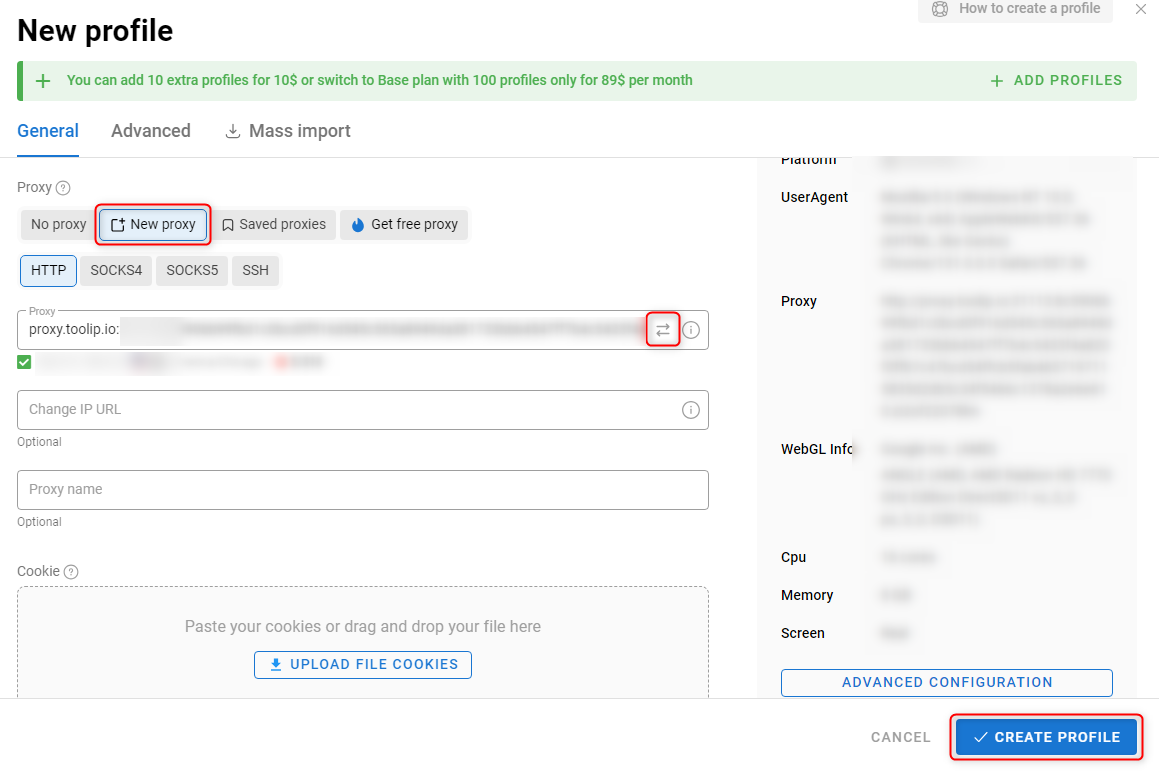
1\. Scroll down to the **New Proxy** section in the profile setup window.
2\. Open your [Toolip dashboard](https://toolip.io/dashboard/page/plans).
3\. Click **Show Configured List** and copy the proxy details under the **Generic** tab.
4\. Paste the copied proxy code into the **Proxy** field in Dolphin Anty.
5\. Click **⮂ Test Connection** to verify that the proxy is working.
6\. Once the test is successful, click **CREATE PROFILE** to save your settings and finalize the proxy configuration.
 **For country-specific proxies, format your username as `your-username-country-US` to route traffic through a specific location.**
1\. Launch the browser profile by clicking **Start**.
2\. Once the browser opens, visit [http://httpbin.org/ip](http://httpbin.org/ip).
3\. Confirm that the displayed IP matches your Toolip proxy, verifying that the integration is working correctly.
**For country-specific proxies, format your username as `your-username-country-US` to route traffic through a specific location.**
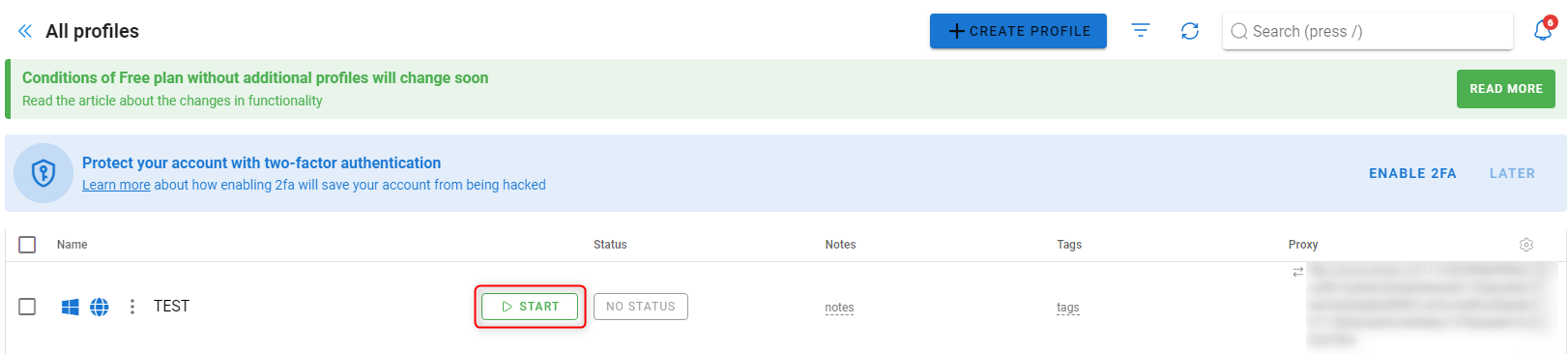
1\. Launch the browser profile by clicking **Start**.
2\. Once the browser opens, visit [http://httpbin.org/ip](http://httpbin.org/ip).
3\. Confirm that the displayed IP matches your Toolip proxy, verifying that the integration is working correctly.
 By integrating **Toolip** with **Dolphin Anty**, you can securely manage multiple accounts, run marketing campaigns, and perform automation tasks with complete anonymity. 🚀