> ## Documentation Index
> Fetch the complete documentation index at: https://docs.toolip.io/llms.txt
> Use this file to discover all available pages before exploring further.
# How to Set Up Toolip With ChangeDetection
> Monitor websites securely and anonymously with ChangeDetection and Toolip. By integrating Toolip, you can track website updates while ensuring your activities remain private and undetectable.
 ## What is ChangeDetection?
**ChangeDetection** is a powerful tool for monitoring website updates in real time. Whether you're tracking **competitor websites, product availability, or price changes**, this tool ensures you're always informed. By integrating **Toolip**, you can monitor websites **anonymously, bypass geo-restrictions, and prevent detection**.
Prefer an enterprise-grade guide? Learn more about Oculus Proxies Changedetection Integration Guide.
Targeting search engines like Google, Bing, or Yandex requires a specialized proxy to ensure stable access and avoid blocks. **Toolip’s Search Engine ISP Proxies** are designed specifically for this, providing reliable performance where standard proxies may fail. If your proxy test isn’t working on search engines, switching to **Search Engine ISP Proxies** can resolve the issue.
## How to Integrate Toolip With ChangeDetection
1\. Visit the [ChangeDetection website](https://changedetection.io/) and **sign up** for an account.
2\. Log in to access the **dashboard**, where you’ll configure your proxy settings.
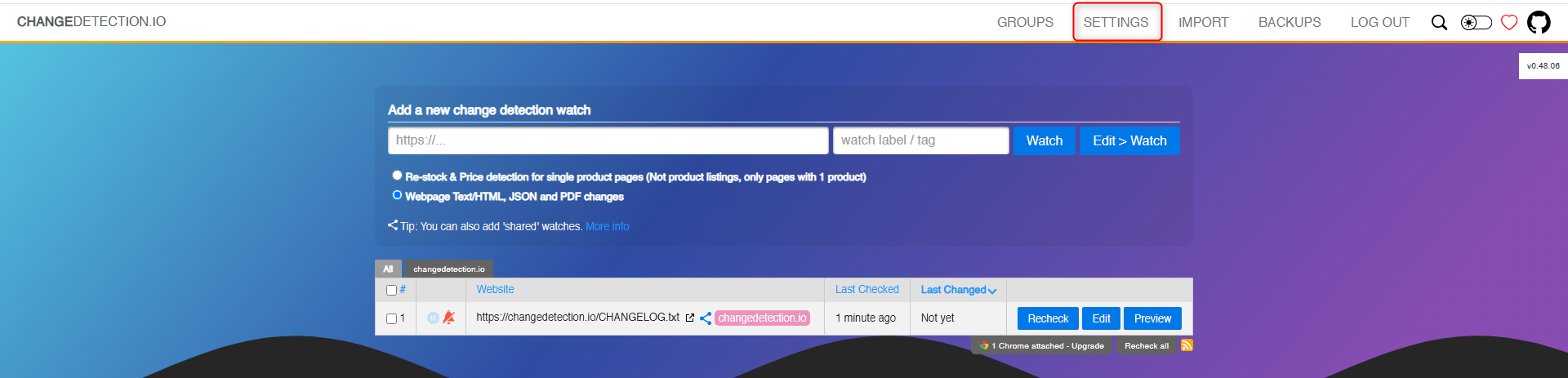
1\. From the **ChangeDetection dashboard**, go to **Settings**.
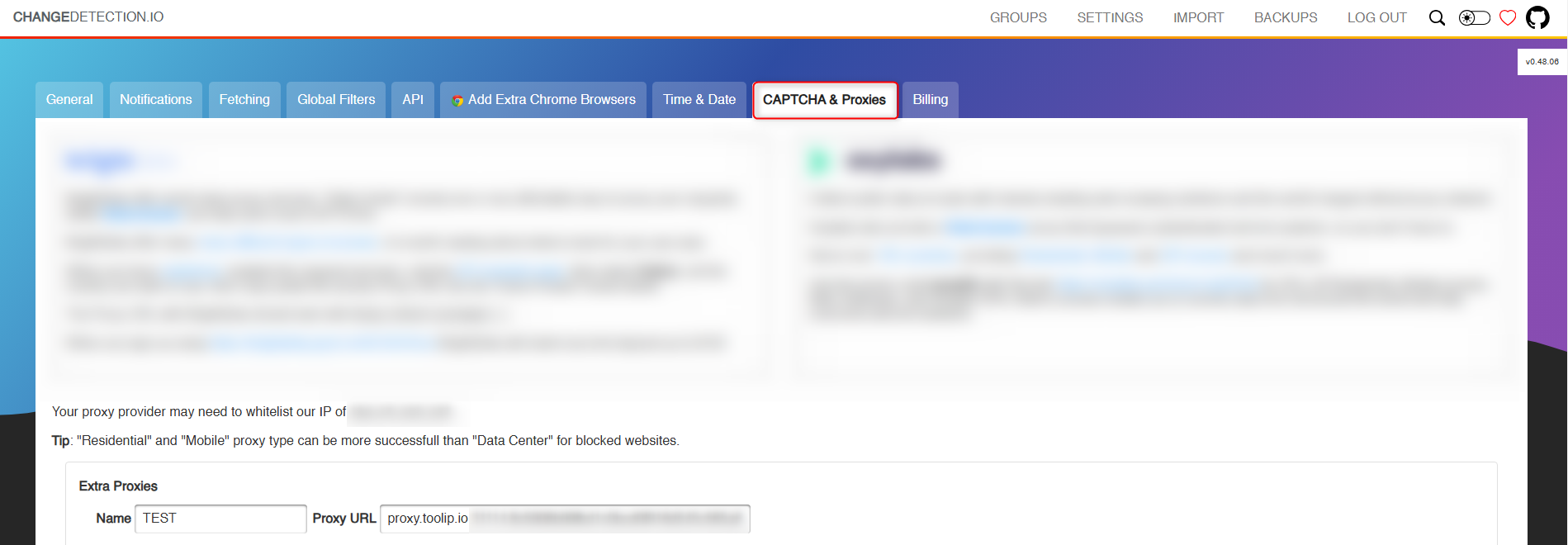
2\. Navigate to the **CAPTCHA & Proxies** section to open the proxy configuration panel.
## What is ChangeDetection?
**ChangeDetection** is a powerful tool for monitoring website updates in real time. Whether you're tracking **competitor websites, product availability, or price changes**, this tool ensures you're always informed. By integrating **Toolip**, you can monitor websites **anonymously, bypass geo-restrictions, and prevent detection**.
Prefer an enterprise-grade guide? Learn more about Oculus Proxies Changedetection Integration Guide.
Targeting search engines like Google, Bing, or Yandex requires a specialized proxy to ensure stable access and avoid blocks. **Toolip’s Search Engine ISP Proxies** are designed specifically for this, providing reliable performance where standard proxies may fail. If your proxy test isn’t working on search engines, switching to **Search Engine ISP Proxies** can resolve the issue.
## How to Integrate Toolip With ChangeDetection
1\. Visit the [ChangeDetection website](https://changedetection.io/) and **sign up** for an account.
2\. Log in to access the **dashboard**, where you’ll configure your proxy settings.
1\. From the **ChangeDetection dashboard**, go to **Settings**.
2\. Navigate to the **CAPTCHA & Proxies** section to open the proxy configuration panel.
 1\. In the **Proxy Configuration** section, fill in the required fields:
* **Name**: Enter a recognizable name, e.g., **Toolip Proxy**.
* **Proxy URL**: Format your proxy details as:
```
protocol://username:password@proxy.toolip.io:port
```
2\. Retrieve your proxy details from your [Toolip dashboard](https://toolip.io/dashboard/page/plans):
* Click **Show Configured List**.
* Copy the proxy details under the **Generic** tab.
3\. Paste the copied proxy details into the **Proxy URL** field.
4\. Click **Save** to apply the changes.
1\. In the **Proxy Configuration** section, fill in the required fields:
* **Name**: Enter a recognizable name, e.g., **Toolip Proxy**.
* **Proxy URL**: Format your proxy details as:
```
protocol://username:password@proxy.toolip.io:port
```
2\. Retrieve your proxy details from your [Toolip dashboard](https://toolip.io/dashboard/page/plans):
* Click **Show Configured List**.
* Copy the proxy details under the **Generic** tab.
3\. Paste the copied proxy details into the **Proxy URL** field.
4\. Click **Save** to apply the changes.
 **For geo-targeted proxies**, append the country code to your username:\
`your-username-country-US` for a **US-based** proxy.
1\. Return to the **General** settings tab.
2\. Scroll down to the proxy selection area.
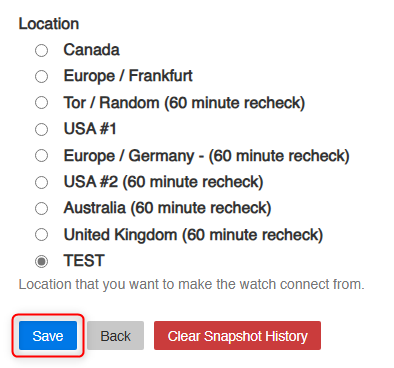
3\. Assign your newly added **Toolip proxy** to the monitoring tasks.
4\. Click **Save** to apply the settings.
**For geo-targeted proxies**, append the country code to your username:\
`your-username-country-US` for a **US-based** proxy.
1\. Return to the **General** settings tab.
2\. Scroll down to the proxy selection area.
3\. Assign your newly added **Toolip proxy** to the monitoring tasks.
4\. Click **Save** to apply the settings.
 1\. Set up your website monitoring tasks in ChangeDetection as usual.
2\. Your requests will now go through **Toolip**, ensuring **privacy, security, and seamless tracking**.
By integrating **Toolip** with **ChangeDetection**, you can monitor websites **without exposing your identity**. Whether for **competitor tracking, price monitoring, or content updates**, Toolip ensures **undetectable and reliable** browsing. 🚀
1\. Set up your website monitoring tasks in ChangeDetection as usual.
2\. Your requests will now go through **Toolip**, ensuring **privacy, security, and seamless tracking**.
By integrating **Toolip** with **ChangeDetection**, you can monitor websites **without exposing your identity**. Whether for **competitor tracking, price monitoring, or content updates**, Toolip ensures **undetectable and reliable** browsing. 🚀