> ## Documentation Index
> Fetch the complete documentation index at: https://docs.toolip.io/llms.txt
> Use this file to discover all available pages before exploring further.
# How to Set Up Toolip with Brave Browser
> Enhance your privacy and security while browsing with Brave by integrating Toolip. This guide will walk you through configuring proxies to mask your IP, bypass geo-restrictions, and prevent online tracking.
 ## What is Brave Browser?
**Brave Browser** is a privacy-focused web browser that blocks ads, trackers, and fingerprinting attempts by default. With its **Shields** feature, Brave provides a secure browsing experience while allowing users to customize their privacy settings.
By combining **Brave Browser with Toolip**, you gain an extra layer of anonymity, unrestricted access to geo-blocked content, and improved security. This setup ensures a **private, ad-free, and seamless** browsing experience.
Prefer an enterprise-grade guide? Learn more about Oculus Proxies Brave Browser Integration Guide.
Targeting search engines like Google, Bing, or Yandex requires a specialized proxy to ensure stable access and avoid blocks. **Toolip’s Search Engine ISP Proxies** are designed specifically for this, providing reliable performance where standard proxies may fail. If your proxy test isn’t working on search engines, switching to **Search Engine ISP Proxies** can resolve the issue.
## How to Integrate Toolip with Brave Browser
1\. Download and install [Brave Browser](https://brave.com/) on your device.
2\. Launch Brave once the installation is complete.
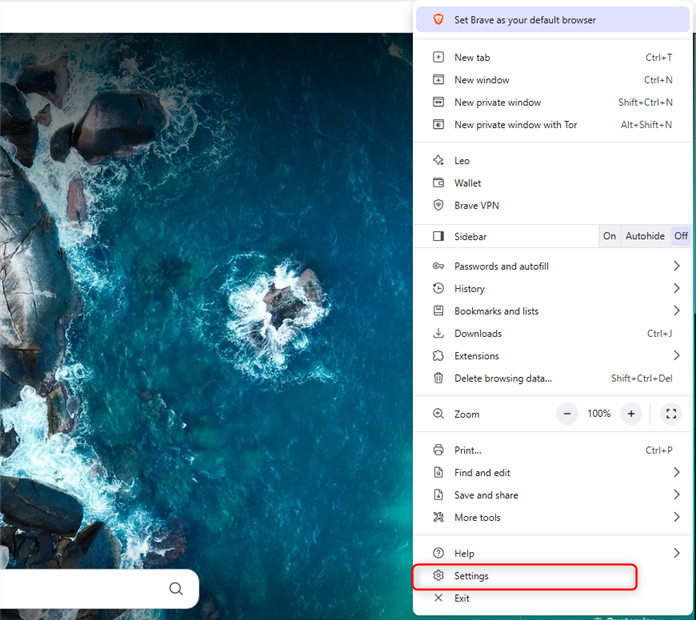
1\. Open Brave.
2\. Click the **three-dot menu** in the top-right corner.
3\. Select **Settings**.
## What is Brave Browser?
**Brave Browser** is a privacy-focused web browser that blocks ads, trackers, and fingerprinting attempts by default. With its **Shields** feature, Brave provides a secure browsing experience while allowing users to customize their privacy settings.
By combining **Brave Browser with Toolip**, you gain an extra layer of anonymity, unrestricted access to geo-blocked content, and improved security. This setup ensures a **private, ad-free, and seamless** browsing experience.
Prefer an enterprise-grade guide? Learn more about Oculus Proxies Brave Browser Integration Guide.
Targeting search engines like Google, Bing, or Yandex requires a specialized proxy to ensure stable access and avoid blocks. **Toolip’s Search Engine ISP Proxies** are designed specifically for this, providing reliable performance where standard proxies may fail. If your proxy test isn’t working on search engines, switching to **Search Engine ISP Proxies** can resolve the issue.
## How to Integrate Toolip with Brave Browser
1\. Download and install [Brave Browser](https://brave.com/) on your device.
2\. Launch Brave once the installation is complete.
1\. Open Brave.
2\. Click the **three-dot menu** in the top-right corner.
3\. Select **Settings**.
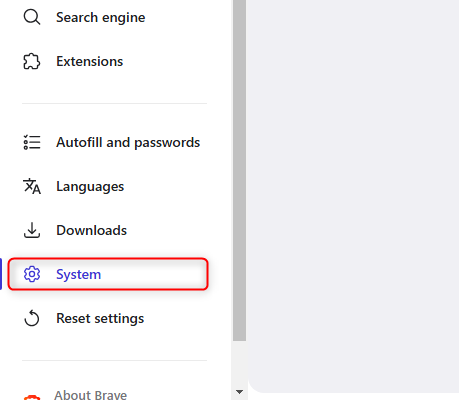
 1\. In the left sidebar, click **System**.
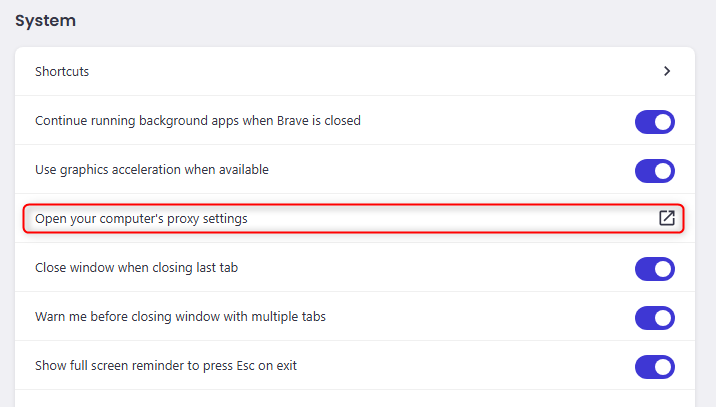
 2\. Scroll down and find **Open your computer’s proxy settings**.
 Brave uses your system-wide proxy settings, so you'll need to configure your proxies at the OS level. Follow the detailed setup guide based on your operating system:
Follow the complete [Windows proxy setup guide](https://docs.toolip.io/integration-guides/windows) to configure Toolip proxies on your system.
Follow the detailed [macOS proxy setup guide](https://docs.toolip.io/integration-guides/macos) to apply Toolip proxies to your network settings.
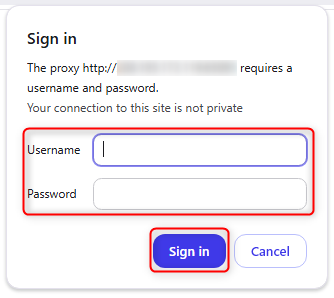
1\. Open Brave and visit any website.
2\. A pop-up will appear requesting authentication.
3\. Enter your **Toolip Username** and **Password**.
4\. Click **Sign in**.
Brave uses your system-wide proxy settings, so you'll need to configure your proxies at the OS level. Follow the detailed setup guide based on your operating system:
Follow the complete [Windows proxy setup guide](https://docs.toolip.io/integration-guides/windows) to configure Toolip proxies on your system.
Follow the detailed [macOS proxy setup guide](https://docs.toolip.io/integration-guides/macos) to apply Toolip proxies to your network settings.
1\. Open Brave and visit any website.
2\. A pop-up will appear requesting authentication.
3\. Enter your **Toolip Username** and **Password**.
4\. Click **Sign in**.
 With **Toolip** successfully set up in **Brave**, you can now enjoy **secure, private, and unrestricted browsing** while keeping your online activity anonymous. 🚀