> ## Documentation Index
> Fetch the complete documentation index at: https://docs.toolip.io/llms.txt
> Use this file to discover all available pages before exploring further.
# How to Use Toolip with Awesome Traffic Bot
> Boost your traffic campaigns with Awesome Traffic Bot & Toolip for secure, anonymous, and uninterrupted automation. Easily send high-quality traffic to search engines, listings, or custom URLs while avoiding detection.
## What is Awesome Traffic Bot?
**Awesome Traffic Bot** is a powerful and versatile traffic automation tool designed to increase keyword CTR and drive traffic across browsing platforms. With built-in IP rotation and support for all traffic types—organic, referral, and direct—it offers unmatched flexibility. When paired with **Toolip**, you can fully leverage its capabilities on Windows servers, ensuring secure, geo-targeted traffic delivery with full control over your campaigns.
Prefer an enterprise-grade guide? Learn more about Oculus Proxies Awesome Traffic Bot Integration Guide.
Targeting search engines like **Google, Bing, or Yandex** requires a specialized proxy to ensure stable access and avoid blocks. **Toolip’s Search Engine ISP Proxies** are designed specifically for this, providing reliable performance where standard proxies may fail. If your proxy test isn't working on search engines, switching to **Search Engine ISP Proxies** can resolve the issue.
## How to Integrate Toolip with Awesome Traffic Bot
[Download](https://dalga.dev/product/awesome-traffic-bot/) Awesome Traffic Bot.
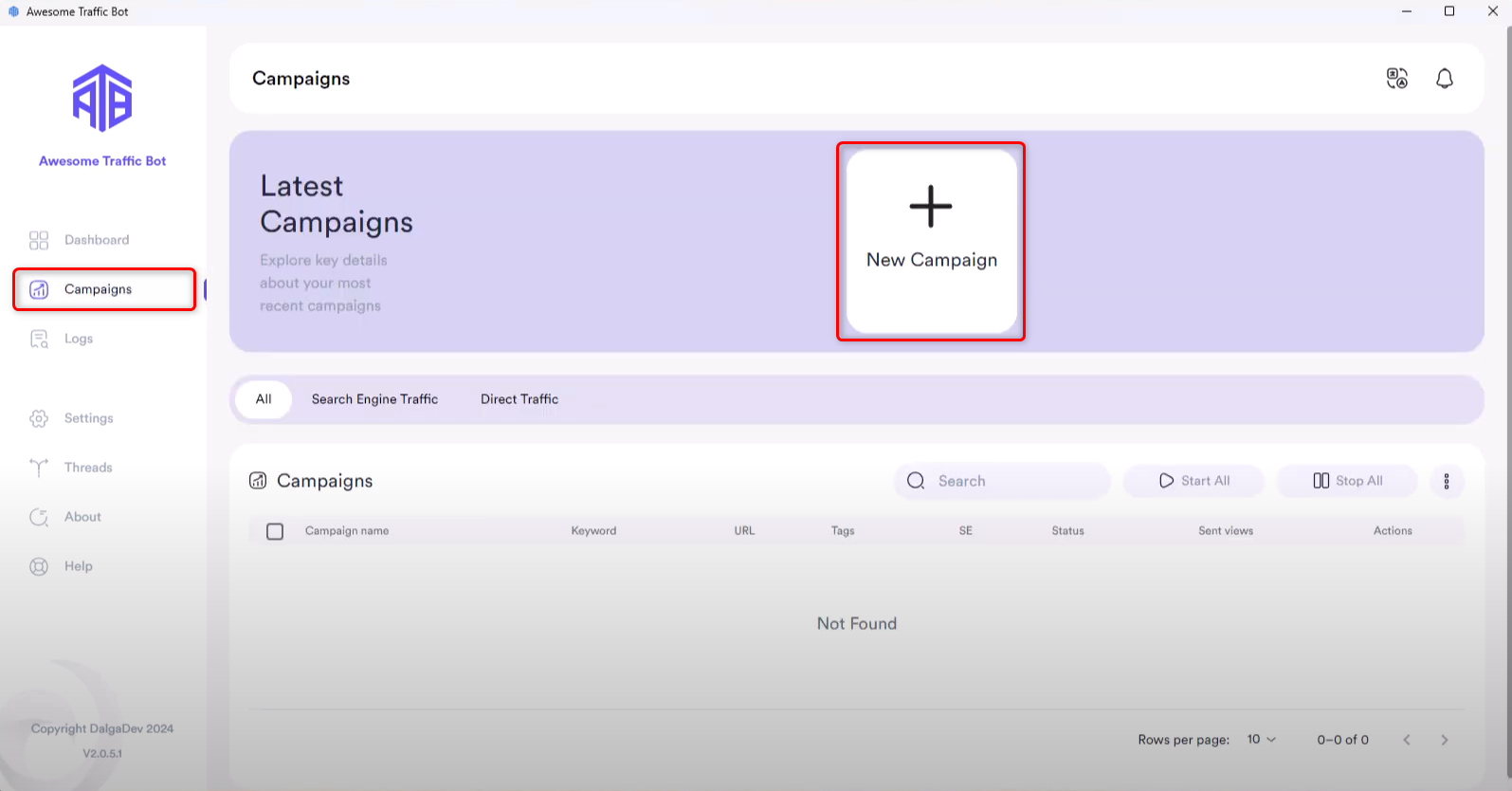
Open the app, navigate to the **Campaigns** section, and click **New Campaign**.
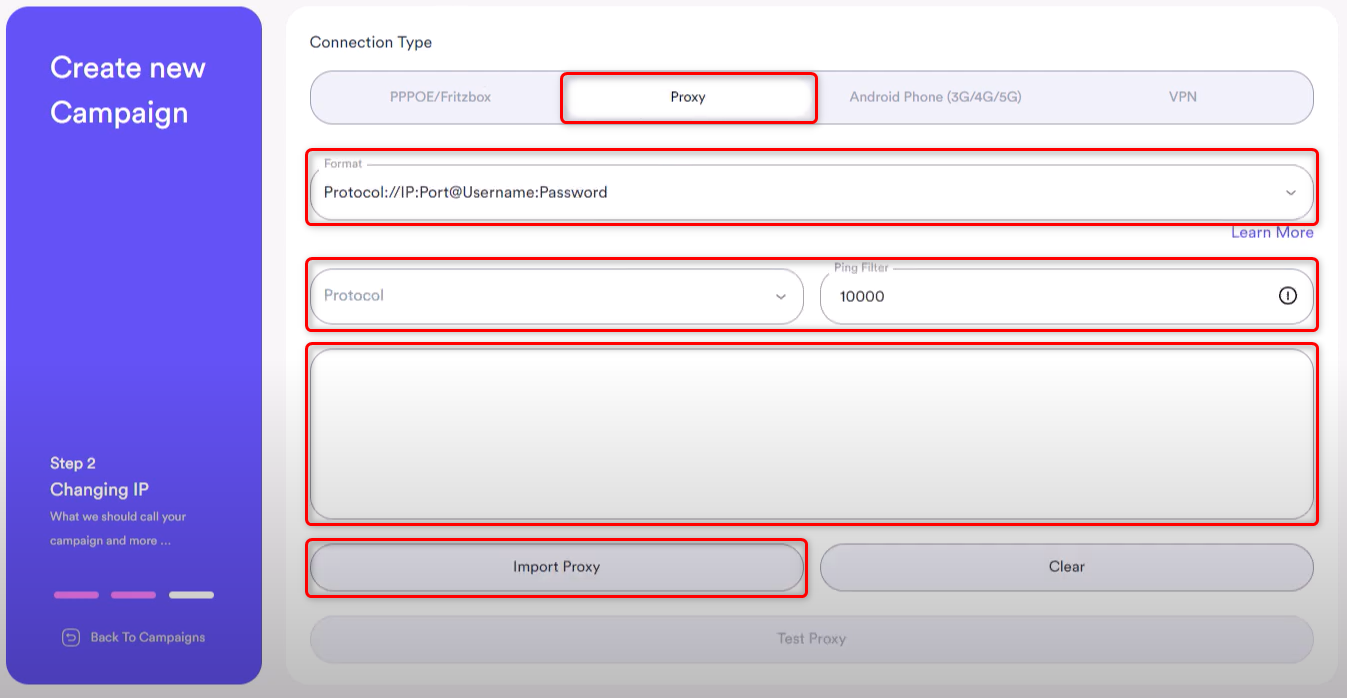
 1. After naming your campaign, set Connection Type to **Proxy**.
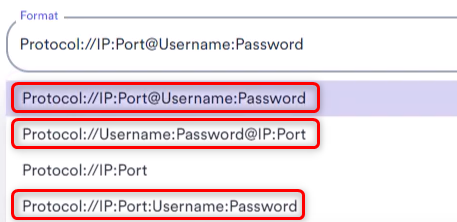
2. Select your desired Proxy `Format`, `Protocol`, and `Ping Filter`.
Toolip requires **authentication**, make sure to choose a filter that uses a Username and a Password
3. You can either paste a single proxy into the textbox or upload multiple proxies using the **Import Proxy** button with a `.txt` file.
1. After naming your campaign, set Connection Type to **Proxy**.
2. Select your desired Proxy `Format`, `Protocol`, and `Ping Filter`.
Toolip requires **authentication**, make sure to choose a filter that uses a Username and a Password
3. You can either paste a single proxy into the textbox or upload multiple proxies using the **Import Proxy** button with a `.txt` file.
 Click **Test Proxy** to verify the functionality of the imported proxies.
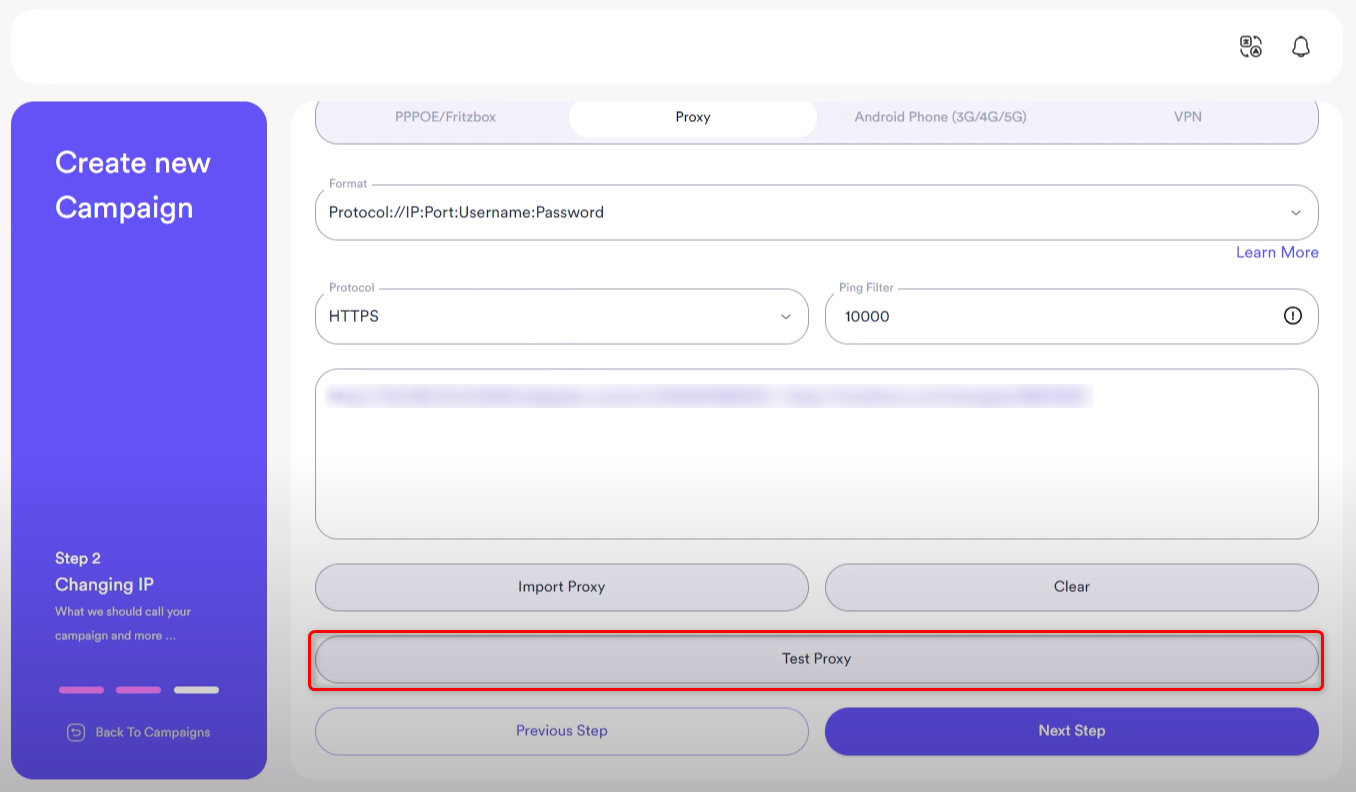 A results window will appear, indicating whether each proxy is valid and ready for use.
