> ## Documentation Index
> Fetch the complete documentation index at: https://docs.toolip.io/llms.txt
> Use this file to discover all available pages before exploring further.
# How to Set Up Toolip With AEZAKMI
> Enhance your anonymity and streamline your online tasks with Toolip in AEZAKMI. Follow this guide to configure secure and reliable proxy connections for your browser profiles.
 ## What is AEZAKMI?
**AEZAKMI** is a browser automation tool designed for marketers, researchers, and developers who require multiple browser profiles with unique configurations. With **Toolip**, you can ensure secure, anonymous, and location-targeted browsing while avoiding IP bans and tracking.
Prefer an enterprise-grade guide? Learn more about Oculus Proxies Aezakmi Integration Guide.
Targeting search engines like **Google, Bing, or Yandex** requires a specialized proxy to ensure stable access and avoid blocks. **Toolip’s Search Engine ISP Proxies** are designed specifically for this, providing reliable performance where standard proxies may fail. If your proxy test isn't working on search engines, switching to **Search Engine ISP Proxies** can resolve the issue.
## How to Integrate Toolip With AEZAKMI
1\. Download and install **AEZAKMI** from the [official website](https://aezakmi.run/).
2\. Open the application and log in with your account credentials.
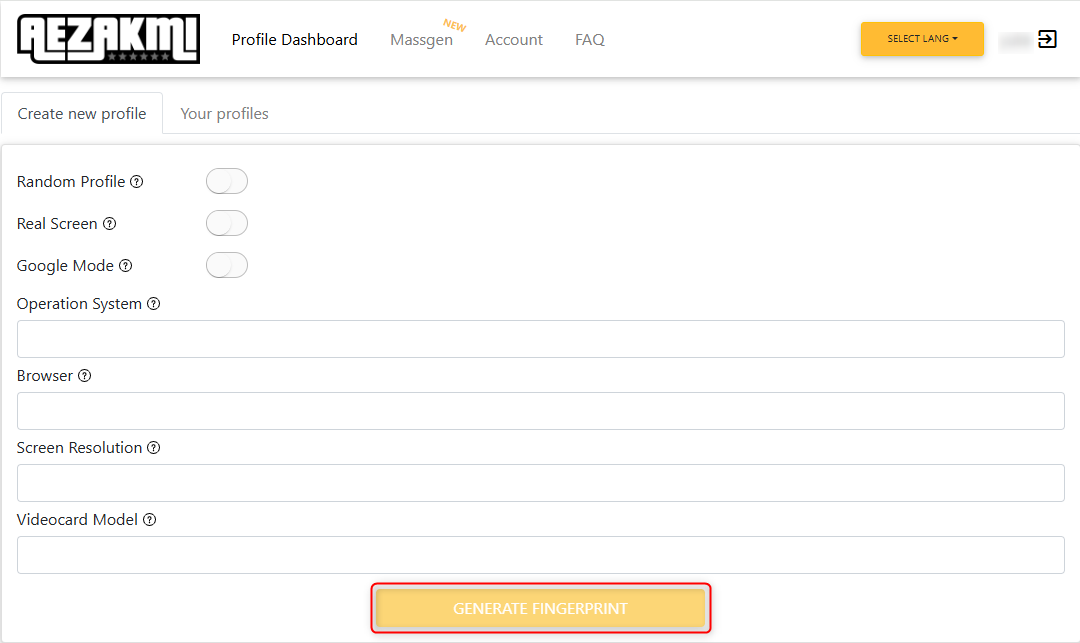
1\. Navigate to your [dashboard](https://account.aezakmi.run/#/dashboard) or click **Create New Profile** in the **AEZAKMI Extension**.
2\. Configure your profile by selecting parameters such as:
* **Operating System**
* **Browser**
* **Screen Resolution**
* **Videocard Model**
3\. Click **Generate Fingerprint** to create a unique browser fingerprint profile tailored to your setup.
## What is AEZAKMI?
**AEZAKMI** is a browser automation tool designed for marketers, researchers, and developers who require multiple browser profiles with unique configurations. With **Toolip**, you can ensure secure, anonymous, and location-targeted browsing while avoiding IP bans and tracking.
Prefer an enterprise-grade guide? Learn more about Oculus Proxies Aezakmi Integration Guide.
Targeting search engines like **Google, Bing, or Yandex** requires a specialized proxy to ensure stable access and avoid blocks. **Toolip’s Search Engine ISP Proxies** are designed specifically for this, providing reliable performance where standard proxies may fail. If your proxy test isn't working on search engines, switching to **Search Engine ISP Proxies** can resolve the issue.
## How to Integrate Toolip With AEZAKMI
1\. Download and install **AEZAKMI** from the [official website](https://aezakmi.run/).
2\. Open the application and log in with your account credentials.
1\. Navigate to your [dashboard](https://account.aezakmi.run/#/dashboard) or click **Create New Profile** in the **AEZAKMI Extension**.
2\. Configure your profile by selecting parameters such as:
* **Operating System**
* **Browser**
* **Screen Resolution**
* **Videocard Model**
3\. Click **Generate Fingerprint** to create a unique browser fingerprint profile tailored to your setup.
 1\. In the profile setup screen, enter a descriptive name in the **Profile Name** field to easily identify the profile later.
2\. Toggle **Enable Proxy** to *On* to activate the proxy configuration options.
1\. In the profile setup screen, enter a descriptive name in the **Profile Name** field to easily identify the profile later.
2\. Toggle **Enable Proxy** to *On* to activate the proxy configuration options.
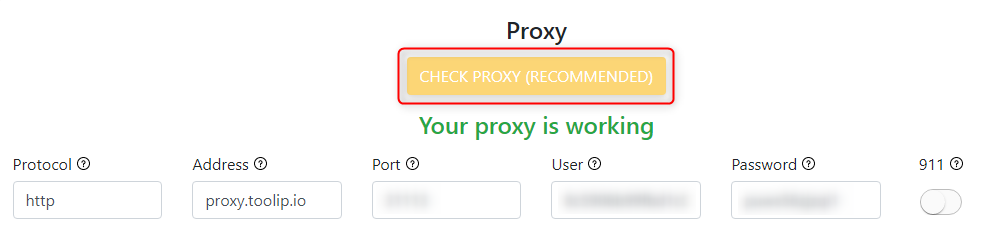
 1\. Under the proxy settings section, enter your **Toolip proxy** details:
* **Protocol**: Choose `HTTP`, `HTTPS`, or `SOCKS5` based on your proxy type.
* **Address**: Enter `proxy.toolip.io`.
* **Port**: Use the port number provided in your [Toolip dashboard](https://toolip.io/dashboard).
* **User**: Input your **Toolip username**.
* **Password**: Input your **Toolip password**.
2\. Click **Check Proxy** to verify your connection. Ensure the test completes successfully.
1\. Under the proxy settings section, enter your **Toolip proxy** details:
* **Protocol**: Choose `HTTP`, `HTTPS`, or `SOCKS5` based on your proxy type.
* **Address**: Enter `proxy.toolip.io`.
* **Port**: Use the port number provided in your [Toolip dashboard](https://toolip.io/dashboard).
* **User**: Input your **Toolip username**.
* **Password**: Input your **Toolip password**.
2\. Click **Check Proxy** to verify your connection. Ensure the test completes successfully.
 For geo-targeted proxies, include the country code in the username, formatted as `your-username-country-XX` (e.g., `your-username-country-US`).
1\. Once your proxy details are verified, click **Save Fingerprint** to apply the settings and save the profile.
2\. Open the profile to start browsing with your **Toolip proxy** securely.
By integrating **Toolip** with **AEZAKMI**, you can unlock a secure and efficient browsing experience. Whether managing multiple accounts, scraping data, or accessing geo-restricted content, **Toolip** ensures privacy, reliability, and performance. Get started today to maximize your productivity!
For geo-targeted proxies, include the country code in the username, formatted as `your-username-country-XX` (e.g., `your-username-country-US`).
1\. Once your proxy details are verified, click **Save Fingerprint** to apply the settings and save the profile.
2\. Open the profile to start browsing with your **Toolip proxy** securely.
By integrating **Toolip** with **AEZAKMI**, you can unlock a secure and efficient browsing experience. Whether managing multiple accounts, scraping data, or accessing geo-restricted content, **Toolip** ensures privacy, reliability, and performance. Get started today to maximize your productivity!